If you’ve been looking for a rack-mounted Blackmagic Design live switching and recording setup that works equally well as a studio production system and a portable live event rig, this article covers exactly that. I’ve been running this setup for multicam YouTube production and live client events, and it’s the most capable and frictionless production workflow I’ve ever had.
Below I’ll walk through every component in the rack, explain how everything connects, cover the cost reality, and give you honest guidance on where you can simplify the build if you don’t need every feature. This isn’t a spec sheet — it’s how this equipment actually performs in real professional use.
Quick Reference: What This Setup Does
This section is designed for quick scanning. Full details on each component follow below.
- Switches: ATEM 2 M/E Constellation 4K handles all camera switching, picture-in-picture, and signal routing.
- Records (main output): HyperDeck Studio 4K Pro captures the fully-switched 4K feed to dual SSDs simultaneously.
- Records (ISO feeds): Four HyperDeck Studio HD Plus units record a clean uninterrupted feed from each individual camera.
- Streams live: Blackmagic Web Presenter 4K encodes and pushes the live signal to any streaming platform without relying on a laptop.
- Converts Mac output: Teranex Mini HDMI to SDI 12G feeds the Mac Mini’s display into the constellation as a switchable source.
- Networks everything: Ubiquiti UniFi Express 7 Gateway + 16-port PoE switch give every device a static local IP regardless of venue.
- Controlled by: Elgato Stream Deck Pedal via Bitfocus Companion in the studio; ATEM Software Control on Mac Mini for events.
- Housed in: Gator G-PRO-8U-19 8-space portable rack case — covers on, cameras disconnected, and it’s ready to travel.
- Cost: This full build came in between $10,000 and $15,000. A simplified version without the ISO HyperDecks, Mac Mini, and in a 6U case can reduce cost significantly. See build variations below.
Why I Built This
My previous setup was an ATEM Mini Extreme switcher on the desk, controlled by a foot pedal. It worked, but it had a hard ceiling: 1080p maximum output. That meant every client deliverable was 1080 or I was pulling cards from cameras and editing multicam in post — which defeats the purpose of live switching entirely.
What I wanted was a system that could deliver a fully-switched 4K output in real time, record clean ISO feeds from every camera simultaneously, handle live streaming from dedicated hardware, and pack into a single portable case. The Blackmagic ecosystem built around the ATEM Constellation made that possible. Everything else in the rack exists to support those four goals.
Build Variations: Full vs. Simplified
This is the full build — and it’s genuinely more than most people need. Before walking through every component, here’s an honest breakdown of where you can simplify without losing the core functionality.
Full Build (This Setup) — $10,000–$15,000
Includes ATEM Constellation 4K, HyperDeck Studio 4K Pro, four HyperDeck Studio HD Plus units for ISO recording, Blackmagic Web Presenter 4K, Teranex Mini, onboard Mac Mini M4, Ubiquiti networking, and all cabling in an 8U Gator rack case. This is the right build if you’re doing regular live event production where individual ISO camera feeds are a client deliverable, or where you need a fully self-contained system with no external laptop required.
Simplified Build — Significant Savings
If you don’t need clean ISO feeds from each camera, you can eliminate all four HyperDeck Studio HD Plus units and simply record directly to Samsung T7 SSDs in the cameras themselves. The ATEM Constellation still captures the fully-switched 4K output via the HyperDeck Studio 4K Pro — you just lose the individual rack-recorded camera feeds. The cameras can record to their own media while the rack handles the switched output.
You can also drop the onboard Mac Mini and use a laptop you already own. A USB-C cable from the back of the ATEM Constellation connects directly to a laptop for software control, or connect the laptop to the same internal network. Either way, ATEM Software Control and Bitfocus Companion run fine on an external laptop — the Mac Mini just makes the system self-contained.
Removing the four HD Plus HyperDecks also opens up rack space, meaning you could potentially move to a 6U case instead of the 8U Gator — which is both lighter and less expensive. For a studio-only setup, that trade-off is entirely reasonable.
Note on current pricing: Tariffs have affected pricing on some of these components since this build was completed. Prices shown by retailers may be higher than what I paid. Factor in a buffer when budgeting, particularly on the Blackmagic and Ubiquiti gear.
The Rack Case
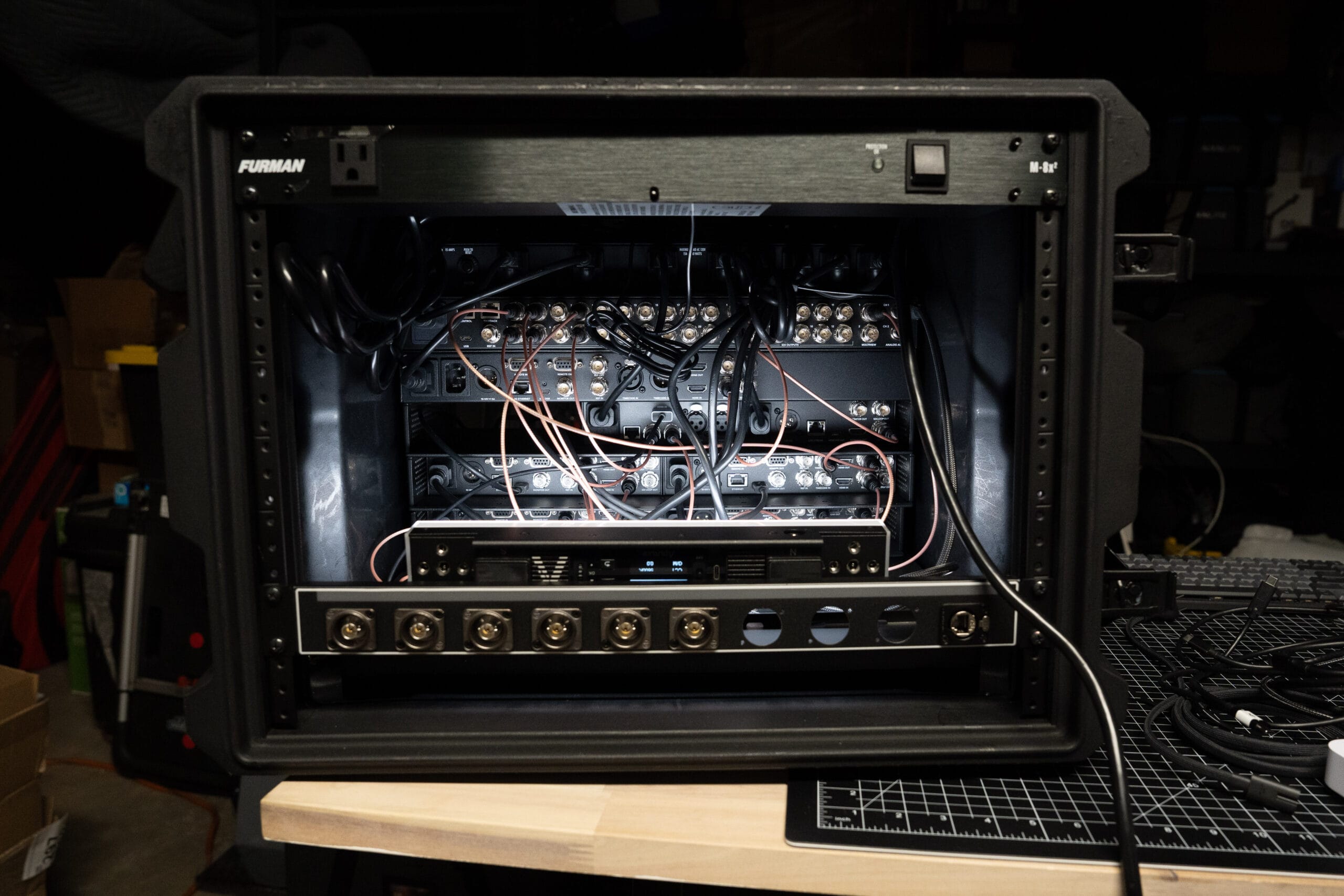
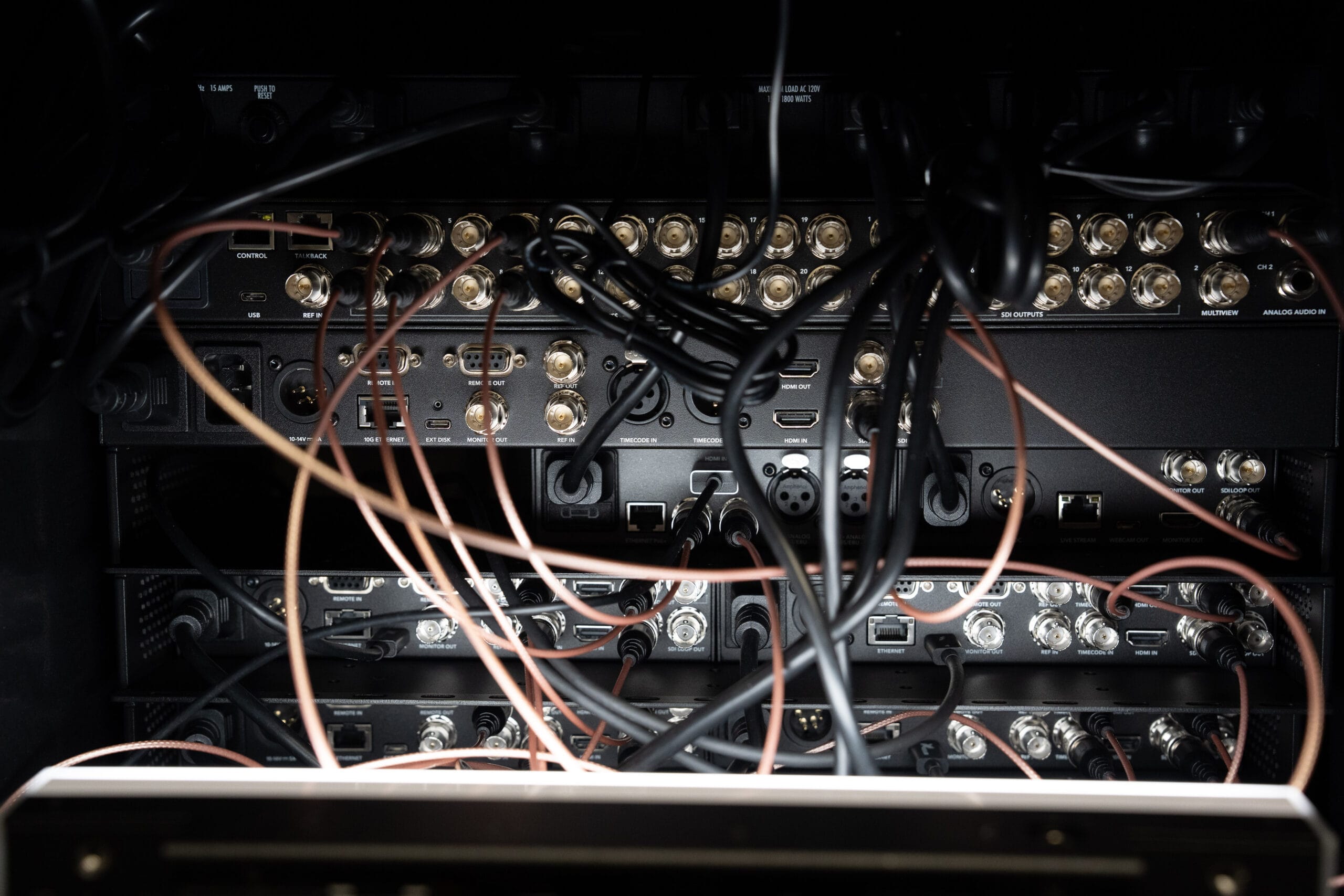
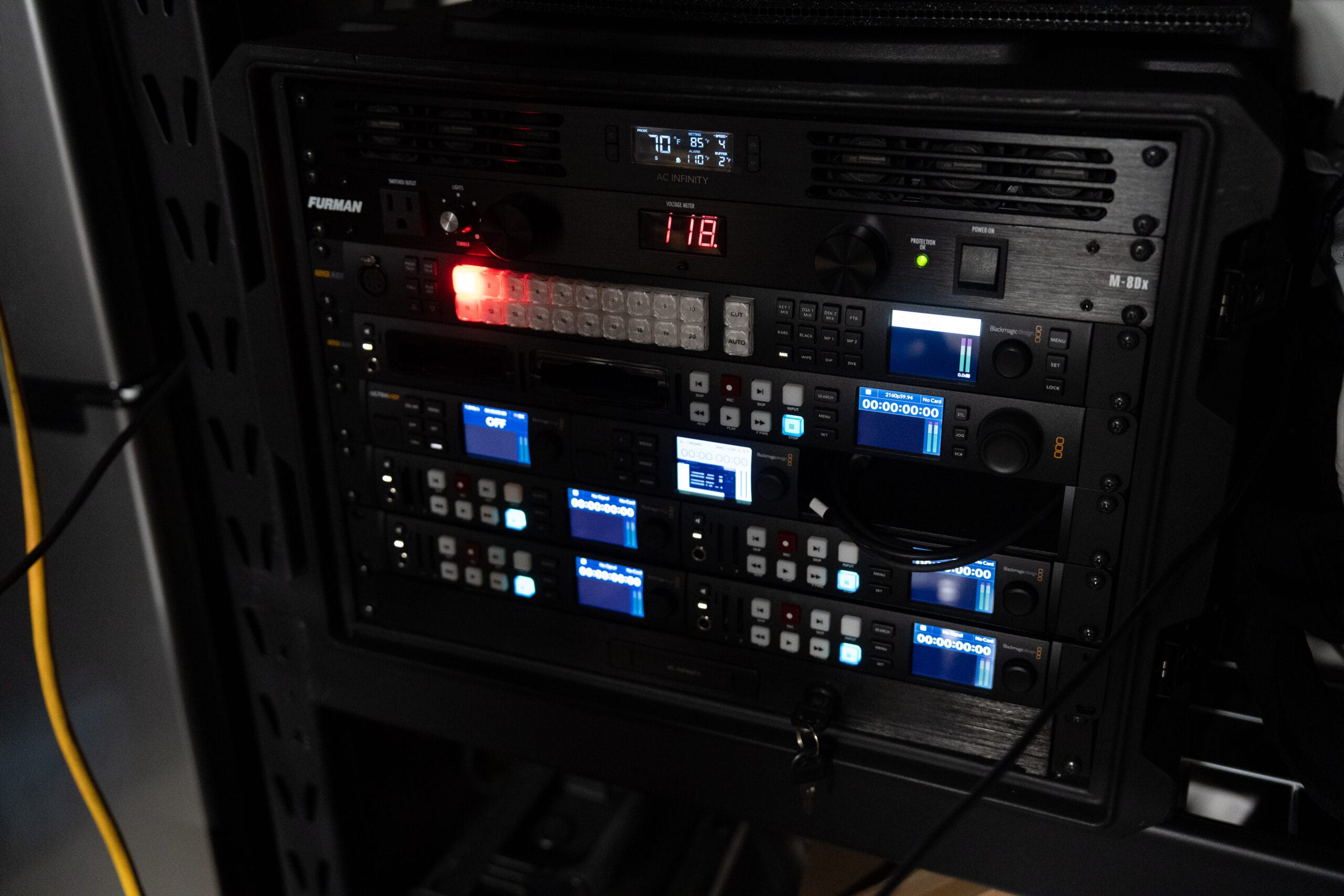
The entire build lives inside a Gator G-PRO-8U-19 8-Space Rack Case. It’s a rotationally molded case built for travel, with removable covers for the front and back. Eight rack spaces is tight with this full build, but careful planning fits everything. When I need to take it on-site, I disconnect three camera cables, the preview monitor, and the power cord. Everything else stays wired inside the case.
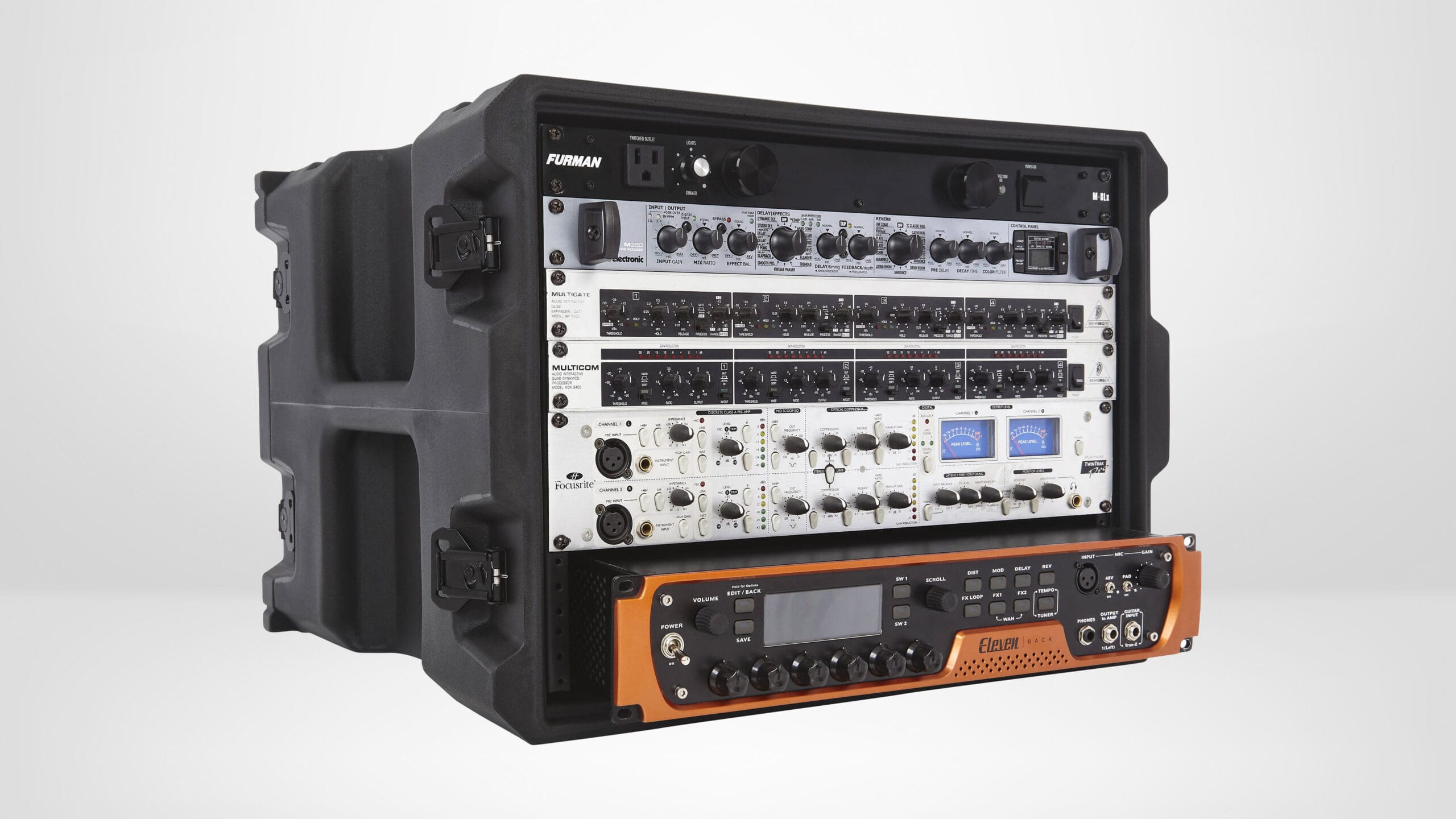
Rack Layout: Top to Bottom
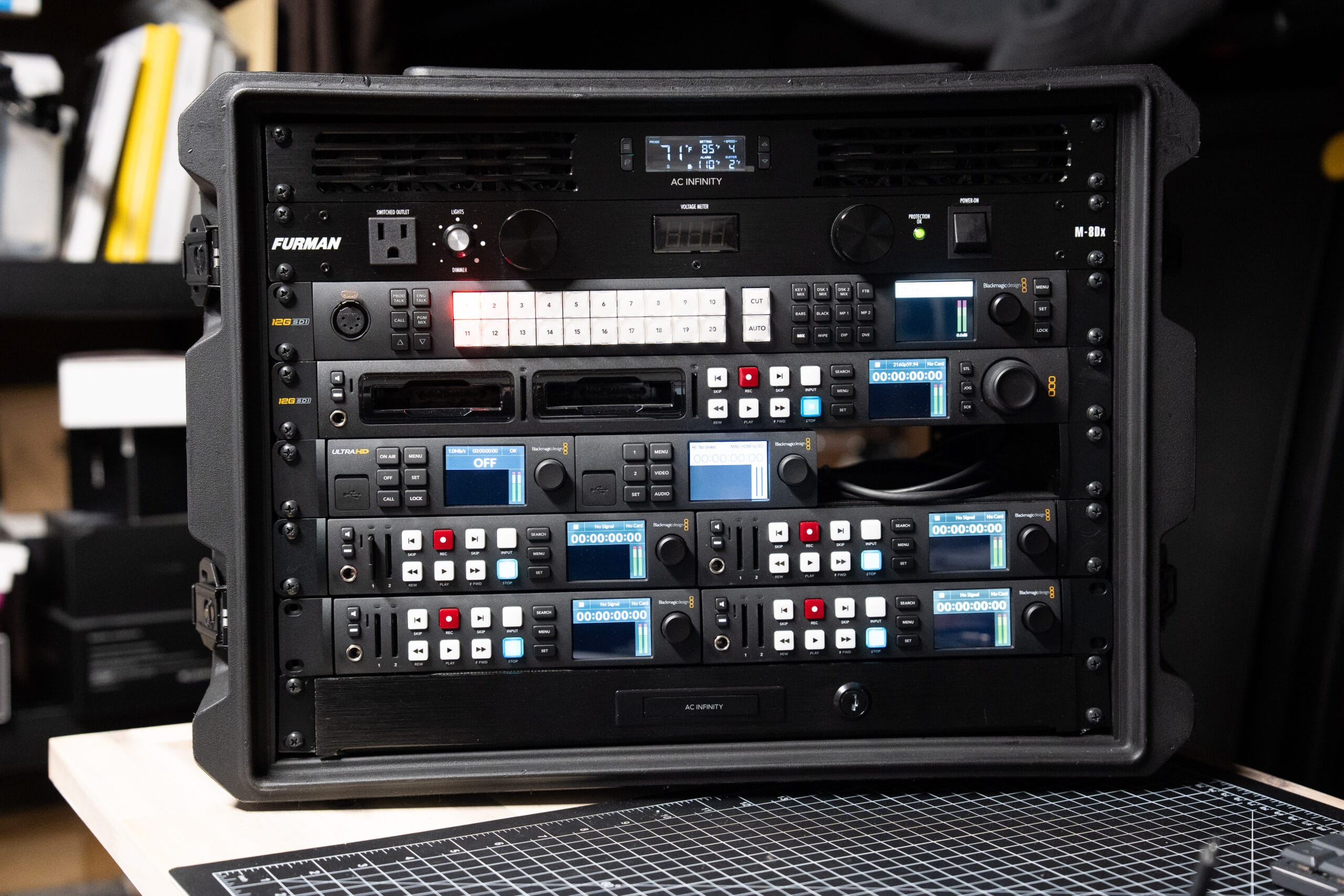
1. AC Infinity CLOUDPLATE T1 — Rack Fan
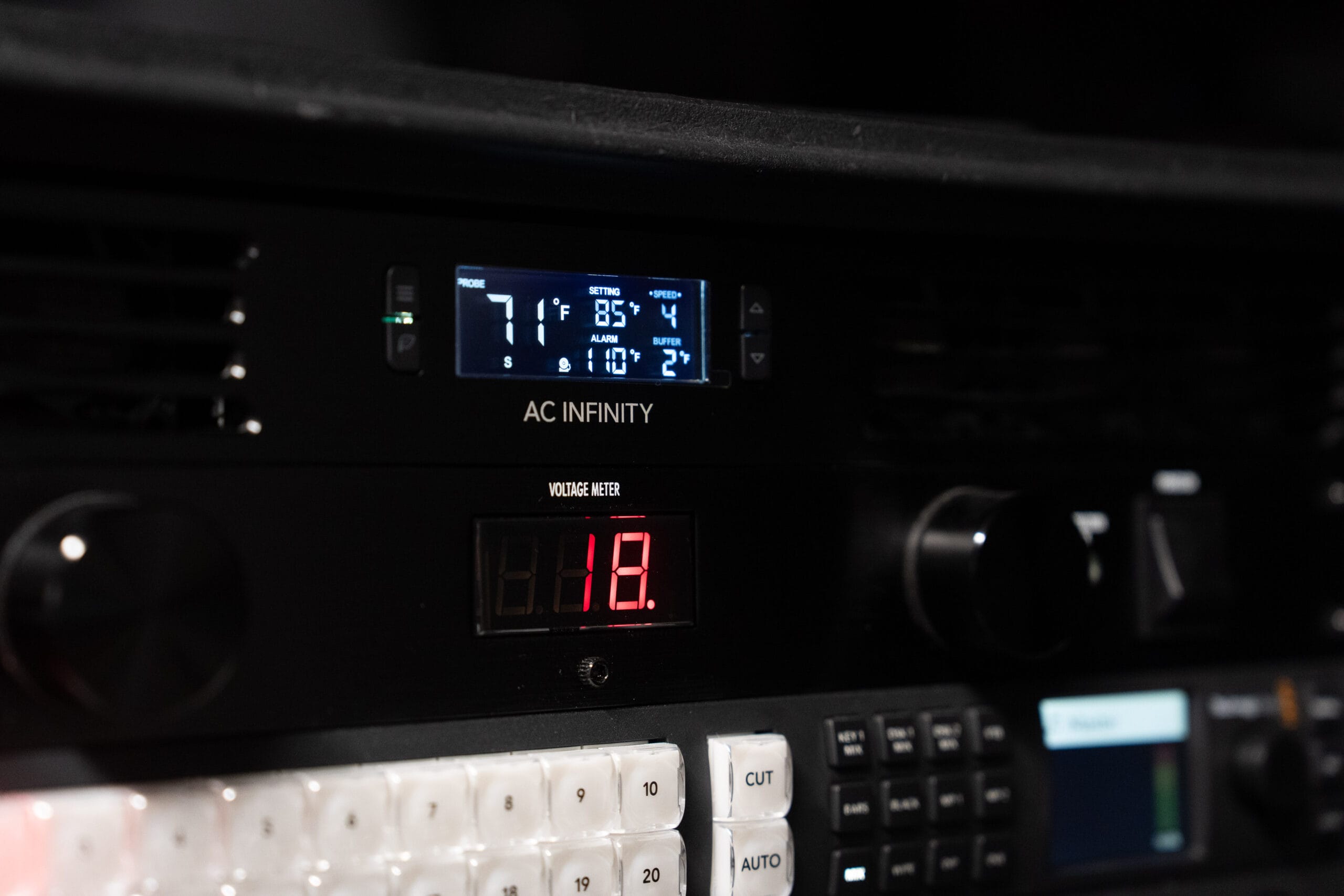
At the very top is the AC Infinity CLOUDPLATE T1, a 1U rack-mount fan panel. Even with the back of the Gator case completely open, airflow through the unit isn’t sufficient on its own during long sessions. I run the fan at speed four during active use. I wired it to the rear always-on power circuit so I can continue cooling the case after powering down the Blackmagic gear before reinstalling the covers.
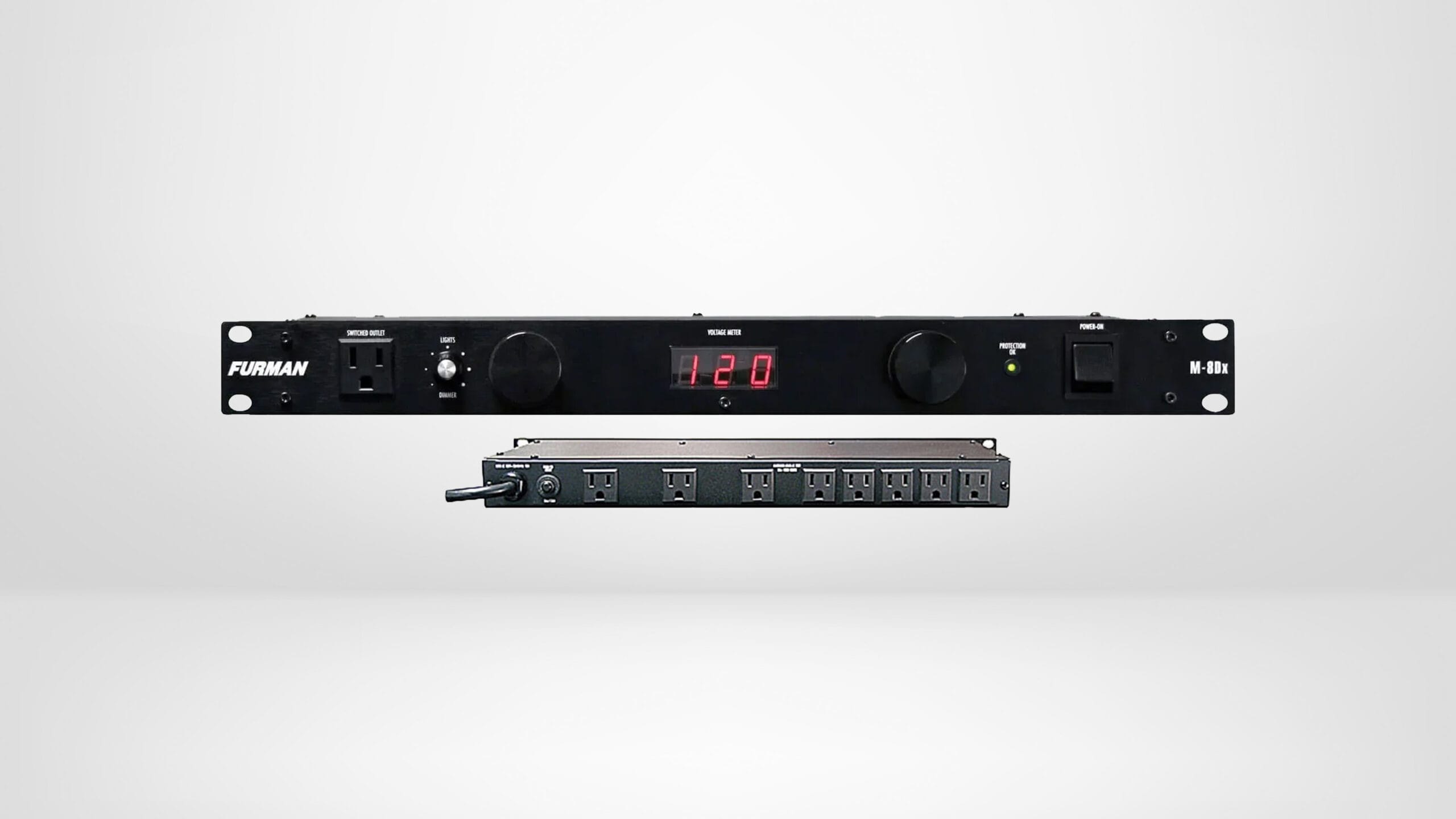
2. Furman Merit M-8Dx — Front Power Conditioner
Directly below the fan is the Furman Merit Series M-8Dx 9-Outlet Power Conditioner. This is the primary power distribution point for all Blackmagic devices. One toggle switch on the front powers everything — the ATEM constellation, all HyperDecks, the Web Presenter, and the main camera’s power adapter. It also has pull-out LED lights that illuminate the rack interior, which is helpful in dark event venues.
The M-8Dx is itself plugged into a Furman M-8×2 8-Outlet Power Conditioner mounted on the rear of the rack — creating a two-stage power architecture. The rear Furman is the always-on circuit for networking and the Mac Mini. Flipping the front Furman’s toggle brings up all the Blackmagic gear independently.
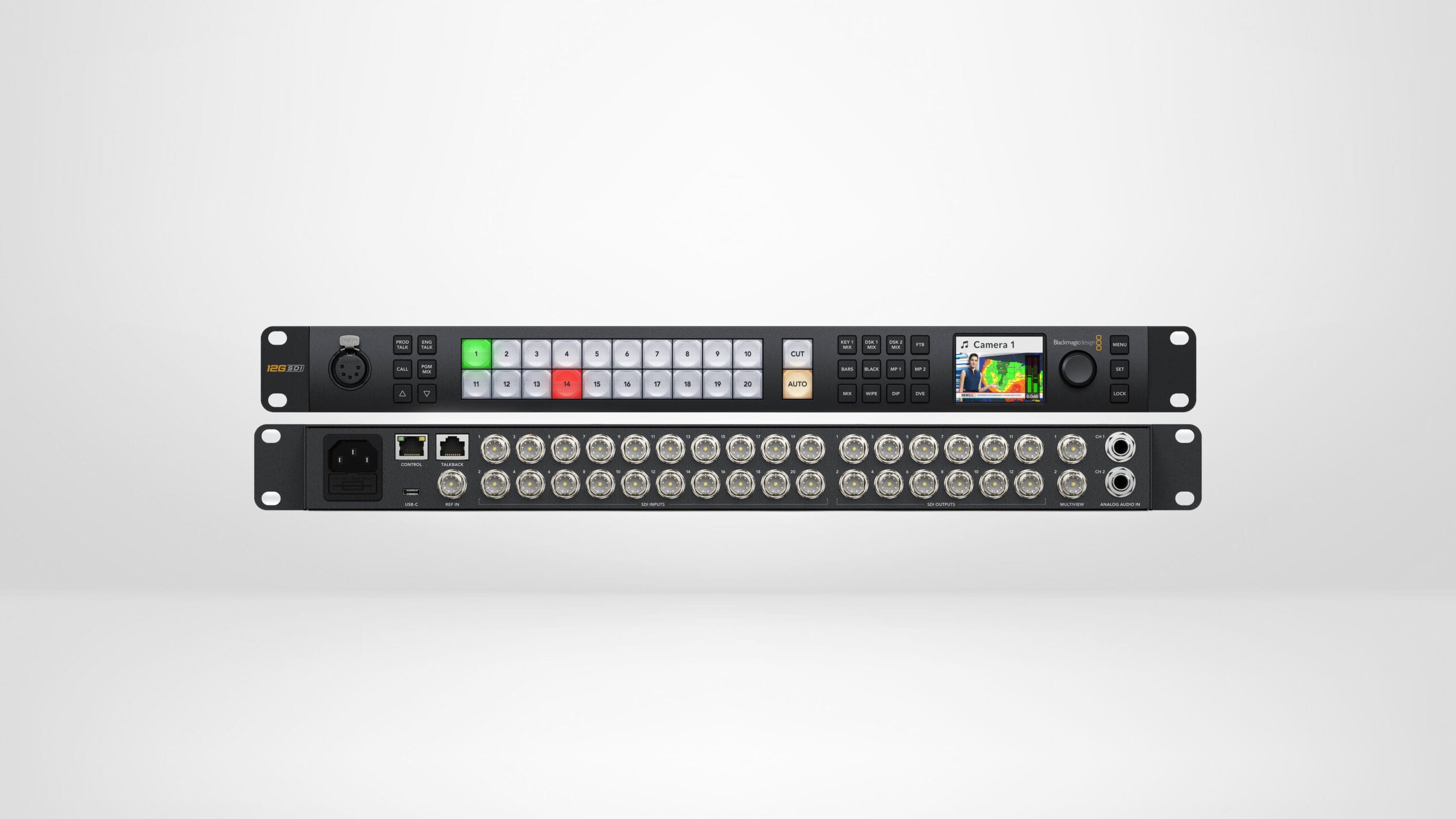
3. Blackmagic Design ATEM 2 M/E Constellation 4K — The Switcher
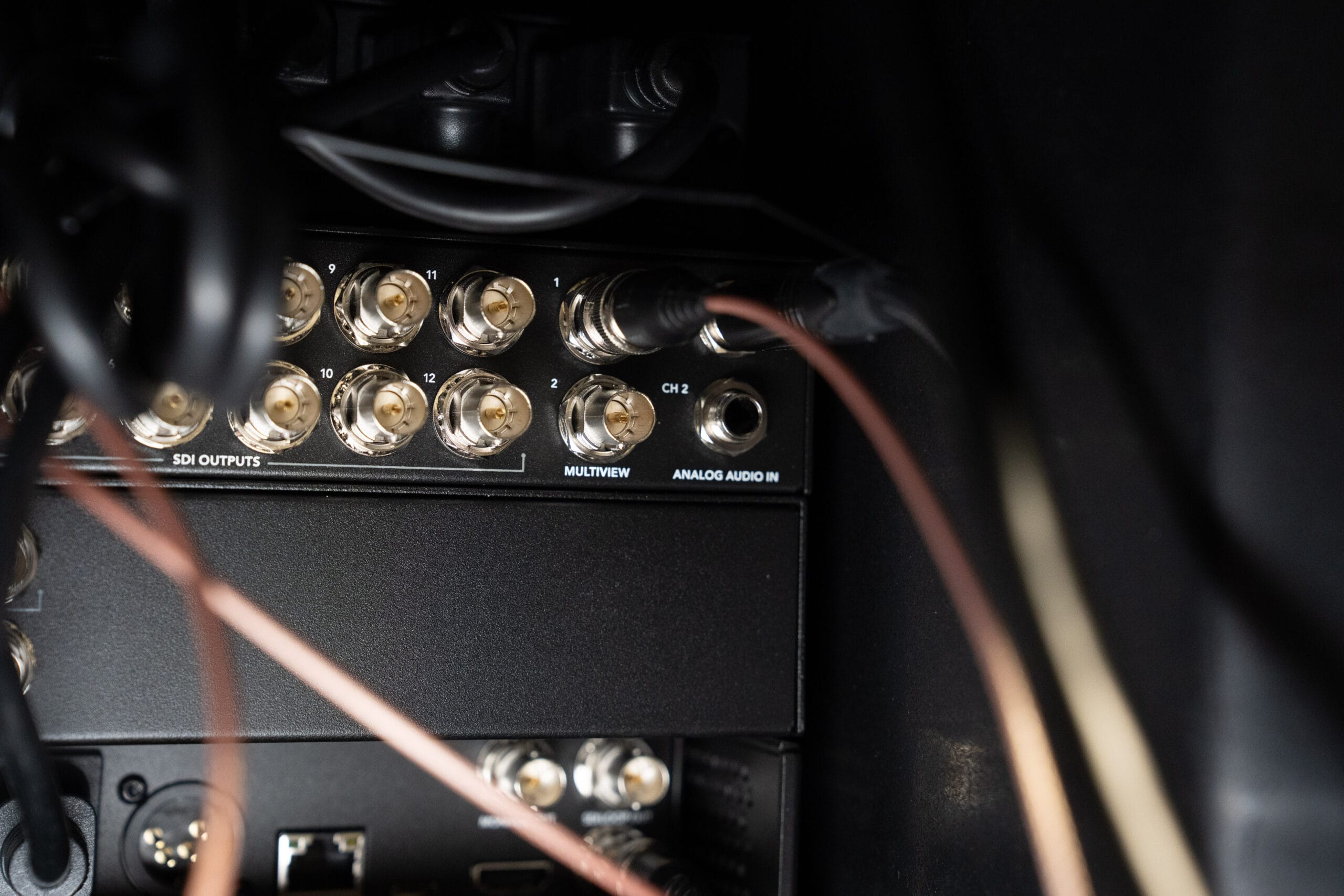
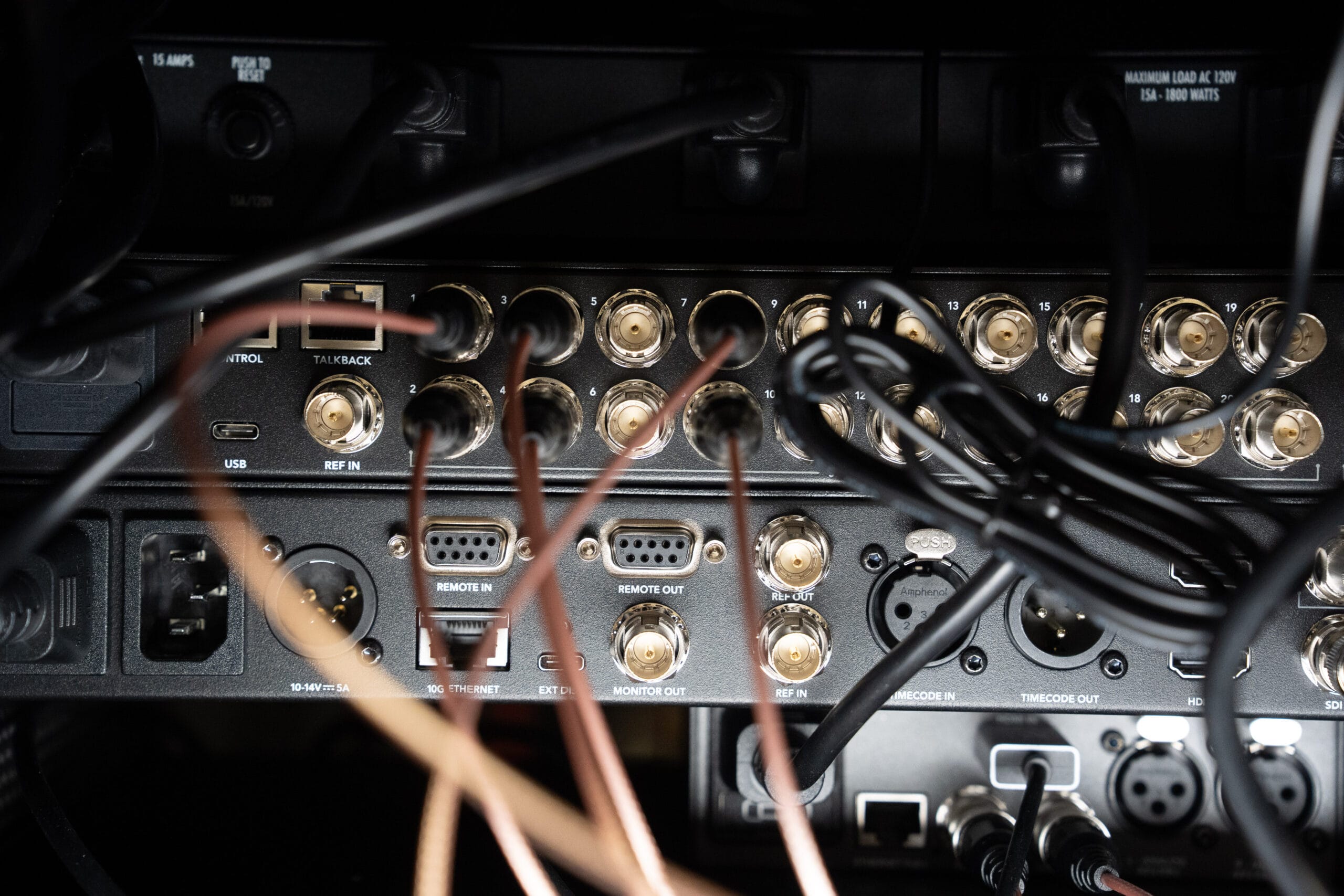
The Blackmagic Design ATEM 2 M/E Constellation 4K is the brain of the system. It’s a rack-mountable, 4K-capable production switcher — think of it as a significantly more capable version of the ATEM Mini Extreme with SDI connectivity, more inputs, and expanded features. In this setup I’m using it for basic multicam switching, picture-in-picture, and signal routing to recording and streaming outputs. It’s not close to being pushed to its limits, but the 4K SDI architecture and expanded I/O were the core reasons to move up from the Mini Extreme.
All camera signals arrive at the constellation over SDI. Outputs from the constellation go to the HyperDeck Studio 4K Pro (switched recording), the Web Presenter 4K (live stream), and the four HyperDeck HD Plus units (ISO recording). It’s also networked via Ethernet for software control.
4. Cameras
My primary studio camera is a Blackmagic Design Studio Camera 6K Pro with an EF mount. My top-down and rack-angle cameras are Blackmagic Design Micro Studio Camera 4K G2 units. All cameras output over SDI. The Micro Studio cameras use Micro BNC connectors, so I use Blackmagic Design Micro BNC to BNC Male Cables to adapt them to standard BNC. For camera control — returning tally and control signals from the ATEM — I run a second Micro BNC cable per camera requiring a BNC female-to-female adapter at the junction.
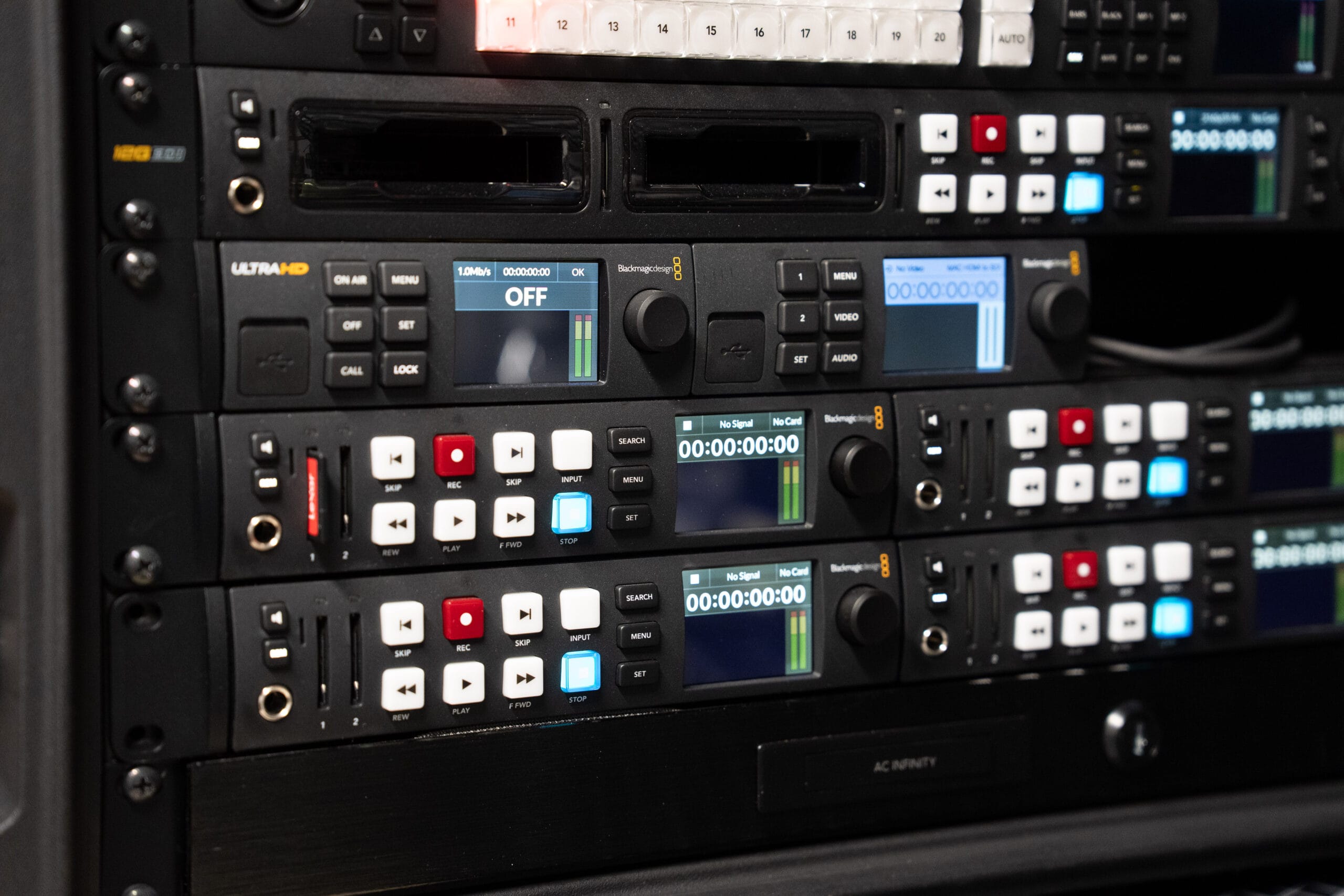
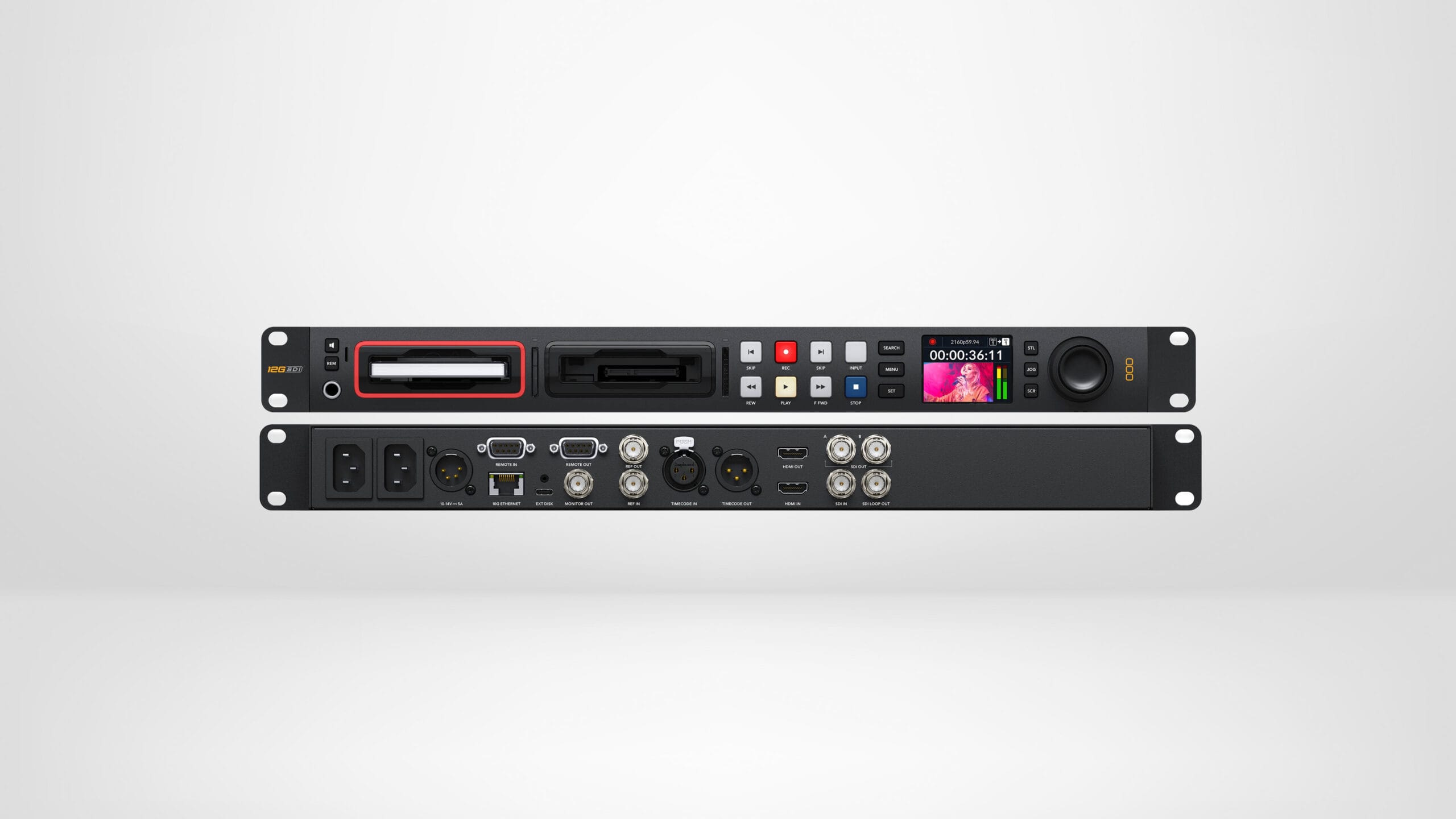
5. Blackmagic Design HyperDeck Studio 4K Pro — Main Record Deck
The Blackmagic Design HyperDeck Studio 4K Pro captures the fully-switched 4K output from the constellation to dual Samsung 2TB T7 Portable SSDs simultaneously — one primary, one instant backup. At the end of a recording session or live event, I eject one drive, bring it to a computer, and everything on it is already switched and ready for delivery or editing. No post-production camera syncing, no pulling cards from cameras.
Because it’s networked, I can also access files directly from the Mac Mini over the internal network — downloading, previewing, or deleting footage without physically touching the drives.
6. Blackmagic Design Web Presenter 4K — Live Streaming
The Blackmagic Design Web Presenter 4K is a dedicated hardware live streaming encoder receiving the same switched output as the HyperDeck 4K Pro. It pushes directly to streaming platforms — YouTube, Facebook Live, Vimeo, and others — without requiring a software encoder on a computer. If I need to restart the Mac Mini mid-event, the stream stays up as long as internet is connected.
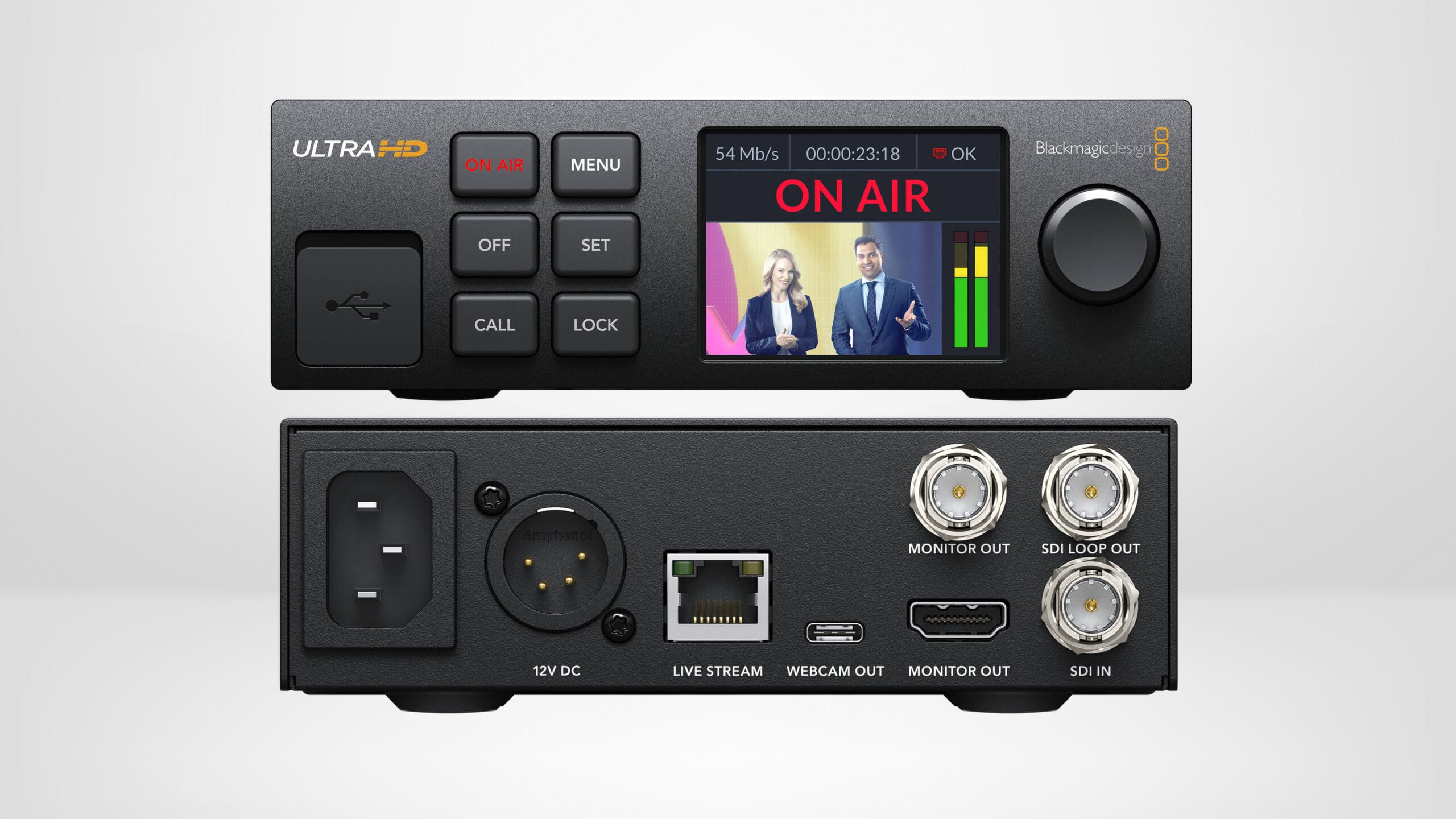
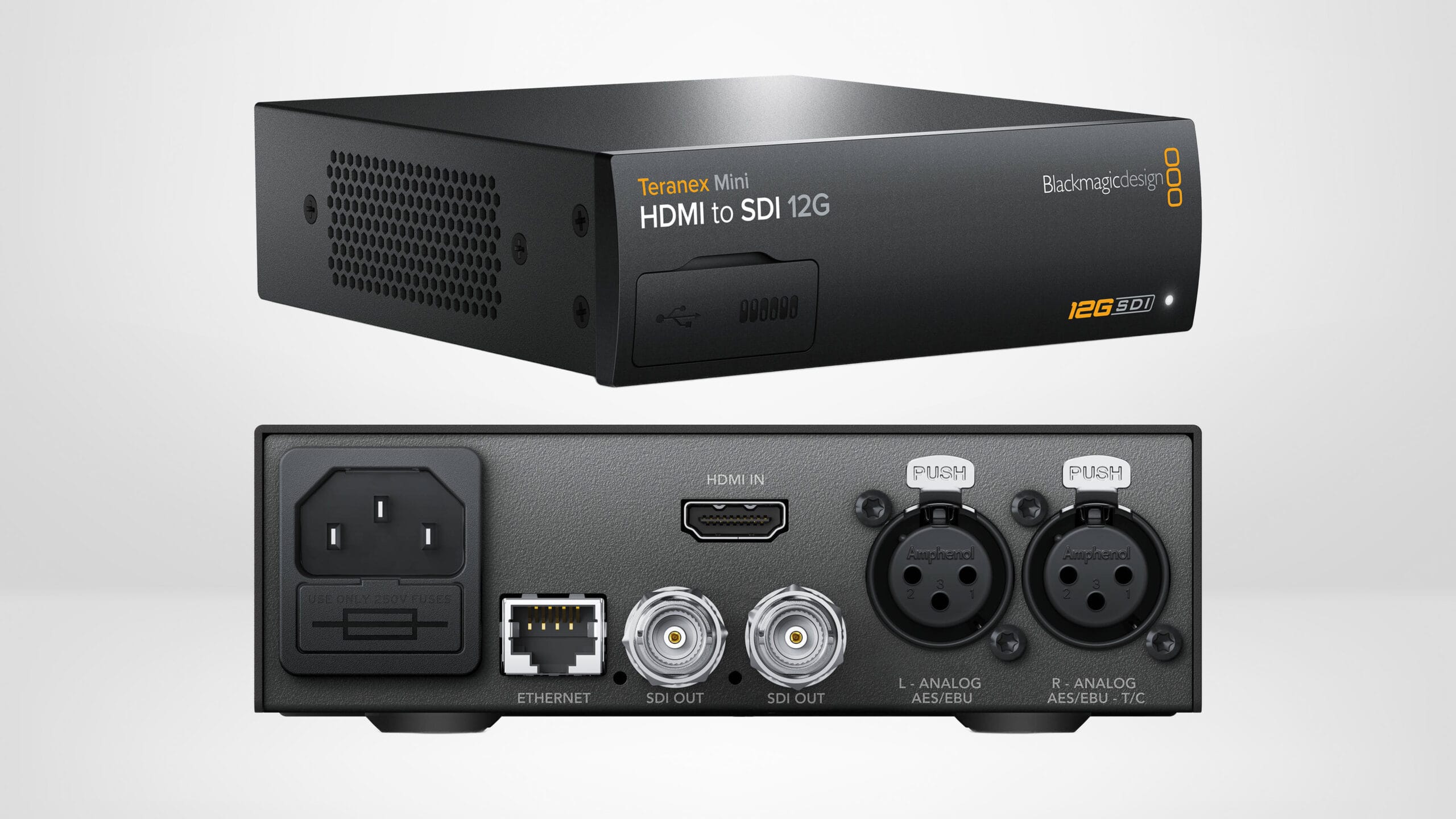
7. Blackmagic Design Teranex Mini HDMI to SDI 12G — Mac Mini Feed
The Blackmagic Design Teranex Mini HDMI to SDI 12G converts the Mac Mini’s HDMI output to SDI, feeding it into the constellation as a switchable source (camera 8 in my layout). It also passes HDMI through to an external preview monitor. I added a Blackmagic Teranex Mini Smart Panel to the front, which provides a small built-in display — so I can check whether the Mac is booted and active without connecting the external monitor first. At an event, that’s a genuinely useful feature.
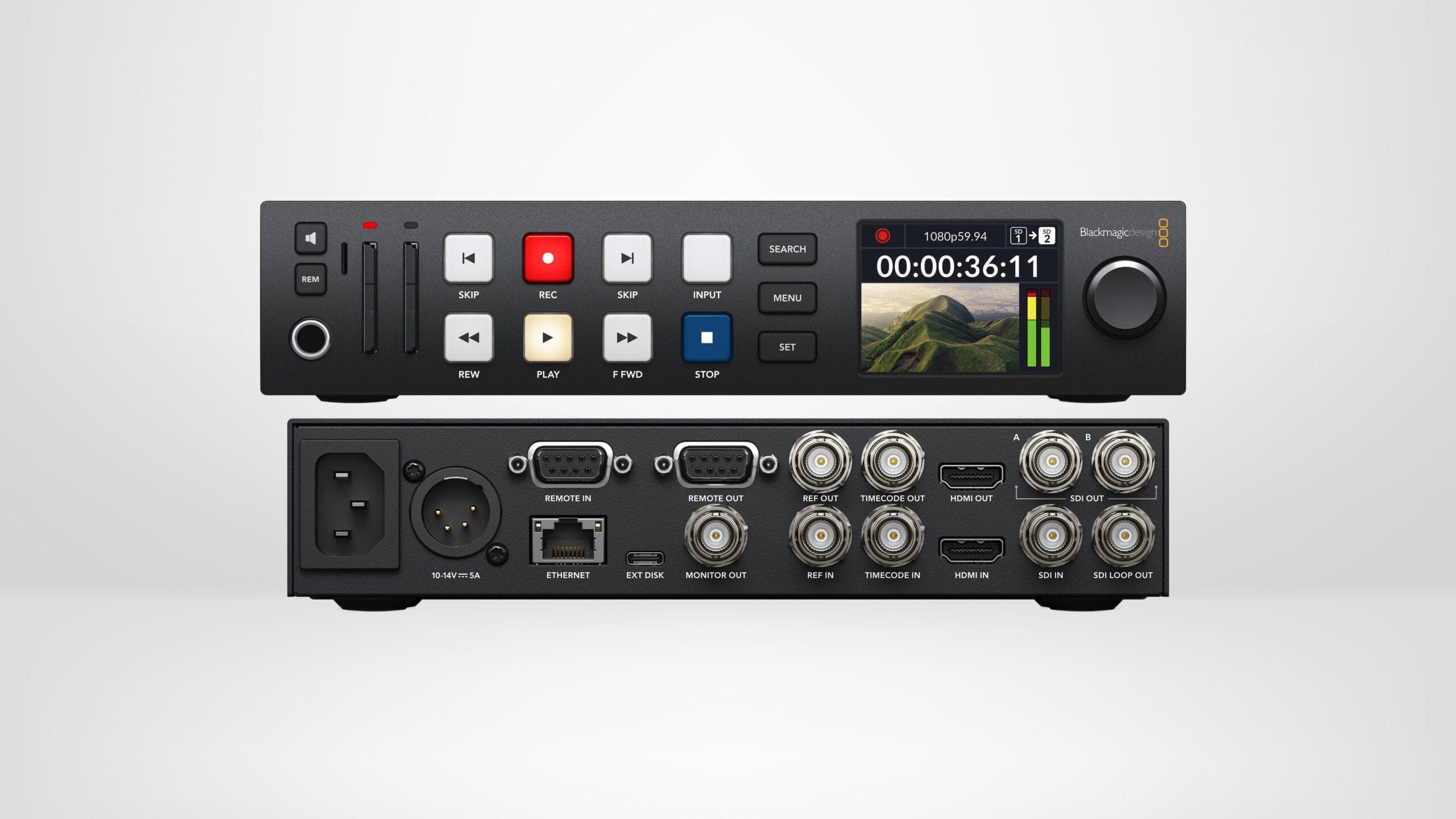
8. Blackmagic Design HyperDeck Studio HD Plus — ISO Recording (×4)
Four Blackmagic Design HyperDeck Studio HD Plus units — one per camera — each record a clean, uninterrupted ISO feed from their respective camera to a dedicated Samsung T7 SSD. They mount in pairs on two Blackmagic Universal Rack Shelves (1RU). These are the components that separate the full build from the simplified version. If you don’t need ISO feeds from each camera — if the switched output from the HyperDeck 4K Pro is sufficient — you can record directly to SSDs in the cameras themselves and skip all four of these units entirely.
When I do use them, I manage them via a custom macro in ATEM Software Control that starts and stops all four simultaneously. Blackmagic doesn’t currently offer a native “record all” button for multiple networked HyperDecks, so the macro fills that gap.
9. AC Infinity Rack Mount Drawer 1U — Storage
The AC Infinity Rack Mount Drawer 1U at the bottom holds spare items I need accessible on-site: a backup Blackmagic Micro Converter BiDir SDI/HDMI 12G, short spare SDI cables, an extra Ethernet cable, and extra SSDs for the HyperDeck 4K Pro. The SSDs for the HD Plus units also live here — heat from the rack’s internal airflow made storing them in the open bay impractical.
Networking Architecture
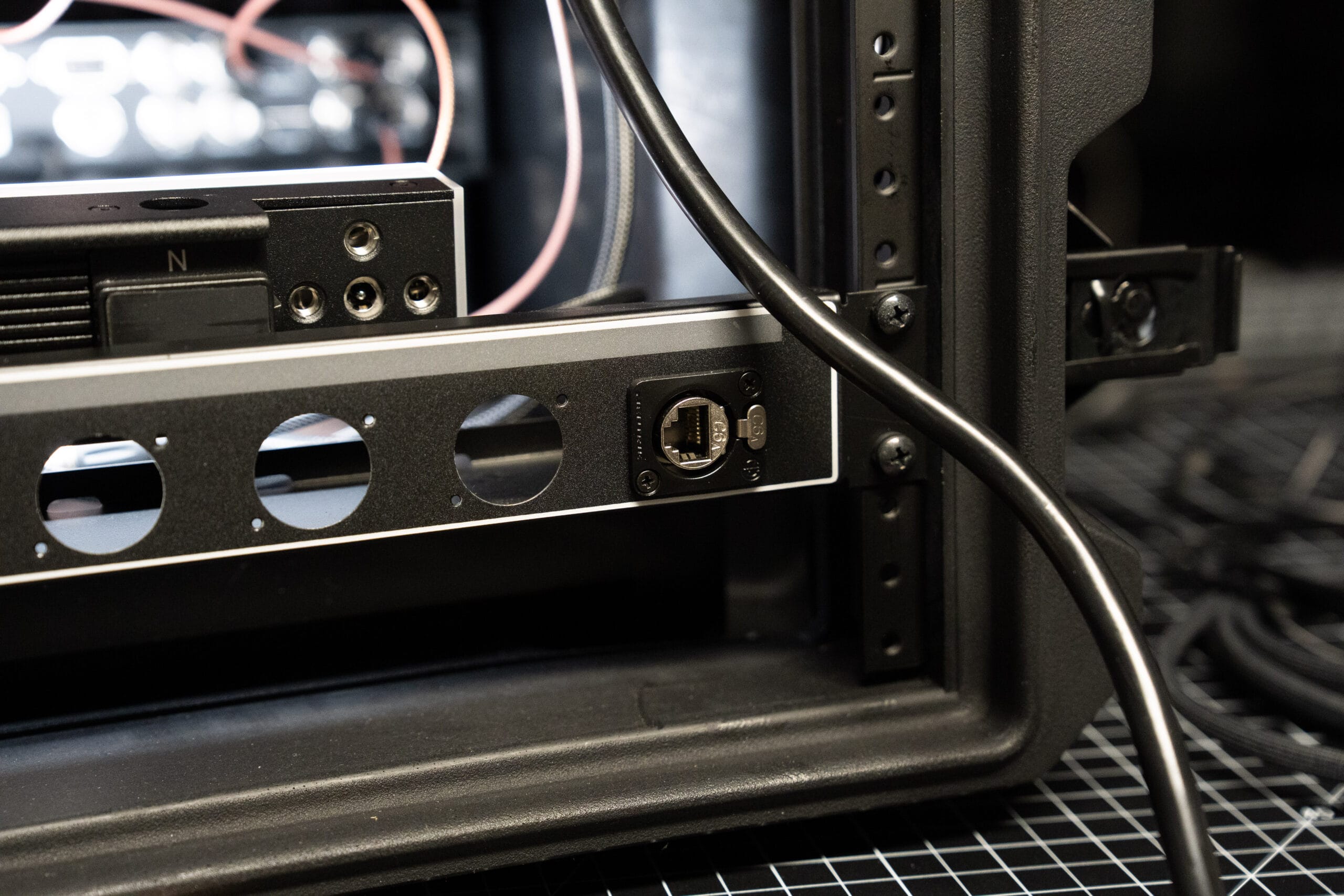
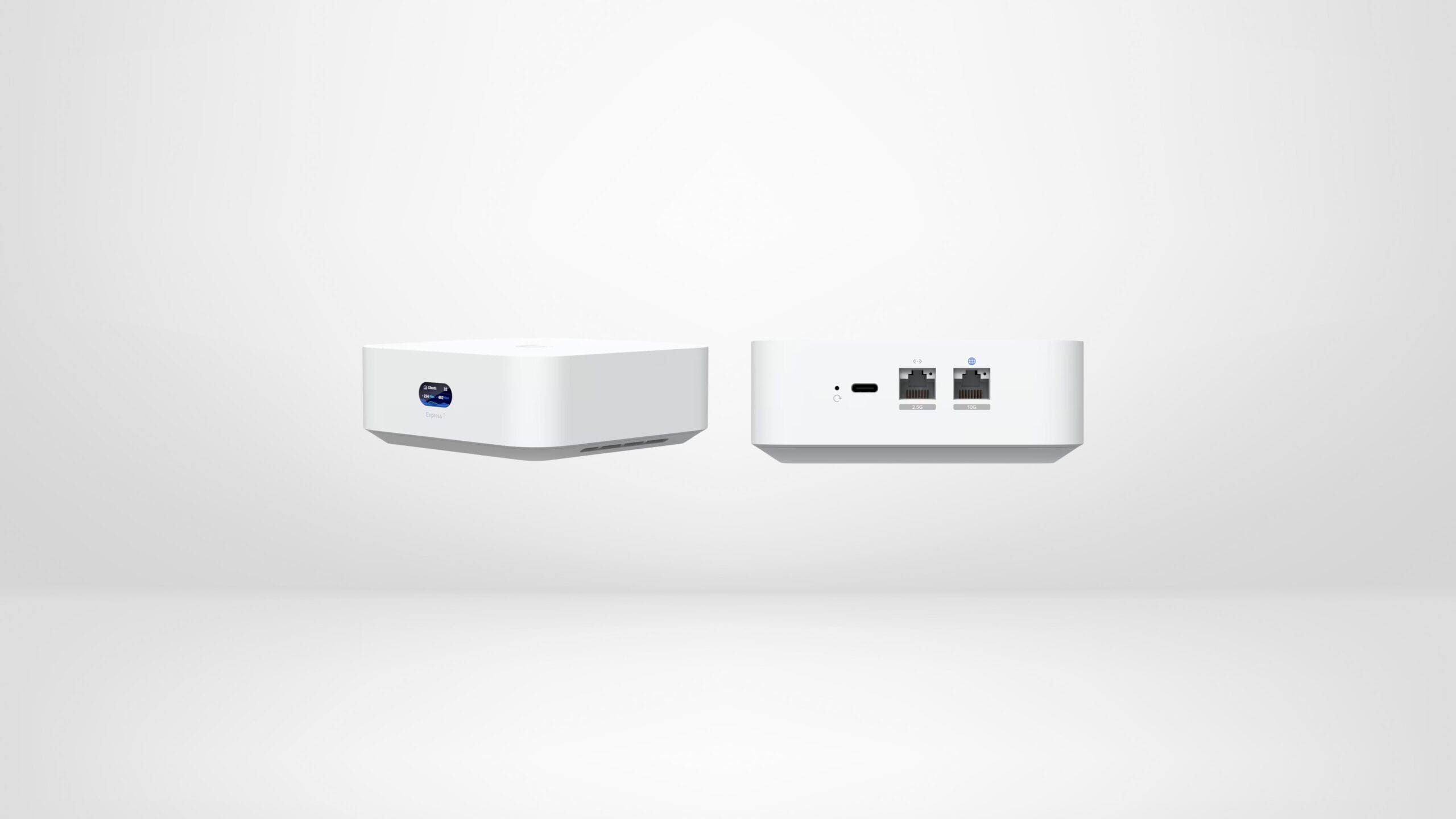
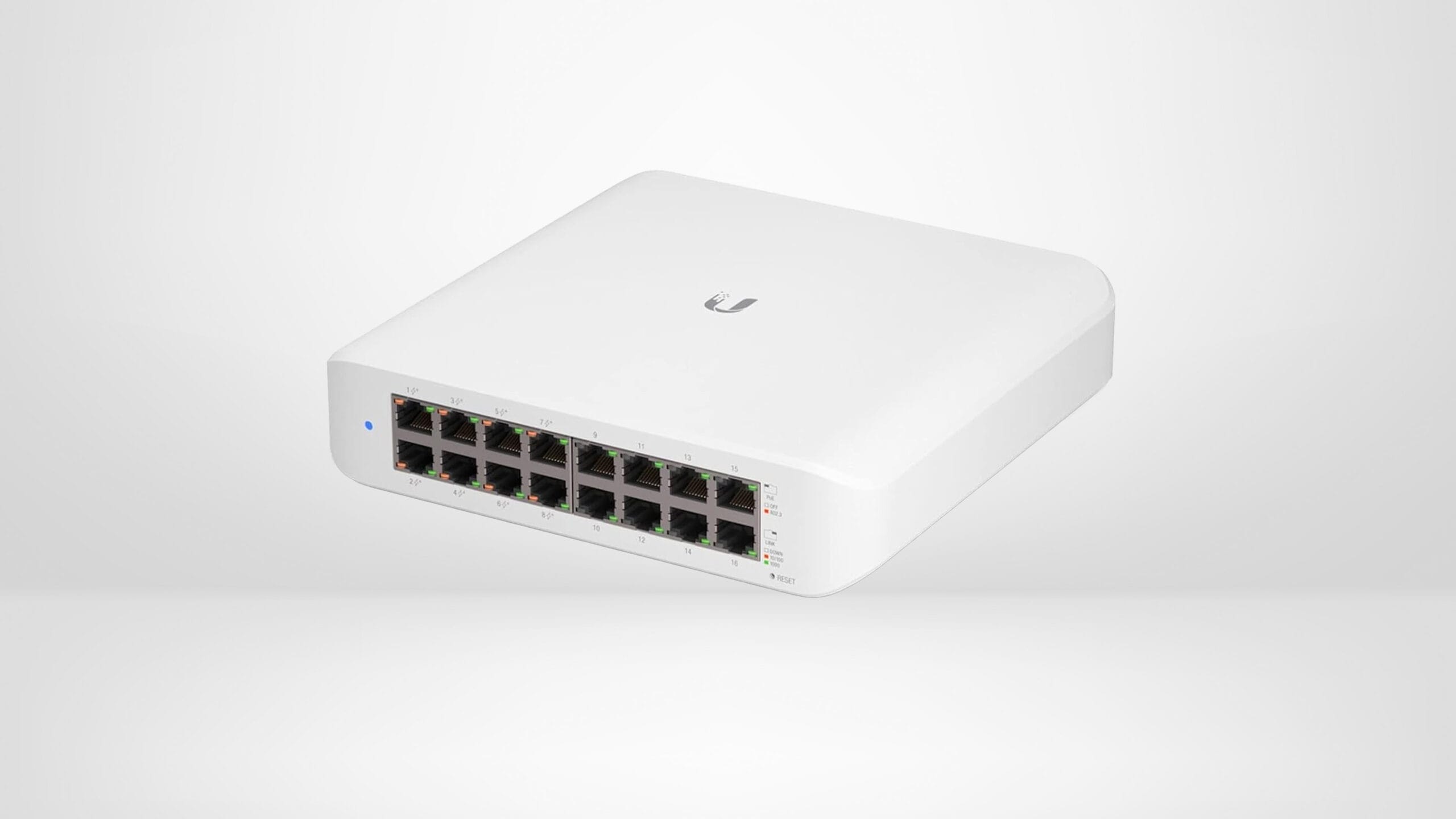
The Ubiquiti UniFi Express 7 Gateway accepts a single external Ethernet connection from the venue and distributes a local IP range to all internal devices. This connects to a Ubiquiti UniFi Lite 16-Port Gigabit PoE+ Switch, which distributes Ethernet to every device via 3-foot Pearstone Cat 6 Patch Cables. The external Ethernet connection enters the case through a Neutrik Cat 6a Shielded Feedthrough Panel Connector on the rear Lowell panel.
The key benefit: all internal devices have fixed local IP addresses that never change regardless of what external network I’m on. At a school, a performance venue, or my own studio — I plug in one cable and everything is immediately accessible and controllable with no reconfiguration.
SDI Cabling & Panel
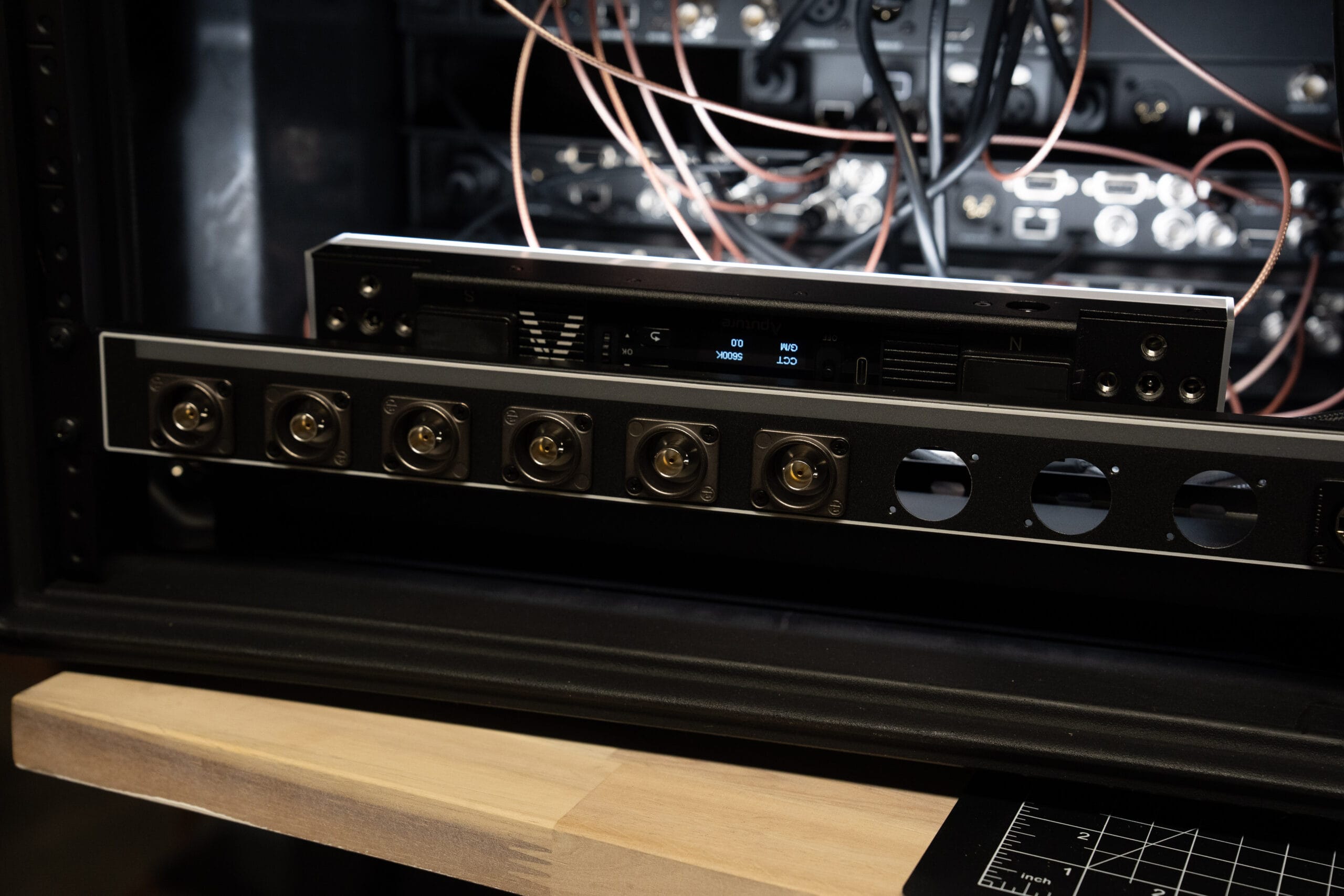
All internal SDI patch cables are Elvid Slim SDI Cables (RG-179, 2-foot). The slim profile is essential in a compact rack — standard SDI cables are too stiff and bulky for clean cable management in an 8U case.
External camera runs use bulk Belden 1694A RG6 Coaxial Cable (500-foot spool) terminated with Kings Electronics 2065 BNC Connectors using a Tempo 1300 Series Cable Crimper. Buying in bulk and cutting to venue-specific lengths means I have dedicated cables for each location I work at regularly.
The rear panel is a Lowell Manufacturing 1RU Rack Panel populated with six Neutrik Grounded UHD BNC Feedthrough Receptacles (four for cameras, two for additional sources) and the Neutrik Cat 6a network connector. Short internal cables run from the HyperDecks to the inside of these connectors — on-site, I just plug cameras into the external BNC jacks without reaching inside the case.
Control: Stream Deck Pedal & Bitfocus Companion
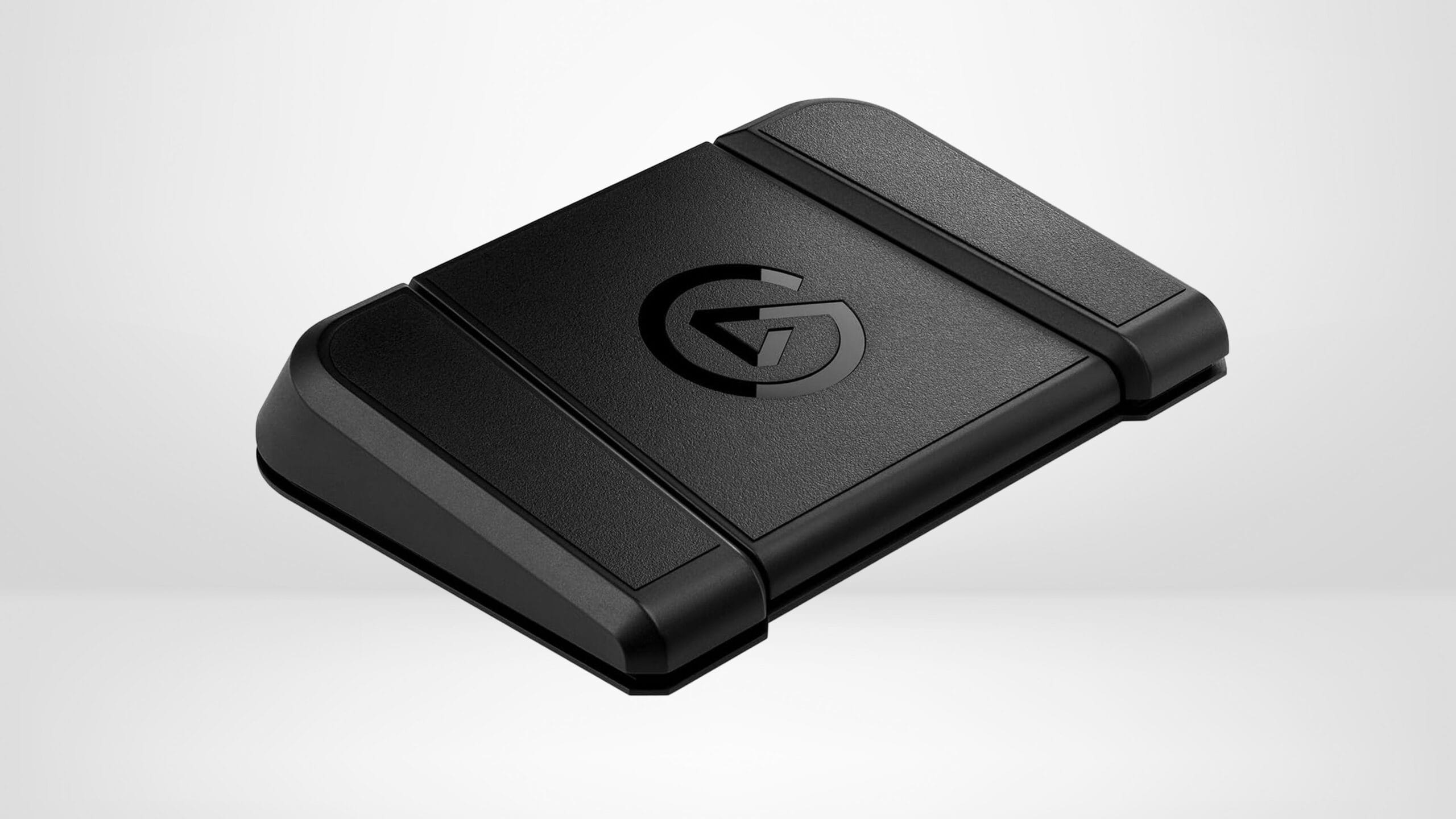
In the studio, switching is handled by an Elgato Stream Deck Pedal running Bitfocus Companion — free software that bridges Stream Deck hardware with networked production devices including the ATEM constellation. Left pedal cuts to the top-down camera, right pedal cuts to the rack angle, center pedal triggers picture-in-picture. Entirely hands-free switching while I’m on camera.
At live events I switch via ATEM Software Control on the Apple Mac Mini M4, which lives inside the back of the Gator case. For users who don’t want a dedicated onboard Mac, a laptop connected via USB-C to the ATEM Constellation — or connected to the internal network — works equally well for software control.
What I Left Unfinished
One thing I never completed is timecode jamming. All the HyperDecks and cameras can be synced to a master timecode signal from the ATEM Constellation, which makes multicam editing across ISO recordings significantly cleaner. I purchased a PSC 3-pin XLR to BNC timecode cable to daisy-chain through the HyperDecks but never got around to wiring it in — it wasn’t necessary for my current use cases. If you’re building a similar setup and editing ISO feeds in post, make timecode sync a priority from day one.
Complete Product List
Rack & Case
- Gator G-PRO-8U-19 8-Space Rack Case
- AC Infinity CLOUDPLATE T1 Rack Fan Panel 1U
- AC Infinity Rack Mount Drawer 1U
- Blackmagic Design Universal Rack Shelf (1RU) × 2
- Lowell Manufacturing 1RU Rack Panel (Neutrik D-Series)
Power
- Furman Merit Series M-8Dx 9-Outlet Power Conditioner (Front)
- Furman M-8×2 Merit Series 8-Outlet Power Conditioner (Rear)
- Comprehensive Standard PC Power Cord — 1′
Switching & Recording
- Blackmagic Design ATEM 2 M/E Constellation 4K
- Blackmagic Design HyperDeck Studio 4K Pro
- Blackmagic Design HyperDeck Studio HD Plus × 4 (optional — see build variations)
- Blackmagic Design Web Presenter 4K
- Blackmagic Design Teranex Mini HDMI to SDI 12G
Cameras
Storage
Networking
- Ubiquiti UniFi Express 7 Gateway
- Ubiquiti UniFi Lite 16-Port Gigabit PoE+ Switch
- Pearstone Cat 6 Snagless Patch Cable — 3′ Black
- Neutrik Cat 6a Shielded Feedthrough Panel Connector
SDI Cabling & Connectors
- Belden 1694A RG6 Low Loss Coaxial Cable — 500′ Spool
- Kings Electronics 2065 BNC Connectors
- Tempo 1300 Series Cable Crimper for Belden
- Elvid Slim SDI Cable RG-179 — 2′
- Blackmagic Design Micro BNC to BNC Male Cable
- Neutrik Grounded UHD BNC Feedthrough Receptacle (D-Shape)
- Blackmagic Design Micro Converter BiDir SDI/HDMI 12G w/ PSU
Control & Computing
- Elgato Stream Deck Pedal
- Bitfocus Companion (Free Software)
- Apple Mac Mini with M4 Chip (optional — see build variations)
Frequently Asked Questions
How much does a Blackmagic rack mount live switching setup cost?
A full build like this one — including the ATEM 2 M/E Constellation 4K, five HyperDecks, Web Presenter 4K, Mac Mini, Ubiquiti networking, and all cabling in a Gator 8U rack case — came in between $10,000 and $15,000. However, the setup can be built for significantly less by eliminating the four HyperDeck Studio HD Plus ISO recording units (which are optional if you record directly to SSDs in the cameras) and skipping the onboard Mac Mini in favor of a laptop you already own. A simplified version in a 6U case could reduce cost substantially while retaining the core 4K live switching and recording functionality. Note that tariffs have affected pricing on some components since this build was completed.
What is the difference between the ATEM Mini Extreme and the ATEM 2 M/E Constellation 4K?
The ATEM Mini Extreme is a desktop switcher limited to 1080p output over HDMI. The ATEM 2 M/E Constellation 4K is a rack-mountable switcher that supports 4K output over SDI, has significantly more inputs, and offers expanded production features including two M/E buses. For studio YouTube production, the Mini Extreme is often sufficient. For professional live events where 4K delivery is expected, or where SDI cameras and long cable runs are involved, the Constellation is the appropriate choice.
Do I need individual HyperDecks for each camera?
No. The four HyperDeck Studio HD Plus units in this setup are specifically for recording a clean, uninterrupted ISO feed from each camera independently. If you only need the fully-switched output — which is what the HyperDeck Studio 4K Pro captures — you can skip the per-camera HyperDecks entirely and instead record directly to SSDs or SD cards in the cameras themselves. This simplifies the build, reduces cost, and frees up rack space.
Can I control the ATEM Constellation without an onboard Mac Mini?
Yes. The ATEM Constellation connects to any computer via USB-C for direct software control, or it can be controlled over a network connection. ATEM Software Control and Bitfocus Companion both run on any Mac or Windows laptop. The onboard Mac Mini in this build is convenient because it makes the system fully self-contained with no external computer required, but it is not essential. Using a laptop you already own is a completely valid and significantly cheaper alternative.
What is Bitfocus Companion and why is it used here?
Bitfocus Companion is free, open-source software that allows Stream Deck hardware — including the Elgato Stream Deck Pedal — to control networked production devices like the ATEM Constellation. In this setup it maps foot pedal buttons to specific camera cuts, picture-in-picture activation, and other switcher functions, enabling completely hands-free camera switching while presenting on camera. It’s an essential bridge between the physical foot controller and the ATEM software.
Why use a hardware live streaming encoder instead of streaming from a computer?
A dedicated hardware encoder like the Blackmagic Web Presenter 4K removes the computer from the live streaming chain entirely. This eliminates the risk of a software crash, OS update prompt, or CPU spike interrupting the stream. If the Mac Mini needs to be restarted mid-event, the stream continues unaffected as long as there’s an active internet connection. For professional live event work, hardware encoding is considered a best practice for this reason.
How does the internal networking work in this rack setup?
A Ubiquiti UniFi Express 7 Gateway accepts a single Ethernet connection from the venue and creates a local private network inside the rack. All devices — each HyperDeck, the ATEM Constellation, the Web Presenter, and the Mac Mini — connect to a 16-port Ubiquiti PoE switch and receive static local IP addresses. Because the gateway manages IP assignment, those local addresses never change regardless of what external network the rack is plugged into. This means no reconfiguration is needed between venues — one cable in and everything is immediately accessible.
What SDI cable should I use for a Blackmagic live production setup?
For long external camera runs, Belden 1694A RG6 low-loss coaxial cable is a reliable and widely-used choice for SDI over distances up to several hundred feet. For short internal patch cables inside a rack, slim SDI cables like the Elvid RG-179 in 2-foot lengths are ideal because their smaller diameter and flexibility make cable management much cleaner in a confined space. Standard full-gauge SDI patch cables are too stiff for tidy routing inside an 8U rack case.
Can this setup be used for YouTube studio recording without live events?
Yes, and it works extremely well in that context. In the studio, the foot pedal handles all camera switching hands-free, the HyperDeck 4K Pro records the fully-switched output to an SSD, and at the end of a recording session the file is ready for finish editing or delivery without any multicam assembly required. That said, for a YouTube-only studio setup this build is more than necessary. An ATEM Mini Extreme with a single HyperDeck and a laptop would accomplish the same core workflow at a fraction of the cost.
What is the Blackmagic Teranex Mini used for in this setup?
The Teranex Mini HDMI to SDI 12G converts the Mac Mini’s HDMI video output into an SDI signal that can be routed into the ATEM Constellation as a standard camera input. This allows the Mac Mini’s desktop to be switched on-screen like any other camera source — useful for showing software, slides, or data during a live stream or event. It also passes HDMI through to an external monitor, and with the optional Teranex Mini Smart Panel attached, displays the Mac Mini’s screen state on a small built-in display on the front of the rack without needing the external monitor connected.
How do you sync timecode across multiple HyperDecks and cameras?
The ATEM Constellation can output a master timecode signal that is daisy-chained through all connected HyperDecks and cameras, ensuring every device is recording to the same timecode reference. This makes multicam editing across ISO recordings significantly cleaner in post-production. In practice, this requires a timecode cable (typically a PSC 3-pin XLR to BNC) running from the ATEM to the first HyperDeck, then continued through the chain via SDI. This feature is not configured in the current build but is highly recommended if editing ISO feeds in post is part of your workflow.
Is a 6U or 8U rack case better for a Blackmagic live production setup?
It depends on the components. The full build described here — with five HyperDecks, the ATEM Constellation, Web Presenter, Teranex, power conditioners, and a fan — requires 8U of rack space. A simplified build that omits the four HyperDeck Studio HD Plus ISO recording units and the onboard Mac Mini can fit comfortably in a 6U case, which is lighter and easier to transport. For a studio-only setup or one where ISO recording is handled by the cameras directly, the 6U configuration is the more practical choice.
What cameras work with the ATEM Constellation 4K?
The ATEM 2 M/E Constellation 4K accepts SDI inputs, so any camera with an SDI output is compatible. Blackmagic Design’s own Studio Camera and Micro Studio Camera lines connect directly and support full camera control — including tally lights, iris adjustment, and white balance — over the SDI connection without any additional hardware. Cameras from other manufacturers can also be connected via SDI, though they won’t support ATEM camera control features. HDMI cameras can be adapted to SDI using a Blackmagic Micro Converter or similar device.
What is the benefit of recording to dual SSDs in the HyperDeck Studio 4K Pro?
Recording to two SSDs simultaneously in the HyperDeck Studio 4K Pro provides an immediate on-site backup of the switched 4K output. If one drive fails or is corrupted, the second drive has an identical recording. Alternatively, the two drives can be configured so that when the first drive fills, recording automatically continues on the second — useful for very long events. For professional event work where a recording cannot be recreated, the redundancy of dual-drive recording is a meaningful safeguard.
About the Author
Jerad Hill is a professional photographer and video producer based in Kalispell, Montana, with over 26 years of experience. He has produced live multicam events, weddings, and commercial productions for clients across the region using this exact rack setup. He has educated over 450,000 photographers through his YouTube channel, website, and online courses at jeradhill.com. The equipment described in this article is used on active paying client work — not a lab test.