By Jerad Hill | Updated February 2026
The Canon EOS R6 Mark III is one of the most capable hybrid cameras Canon has ever released. With a 32.5-megapixel sensor, 40fps burst shooting, 7K video recording, and Canon’s best-in-class autofocus system, it’s a camera that can handle just about anything you throw at it — if you know how to use it.
That’s what this guide is for. Whether you just unboxed your R6 III, you’re upgrading from a DSLR or an older mirrorless body, or you’re simply trying to figure out what all those buttons do, this quick start guide will walk you through the essential controls, menu settings, and shooting modes so you can stop second-guessing yourself and start capturing great images.
This guide covers the physical controls and what they do, memory card options and best practices, essential menu settings for photo and video, lens controls and features, and a recommended progression from Auto mode all the way to full Manual. If you want an even deeper dive into every menu item, function, and custom setting on the Canon EOS R6 III, check out my full Canon R6 III course which walks through everything in detail.
Gear used in this guide:
- Canon EOS R6 III Body
- Canon RF 24-70mm f/2.8L IS USM Lens
- Prograde Digital CFexpress Type B Card
- Prograde Digital SD Card
Understanding the Mode Dial
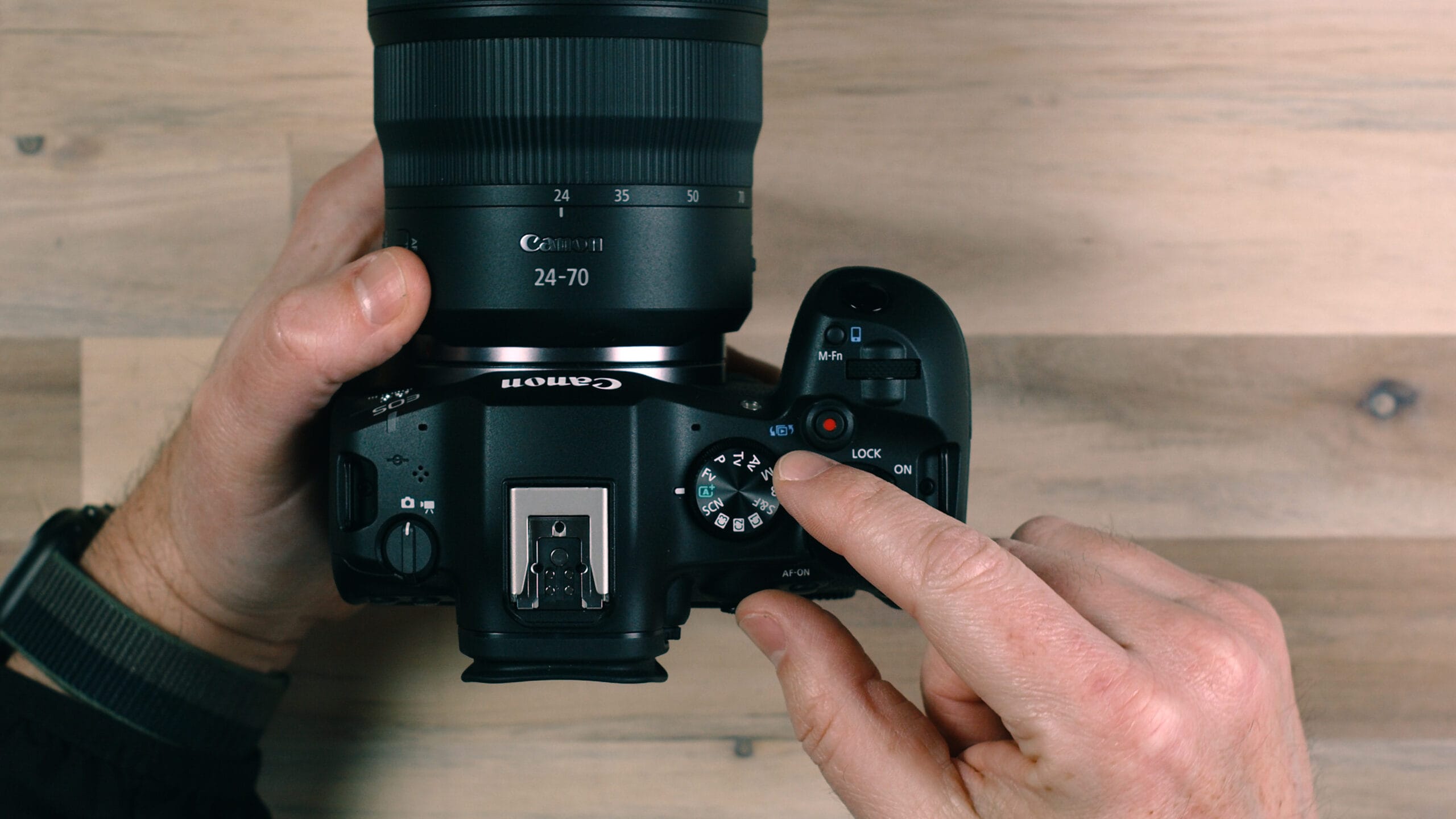
The mode dial sits on top of the Canon EOS R6 III and is the first thing you should familiarize yourself with because it determines how much control you have over your camera’s exposure settings.
Auto Mode
If you’re relatively new to photography, Auto mode is a perfectly fine place to start. In this mode, the camera takes control over most settings and does the heavy lifting for you. All you need to do is point and shoot. You can tap on the back of the camera’s touchscreen to tell the camera what you want to focus on, but for the most part, pressing the shutter button tells the camera to determine the best settings based on your environment and capture the image.
You’ll probably get decent results in Auto mode, and there’s no shame in using it while you’re learning. But at some point, you’re going to want more creative control, and that’s when you’ll start exploring the other modes on the dial.
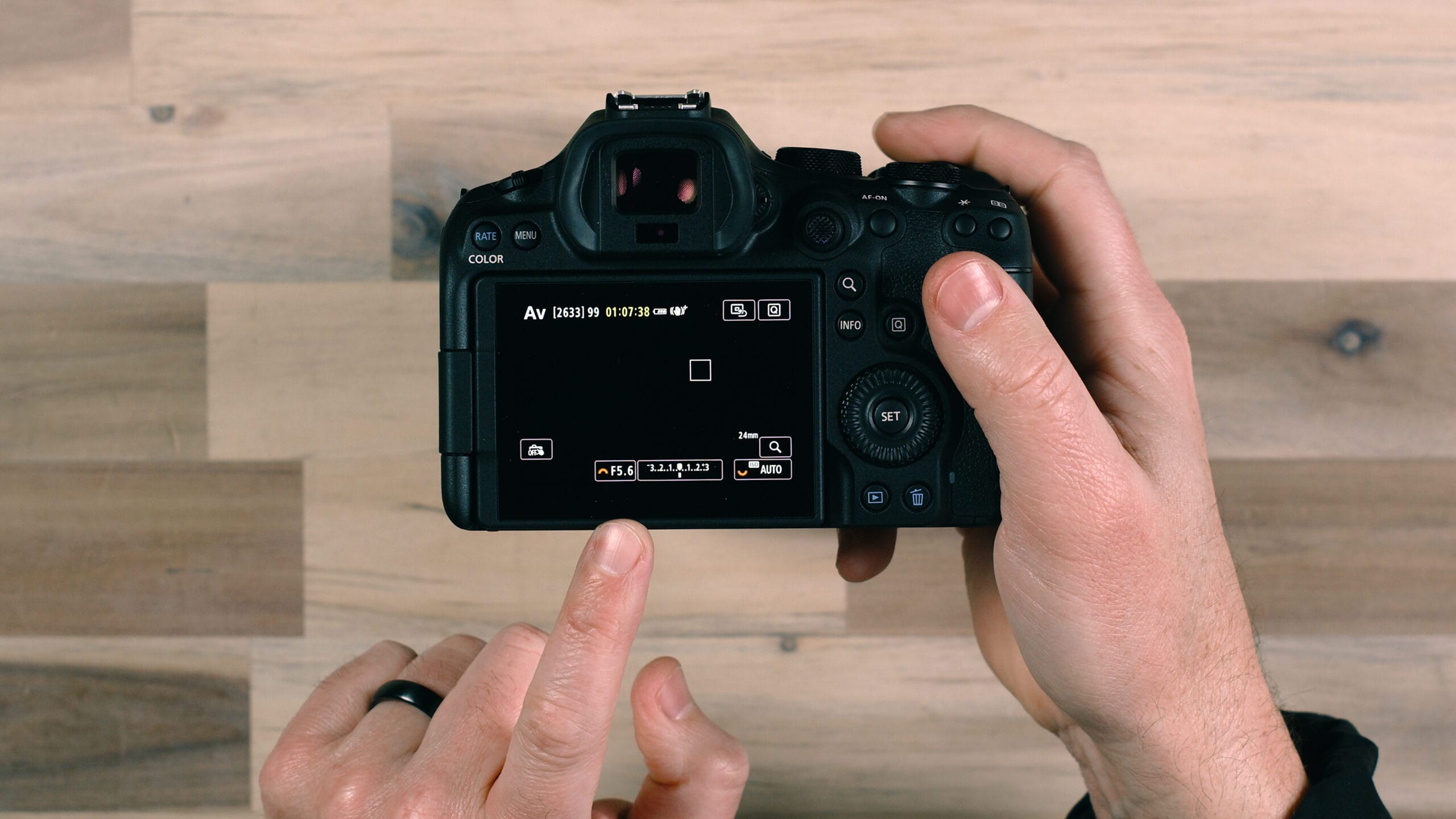
Aperture Priority Mode (Av)
When you’re ready to move beyond Auto, Aperture Priority mode is the natural next step. This mode lets you control the aperture — the opening in your lens that determines how much light enters the camera and how much of your image is in focus. Everything else, including shutter speed and ISO, is automatically handled by the camera.
This is what I like to call a “manual assist” mode. You get manual control over one critical setting while the camera manages the rest. It’s a great way to achieve that shallow depth of field look where the background is beautifully blurred without having to manage every exposure variable at once. Set your aperture to f/2.8, point your camera, and the R6 III figures out the shutter speed and ISO to give you a well-exposed image.
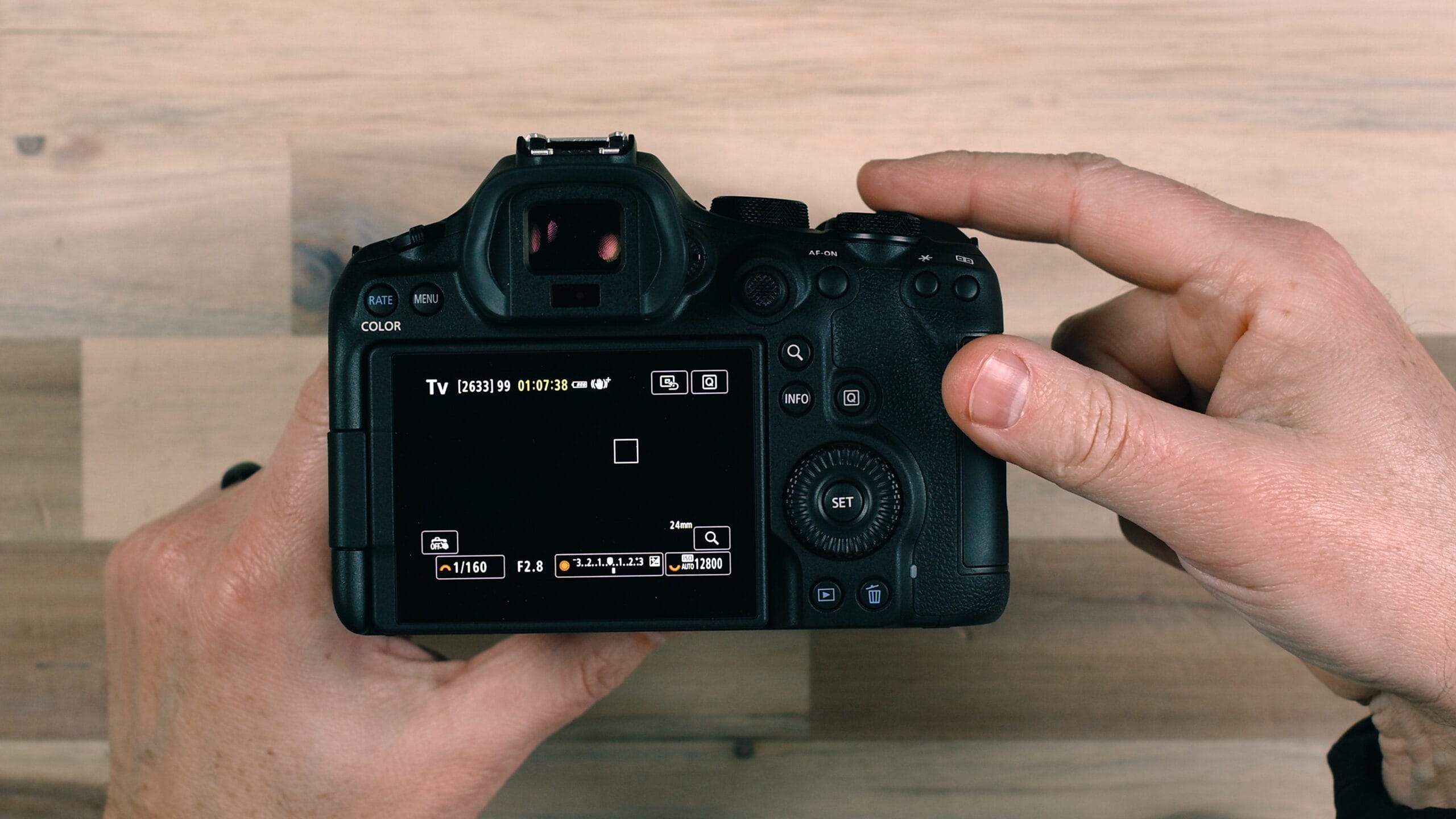
Shutter Priority Mode (Tv)
Shutter Priority mode works the same way as Aperture Priority, except you’re controlling the shutter speed while the camera handles aperture and ISO. This mode is ideal for action photography. If you’re shooting your kids’ sports games, wildlife, or anything that moves fast, you can bump the shutter speed up to something like 1/1500th of a second to freeze the action. The camera will choose the appropriate aperture and ISO to properly expose the image at that shutter speed.
Manual Mode (M)
Manual mode gives you complete control over all three exposure variables: shutter speed, aperture, and ISO. On the Canon EOS R6 III, the front dial controls shutter speed, the rear dial on the back of the camera controls aperture, and the dial near the power switch controls ISO. When you can manage all three settings together, that’s when you can truly dial in your camera to achieve the exact look and exposure you’re going for.
I shoot in Manual mode almost exclusively. Once you understand how these three settings work together, you’ll have access to every control and menu option the camera offers — many of which are hidden or unavailable in the automatic modes.
If Manual mode feels daunting right now, I have a free course called Ditch Auto: How to Shoot in Manual Mode that teaches you not just what aperture, shutter speed, and ISO are, but how to actually use them together in real-world shooting situations. It also covers a range of other photography fundamentals that will accelerate your learning.
Other Mode Dial Options
The mode dial on the R6 III also includes scene selection modes for common shooting scenarios, custom setting positions (C1, C2, C3) where you can save pre-programmed settings for different situations you frequently encounter, a slow and fast mode for video recording, and a Bulb mode for long exposure photography where the shutter stays open for as long as you hold the button.
Top and Side Controls
Power Switch and Lock Mode
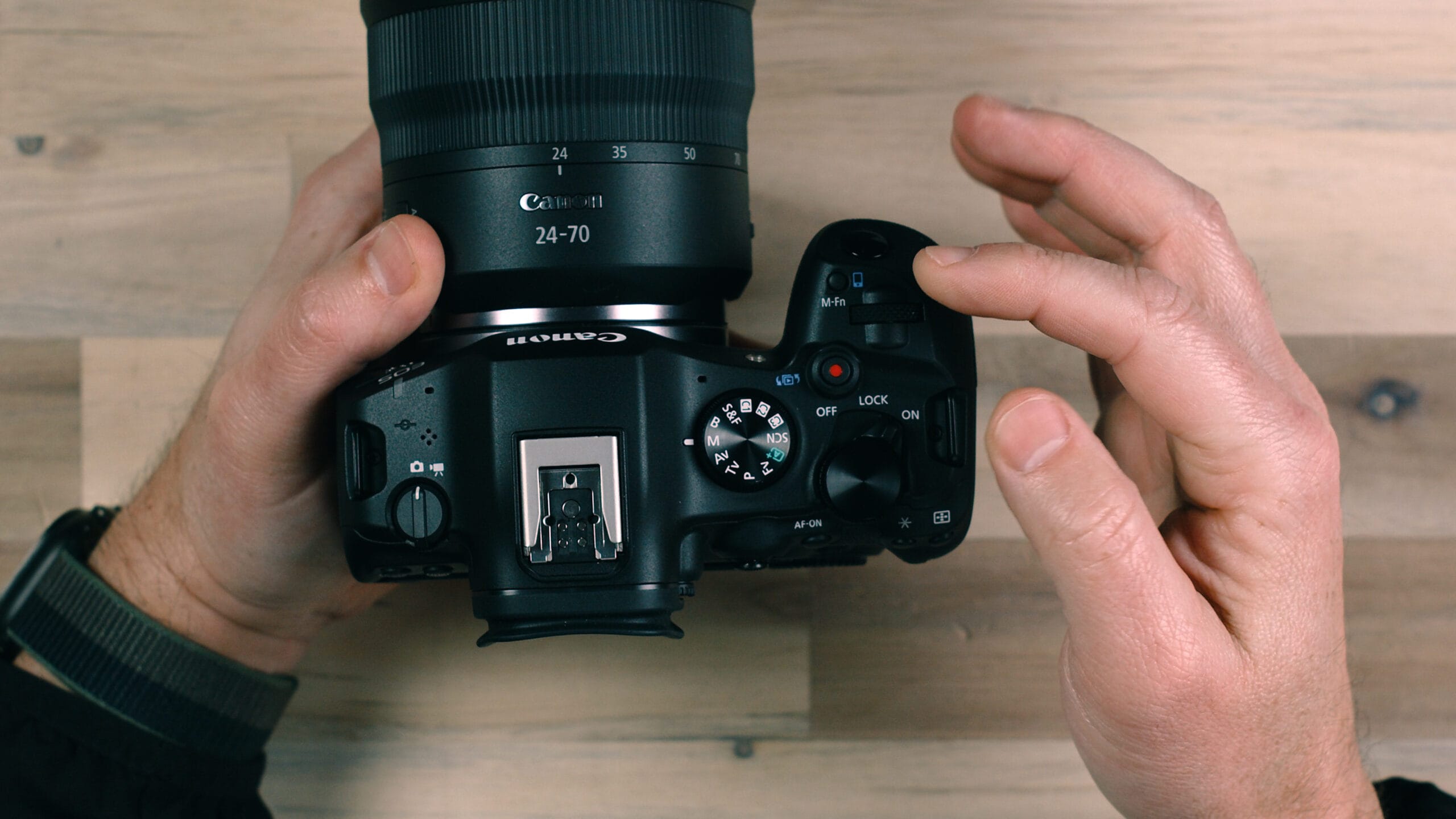
The power switch is straightforward, but one feature that Canon has included on their cameras since the DSLR era is the Lock mode position. When you slide the power switch into the Lock position, it locks down certain buttons and dials on the camera so you can’t accidentally change your settings. This is customizable in the menu — you can choose exactly which controls get locked.
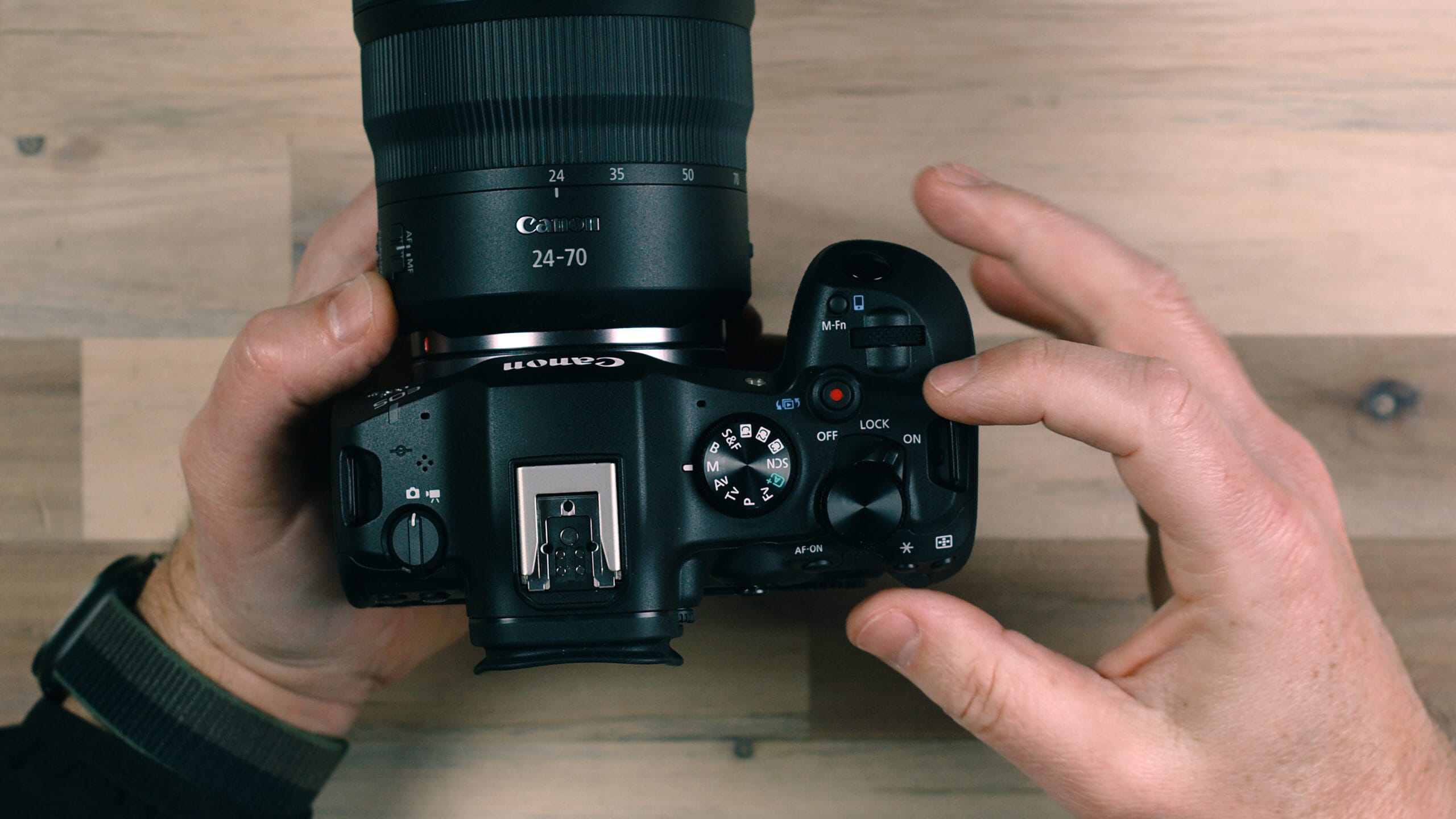
For example, in Lock mode, the main dial won’t respond when you rotate it. Switch back to the On position and it unlocks immediately. This is a genuinely useful feature if you’ve ever been shooting and realized you accidentally bumped a dial and changed your shutter speed or ISO without noticing. It happens more often than you’d think, especially when the camera is hanging on a strap or you’re moving quickly between shots.
Photo and Video Mode Toggle
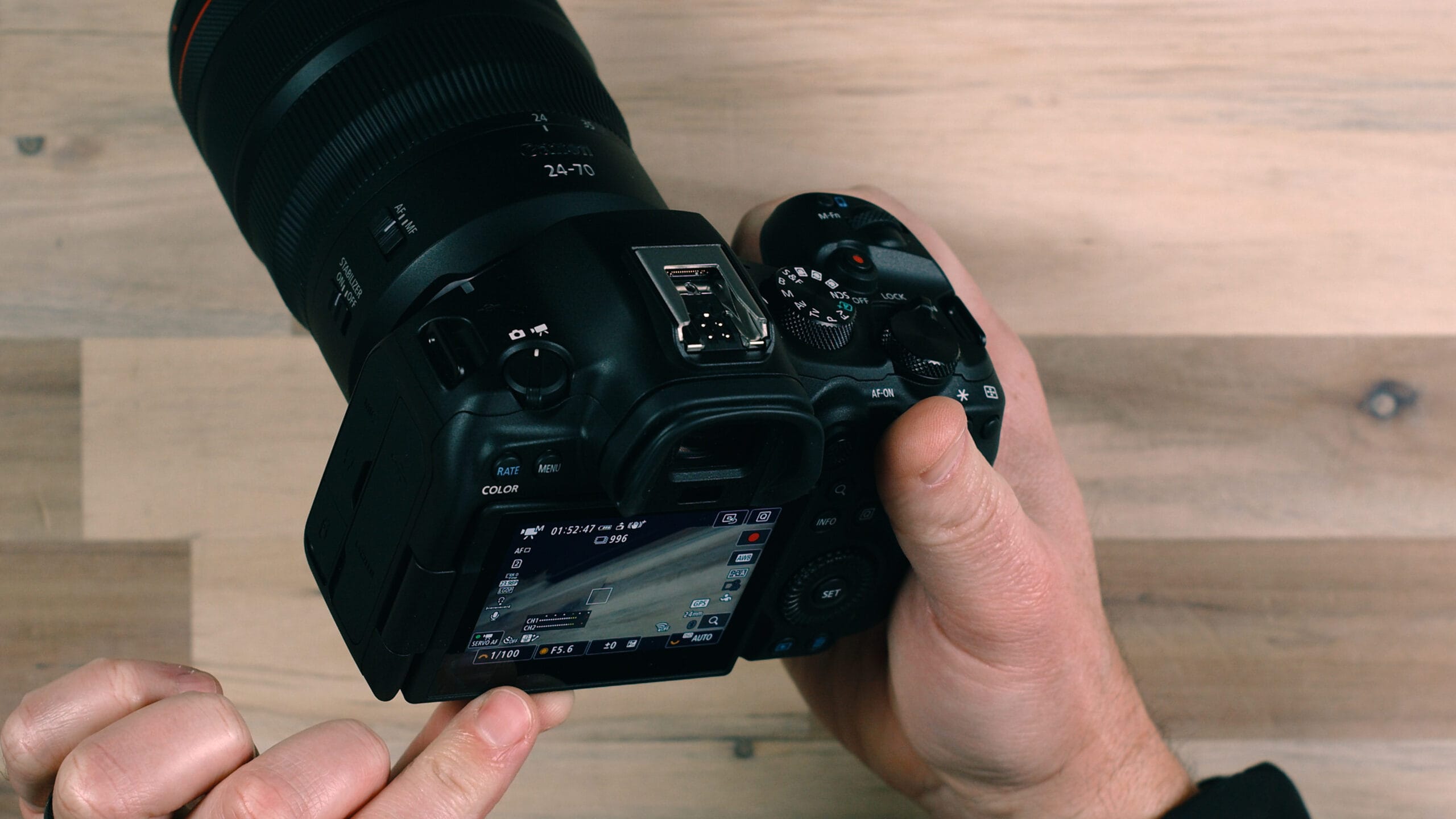
On the left side of the camera body, you’ll find a toggle switch that lets you switch between photo and video mode. Here’s something important to know: you don’t have to switch into video mode to record video. The dedicated record button works regardless of which mode you’re in, so if you’re in photo mode and need to grab a quick video, just press the record button.
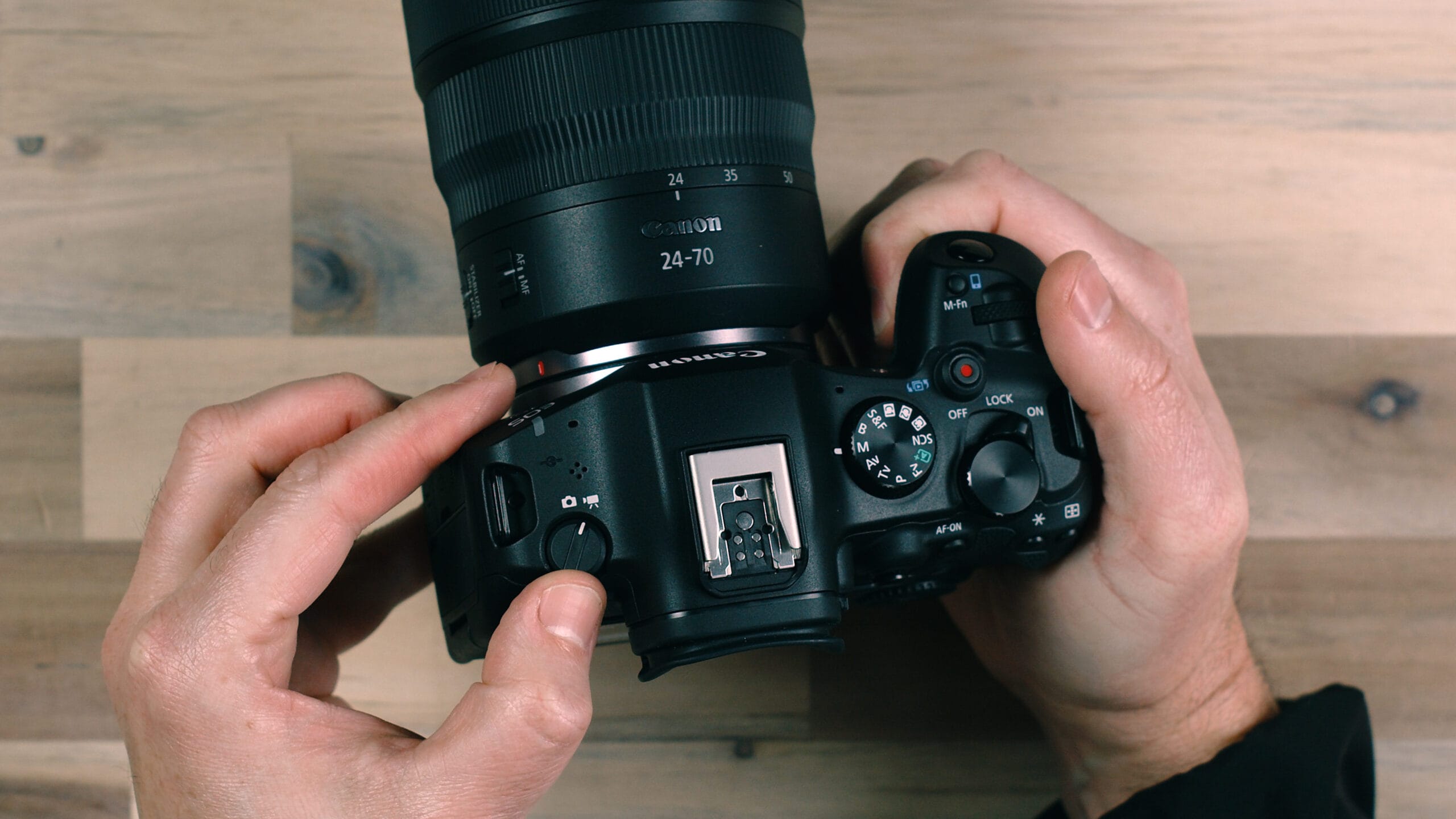
However, when you’re in photo mode and hit record, you don’t have access to all of your video-specific settings. The display doesn’t show you things like microphone levels or video-specific overlays. If you’re planning on recording something intentionally — not just a quick grab — switch into video mode first. You’ll see audio meters, recording indicators, and other information on the back of the screen that are specifically designed for filming and monitoring your video.
Back of Camera Controls
The back of the Canon EOS R6 III has several important buttons and controls that you’ll use constantly.
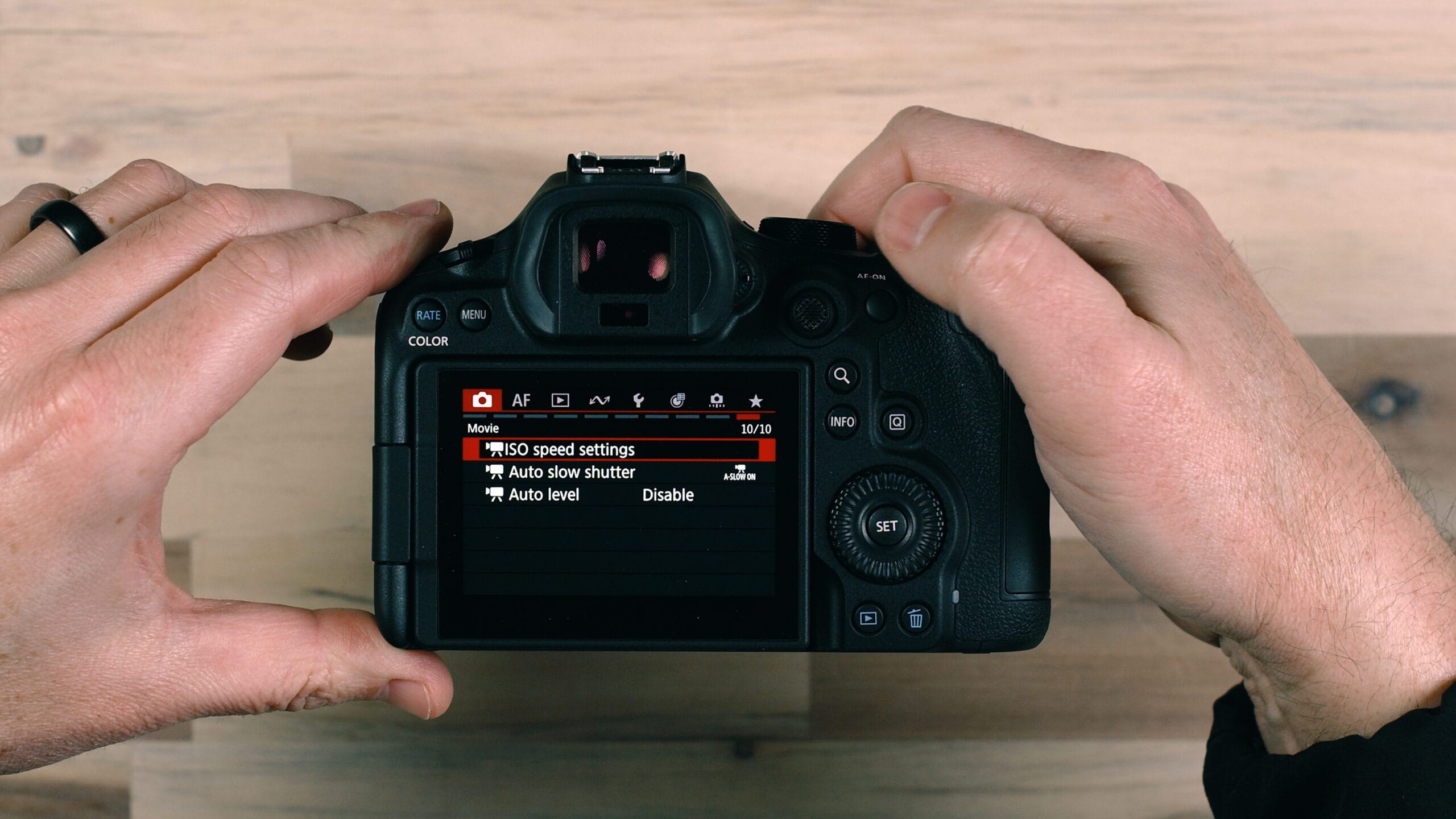
Menu Button
The Menu button on the upper left takes you into the camera’s full menu system. Keep in mind that the menu options available to you change depending on which shooting mode you’re in. If you’re in Manual mode, you’ll see a much larger set of options than if you’re in Auto mode. Canon intentionally limits menu access in the automatic modes to keep things simple, but it also means you’re missing out on a lot of powerful customization if you stay in those modes.
D-Pad (Multi-Controller)
The D-pad on the back of the camera serves multiple purposes. One of its most useful functions is moving the focus point around the frame. When you’re holding the camera up to your eye and the autofocus system is tracking faces, a small white box will appear on the detected face. If there are multiple people in the frame, you’ll see small arrows pointing left and right, indicating that you can use the D-pad to switch between different faces. This is an incredibly useful feature for making sure you nail focus on your intended subject, especially in group shots or busy scenes like weddings and events.
Zoom / Magnify Button
The zoom button on the back of the camera allows you to digitally zoom into your image for focus verification. It cycles through magnification levels — 5x, 10x, and then back to normal view. This is especially valuable when you’re shooting with manual focus and need to confirm that your subject is sharp, but it’s also useful as a quick focus check when shooting on a tripod. Just punch in, verify your focus point is tack sharp, and shoot with confidence.
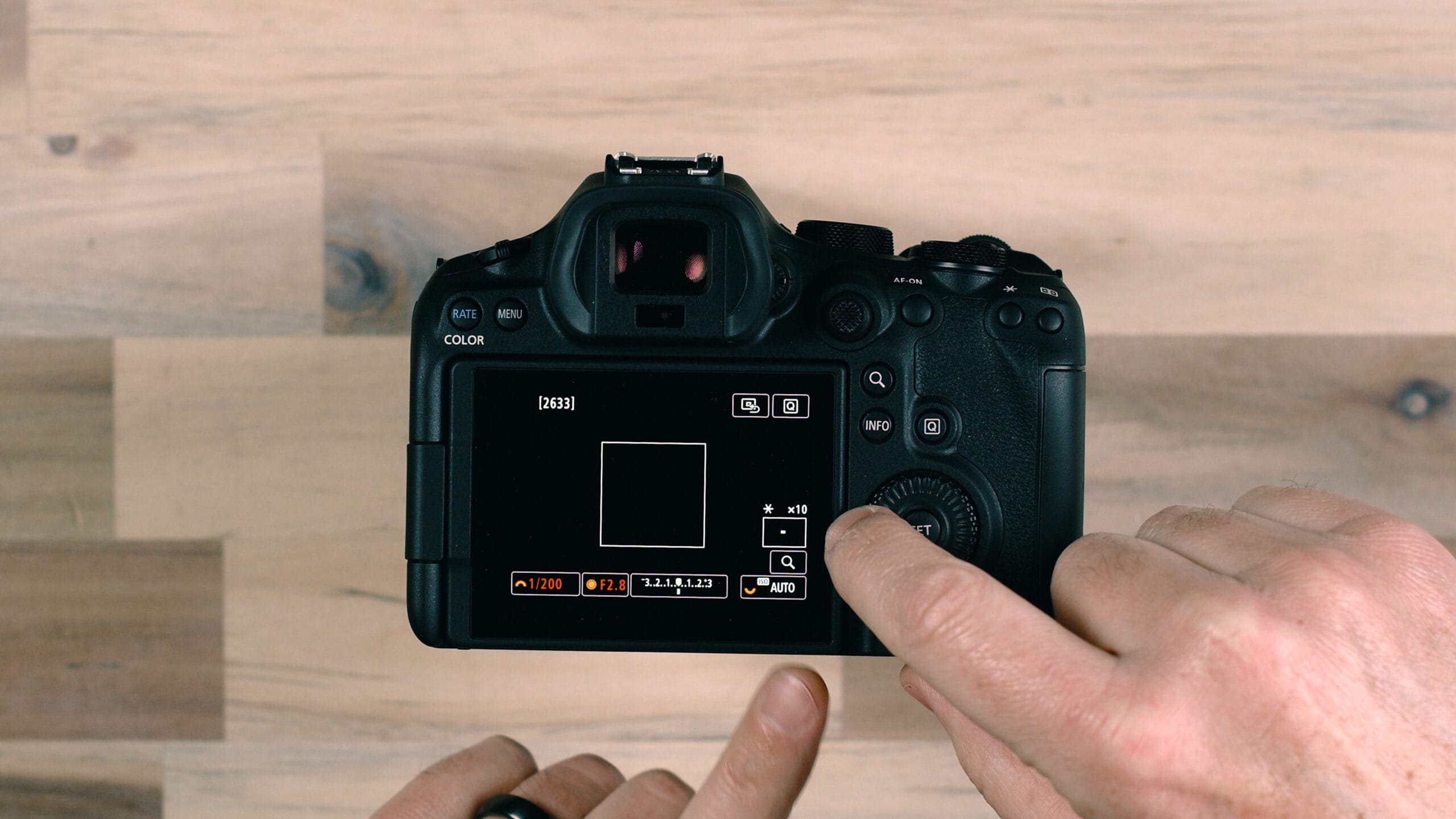
This same button also works as a zoom control when you’re reviewing images in playback mode.
Touchscreen
The back screen of the Canon EOS R6 III is a fully functional touchscreen, and it’s remarkably responsive — on par with a modern smartphone. You can pinch to zoom, drag to pan around a zoomed-in image, and tap to interact with settings. In many cases, the touchscreen experience is actually faster and more intuitive than using the physical buttons. For image review, pinching and zooming with your fingers is significantly more fluid than pressing the magnify button repeatedly.
Info Button
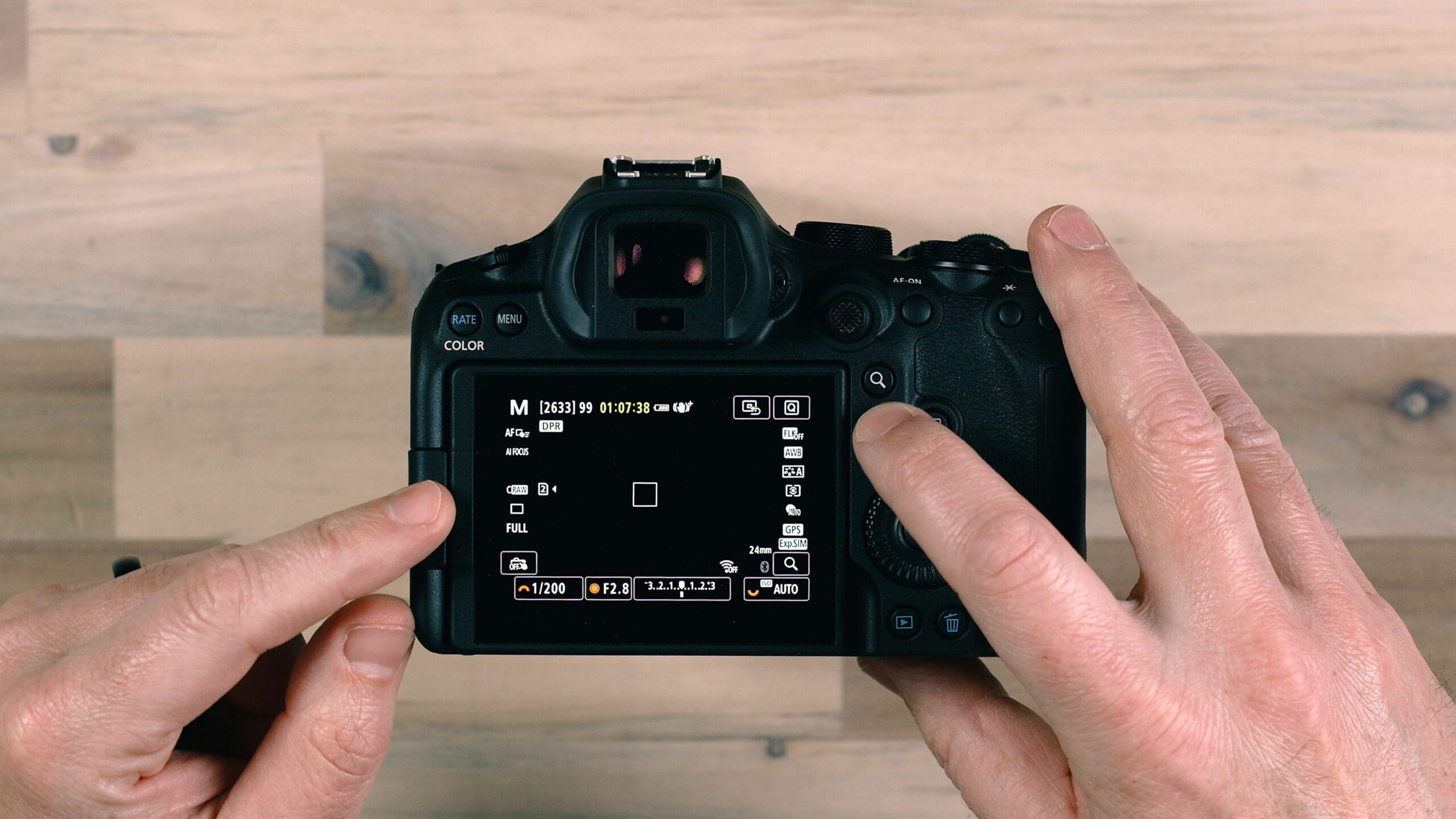
The Info button cycles through different display overlays on the back of the screen. Each press changes how much information is shown. You can cycle through a detailed overlay showing all your current settings, a clean view with minimal information, a digital level that helps you keep the camera perfectly straight, a completely blank display with nothing obstructing your view of the scene, and the quick settings panel. It’s worth cycling through these a few times to see which view you prefer for different shooting situations.
Q Button (Quick Settings)
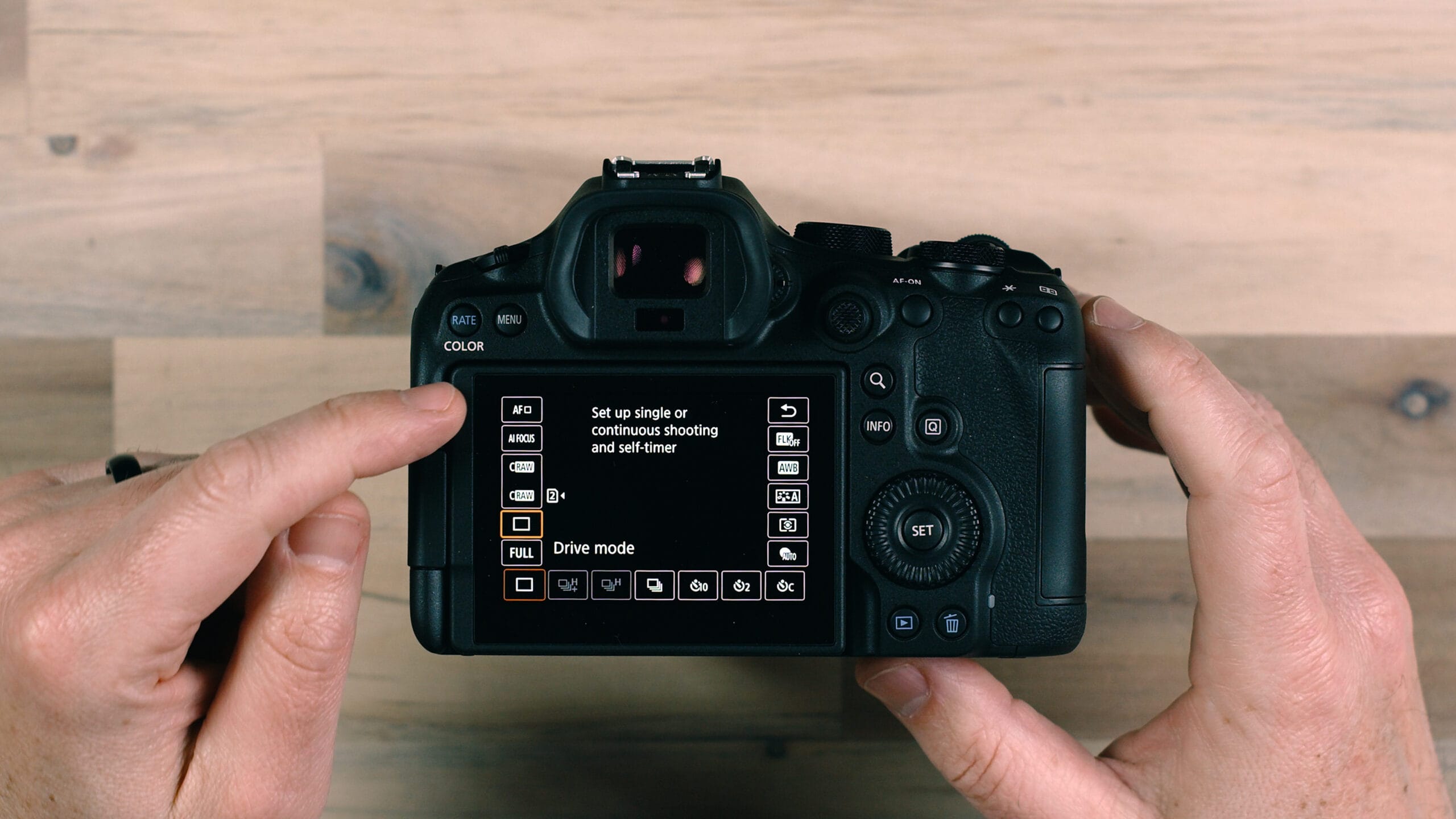
The Q button opens the Quick Settings panel, which gives you fast access to a wide range of frequently used settings. You can tap on any setting to adjust it, and the available options appear along the bottom of the screen. This panel works with both touch input and the physical controls on the back of the camera, so use whichever feels most natural to you. The Quick Settings panel is one of the fastest ways to change settings without diving into the full menu system.
Set Button and Subject Tracking
By default, pressing the Set button activates the camera’s face and subject tracking mode. If the camera hasn’t automatically started tracking a subject, pressing Set will initiate tracking on whatever is in the center of the frame. You can also tap directly on any subject on the touchscreen and the camera will begin tracking it — and it doesn’t have to be a person. You can tap on an animal, a vehicle, or any object, and the R6 III’s advanced autofocus system will lock on and follow it. This is an incredibly powerful feature for shooting moving subjects and ensuring the camera stays locked on exactly what you want in focus. Focus tracking requires you to be in Servo AF mode.
Ports, Media Slots, and Battery
Memory Card Slots
The Canon EOS R6 III features a dual card slot system with two different types of cards. Opening the media slot door on the right side of the camera reveals an SD card slot and a CFexpress Type B card slot.
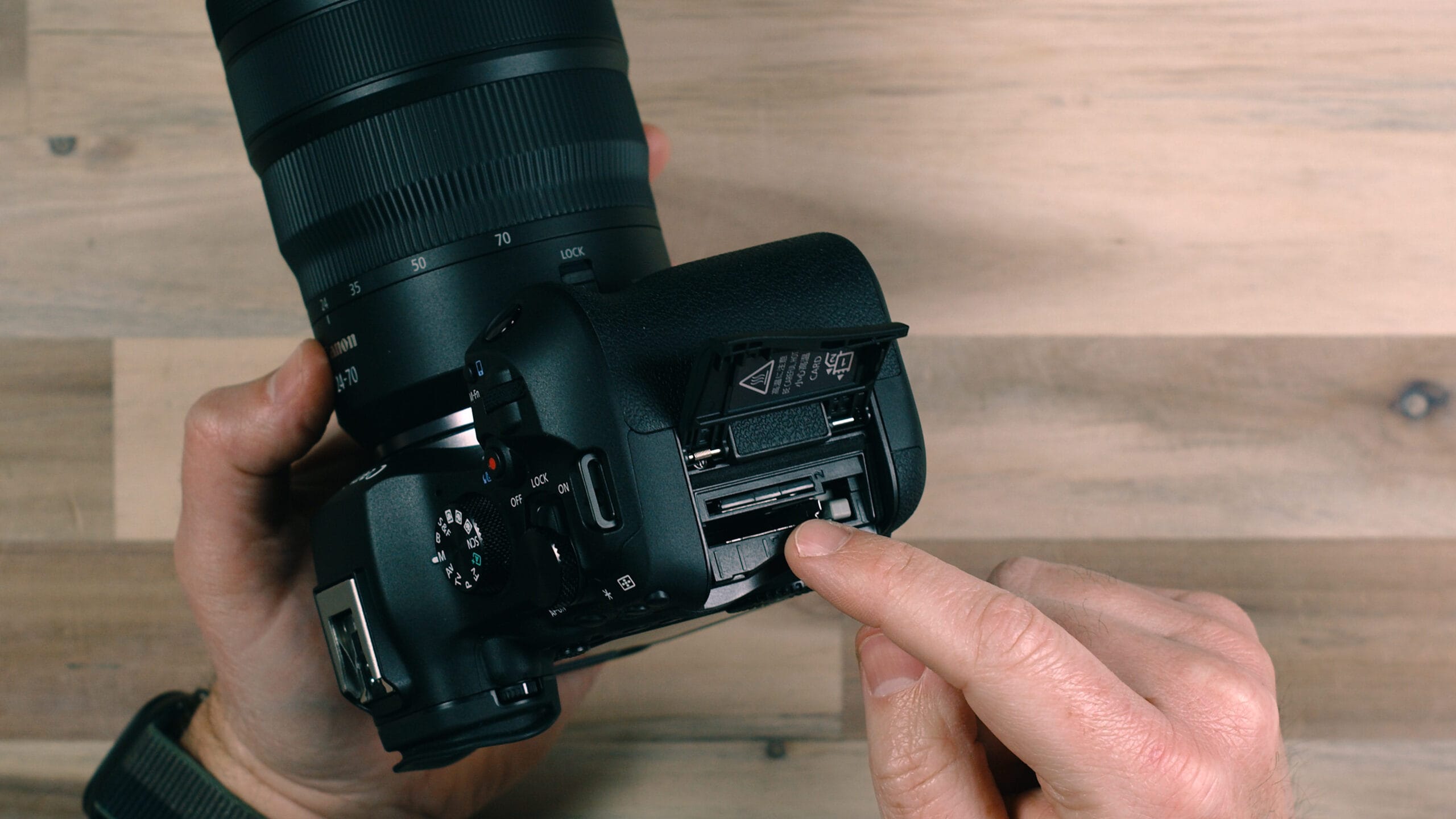
This is an important change from the R6 Mark II, which had two SD card slots. With the R6 III, if you want to use both card slots simultaneously, you’ll need one of each type.
The performance difference between these two card formats is significant. A V90-rated SD card — essentially the fastest SD card you can get — offers roughly 300 MB/s read and write speeds. Current CFexpress Type B cards offer over 1,500 MB/s read and write speeds. That massive speed difference matters because the CFexpress card is required for the R6 III’s faster burst shooting modes and for recording video at resolutions higher than 4K. If you want access to 7K recording, 4K 120fps, or the full 40fps burst capability, you’ll need a CFexpress Type B card in the camera.
If you’re only going to use one card, I’d recommend making the CFexpress card your primary. Then, if you add an SD card as a second card, you can use it as a backup — which I’ll cover in the menu settings section below.
Ports and Connections
The Canon EOS R6 III has all of its ports organized behind two doors on the left side of the camera body.
The larger door provides access to a USB-C port and a full-size HDMI port. The USB-C connection serves double duty for both file transfer to a computer and direct charging of the camera. You can charge the R6 III just like a cell phone by plugging in a USB cable connected to an appropriate charging brick — no external battery charger required, though having one is still convenient. The full-size HDMI port allows you to connect to an external monitor or television for image preview or for monitoring video while you’re recording. The fact that it’s a full-size HDMI rather than micro-HDMI is a welcome upgrade, as full-size connections are significantly more reliable and durable.
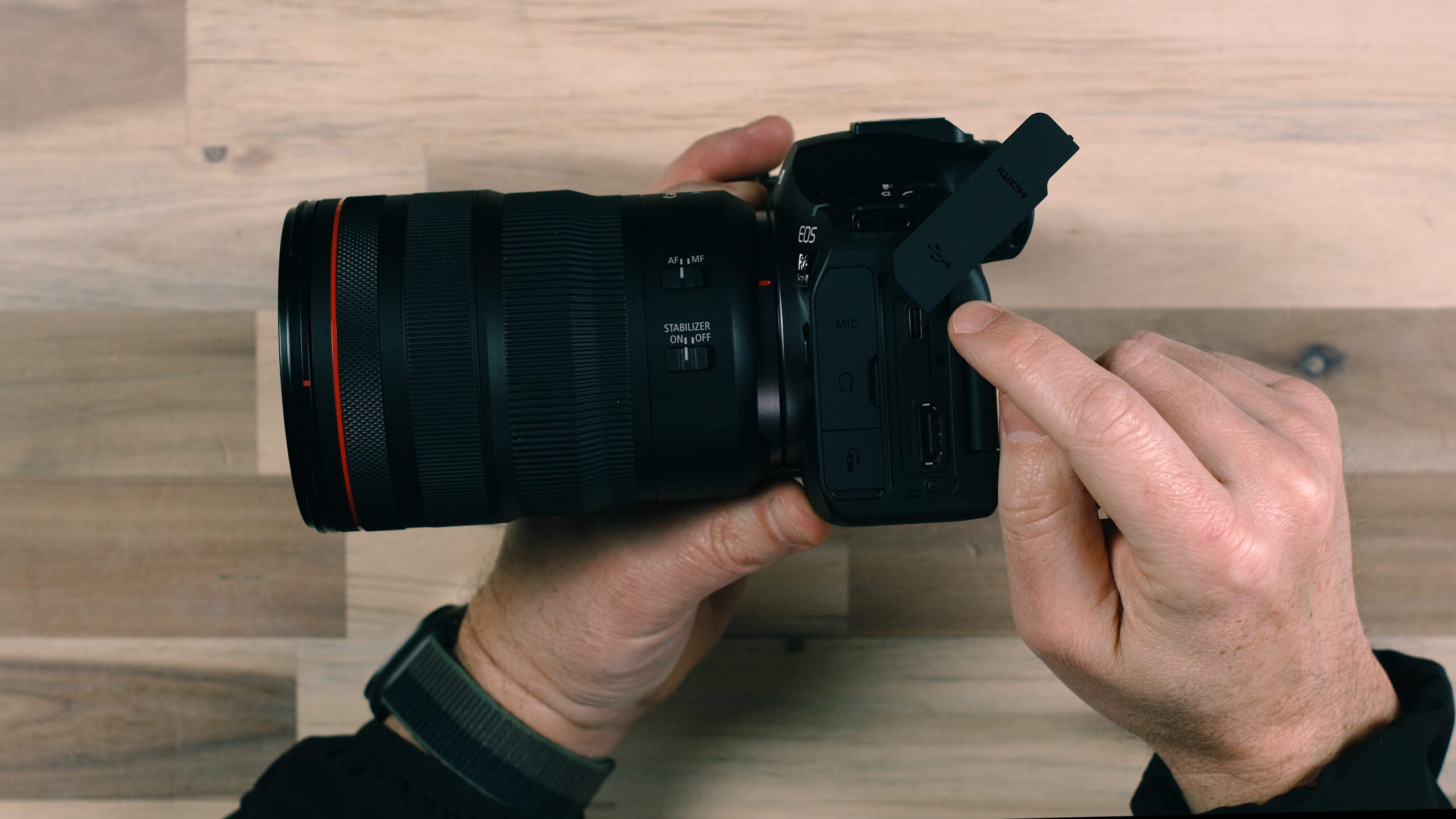
The smaller door contains the microphone input jack, headphone monitoring jack, and a wired remote trigger port. You can connect an external microphone — either mounted on the hot shoe and cabled to the side of the camera, or a wireless system like the Rode Wireless Pro. The headphone jack lets you monitor audio levels in real time directly from the camera, which is essential for any serious video work. The remote trigger port accepts wired triggers for remote shutter release or time-lapse control setups.
Battery and Grip
The battery compartment is on the bottom of the camera. The R6 III uses the LP-E6P series battery, which is Canon’s latest and most capable battery in this form factor. I strongly recommend having at least a couple of extra batteries on hand, especially if you’re shooting events, video, or anything that involves extended shooting sessions.
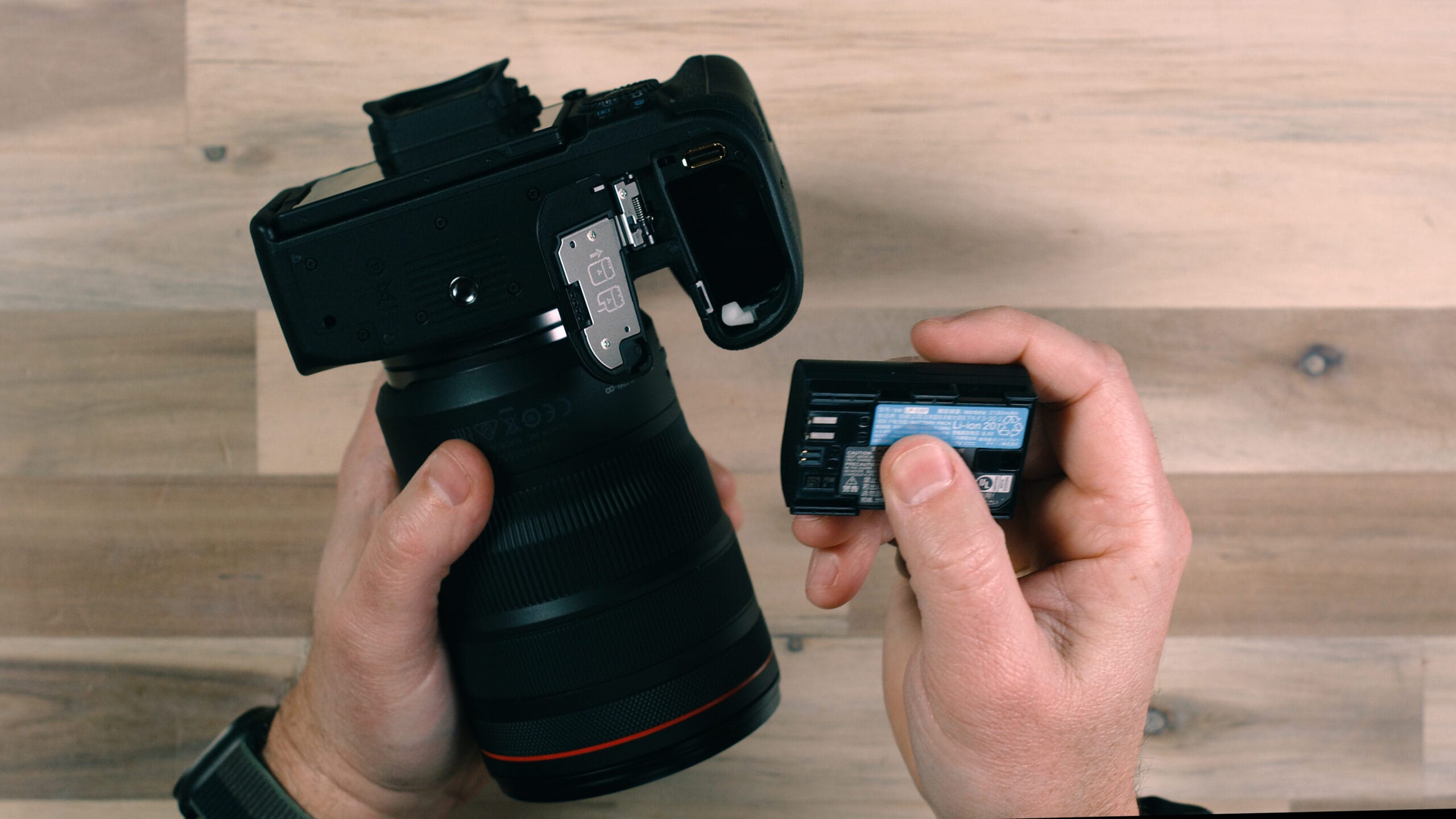
The battery door is removable — there’s a small release button that lets you detach it entirely. This is designed to accommodate an optional external battery grip, which slides onto the bottom of the camera and into the battery bay. The grip adds a second battery slot, effectively doubling your shooting time, and provides a vertical grip with duplicate controls for comfortable portrait-orientation shooting.
Depth of Field Preview Button
On the front of the camera body, near the lens mount, you’ll find a small button that serves as the depth of field preview. Pressing this button stops down the lens to your selected aperture so you can see in real time exactly how much of the scene will be in focus at your current settings. This is especially helpful when you’re shooting at wider apertures and want to preview the background blur before taking the shot.
Lens Controls
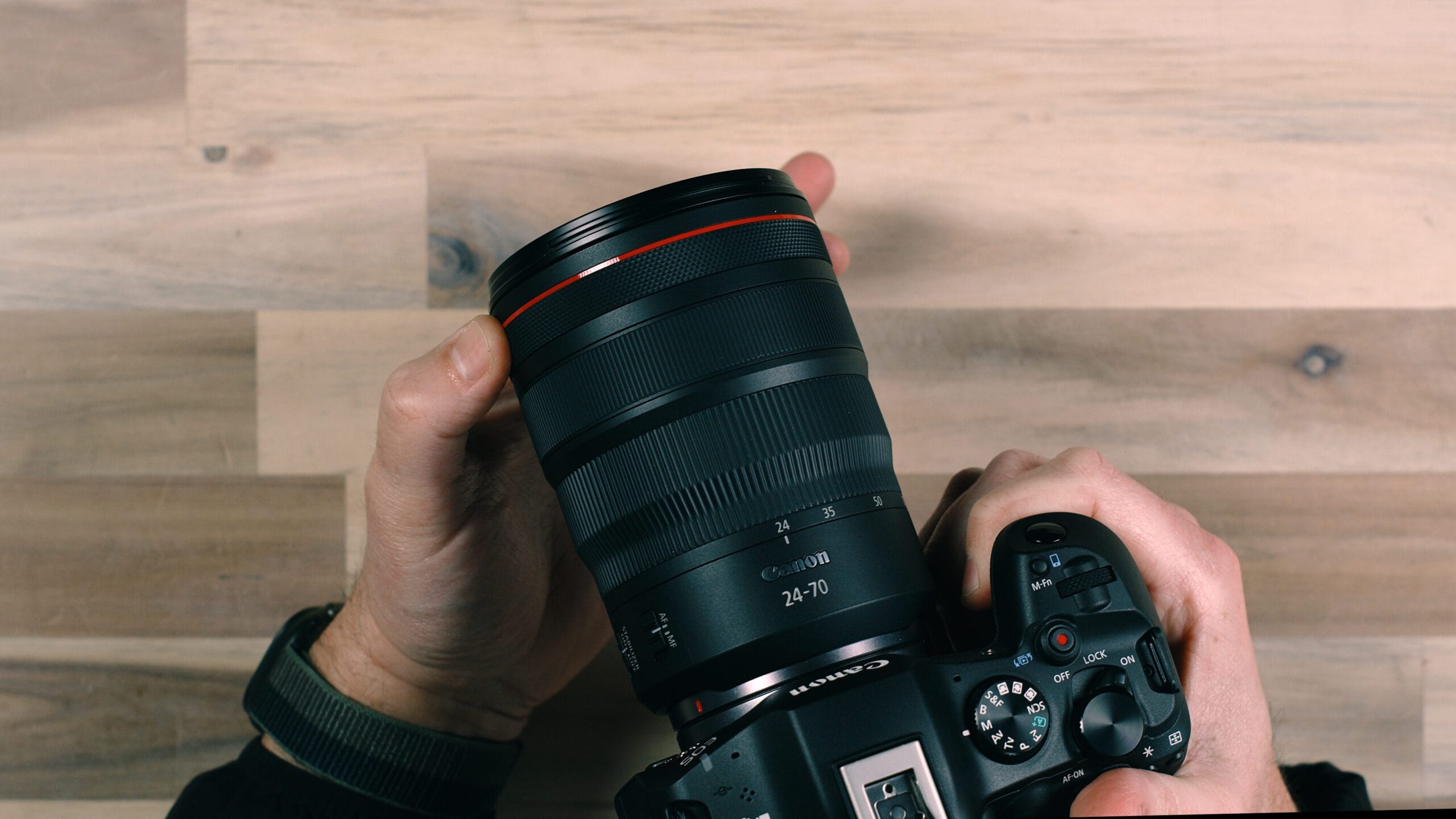
Understanding the controls on your Canon RF lens is just as important as knowing the camera body. Different lenses have different features, but I’ll walk through the controls found on the Canon RF 24-70mm f/2.8L IS USM, which is one of Canon’s professional L-series lenses and has the most comprehensive set of controls.
AF/MF Switch
The autofocus/manual focus switch on the side of the lens lets you instantly switch between autofocus and manual focus without navigating any menus. When set to MF (manual focus), you control focus entirely by rotating the focus ring on the lens. When set to AF, the camera’s autofocus system takes over and the focus ring is essentially inactive.
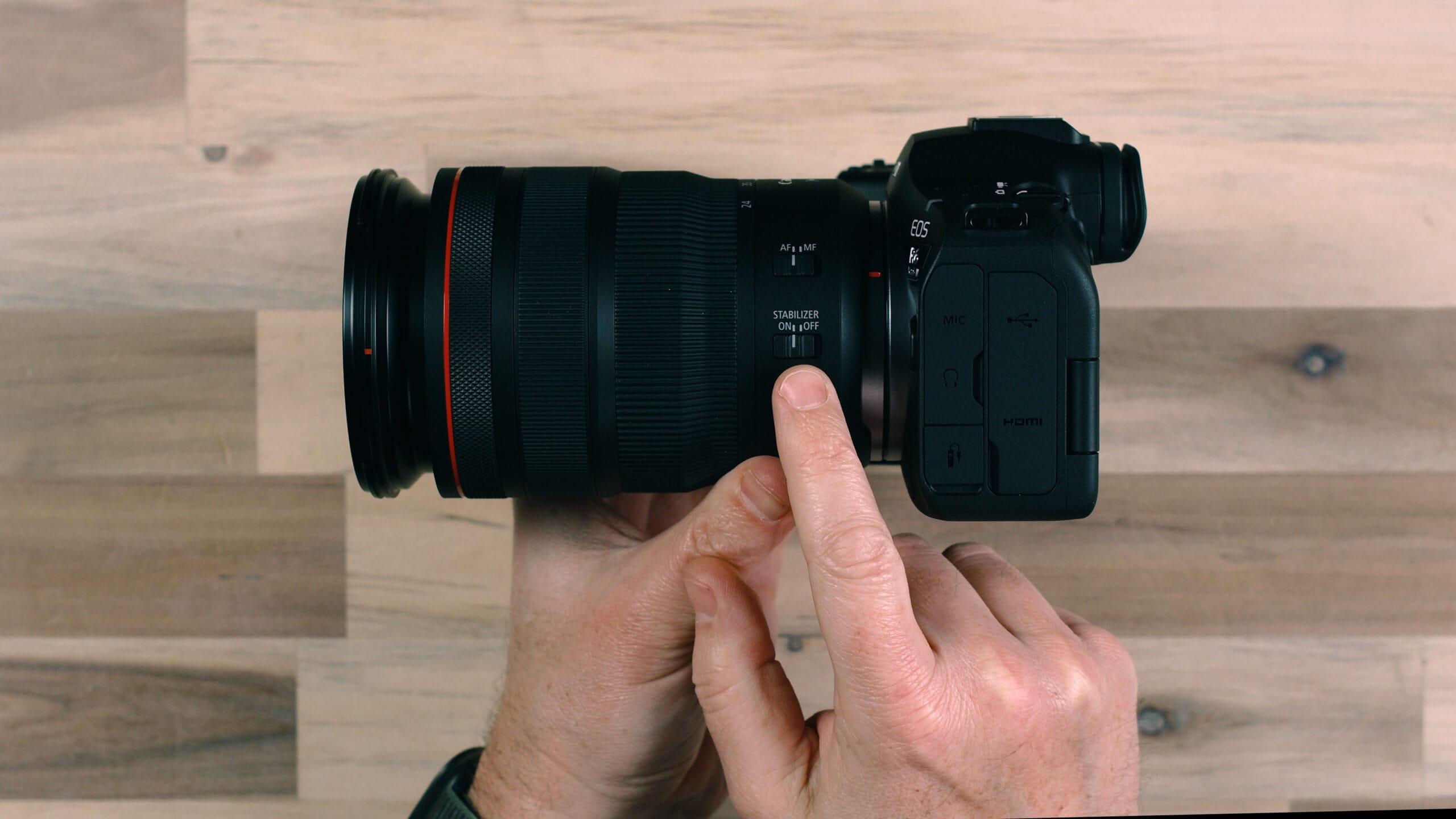
Image Stabilization Switch
This particular lens has optical image stabilization (IS) built in, which works in conjunction with the R6 III’s in-body image stabilization (IBIS). Having both lens-based and sensor-based stabilization working together gives you the best possible stabilization performance — Canon rates the combined system at up to 8.5 stops of correction. You can toggle the lens stabilization on and off with this switch. Not all Canon RF lenses include built-in stabilization, but even without it, the R6 III’s in-body stabilization will still help smooth out your shots.
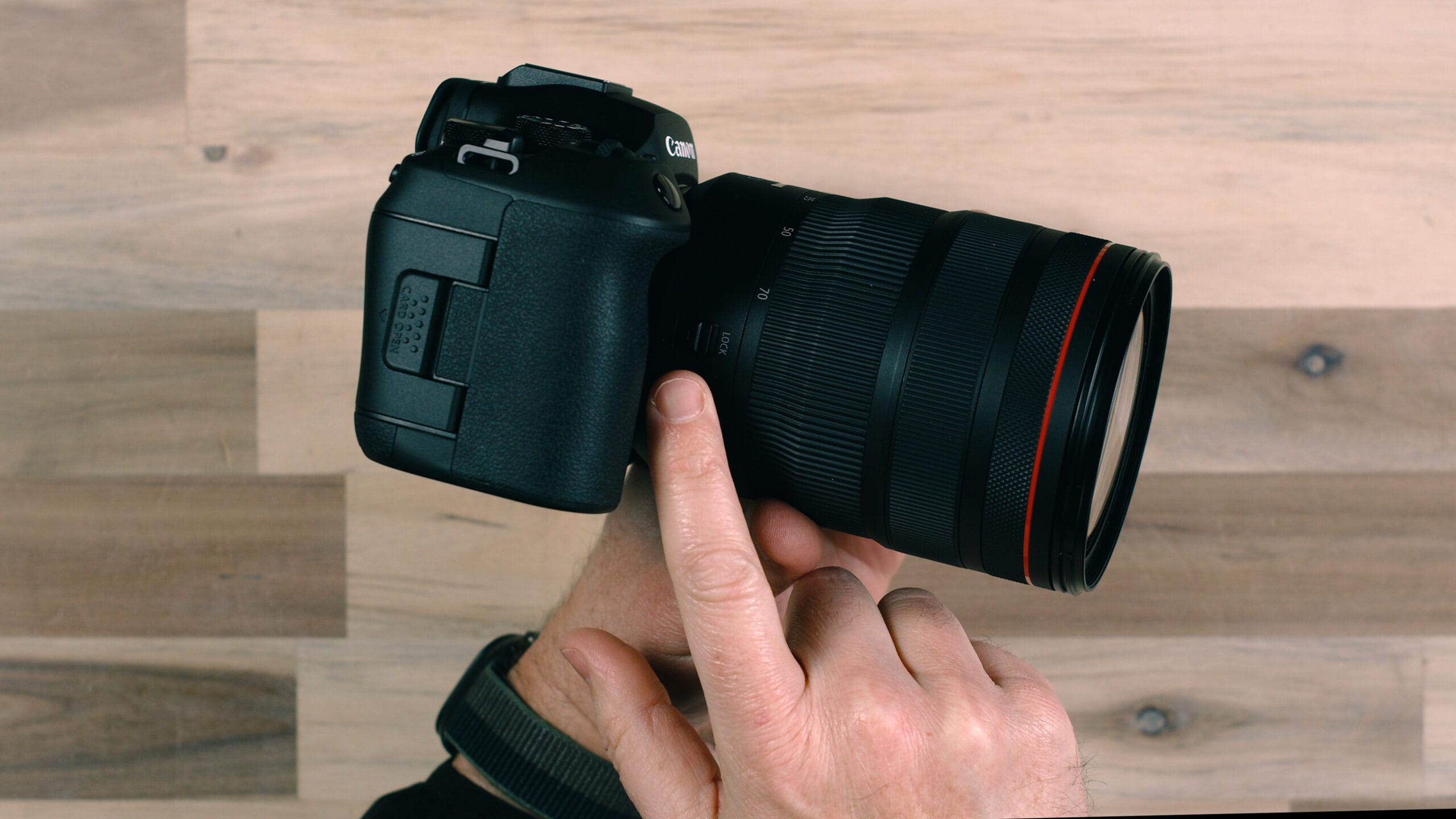
Zoom Lock
When the lens is fully collapsed at its widest focal length (24mm on the 24-70mm), the zoom lock switch prevents the lens barrel from extending. This is primarily useful for transport — if the camera is on a strap around your neck or clipped to a belt, the zoom lock prevents the lens from sliding out and bouncing around. Just flip the lock switch, and the lens stays retracted until you unlock it.
Custom Control Ring
One of my favorite features on Canon’s RF lenses is the customizable control ring near the front of the lens. By default, it doesn’t do anything, but you can assign it to control ISO, aperture, shutter speed, exposure compensation, or any other setting you frequently adjust.
I have mine mapped to ISO, which means that when I’m holding the camera in shooting position, I can adjust my ISO by simply rotating this ring with my fingertips — without ever taking my eye away from the viewfinder or moving my hands to the camera body. It’s an incredibly fast and intuitive way to make adjustments on the fly, and once you set it up, you’ll wonder how you ever shot without it.
Essential Menu Settings
The Canon EOS R6 III has an extensive menu system with a lot of options. I cover every single menu item in my full R6 III course, but here are the essential settings you should understand right away.
Image Quality (RAW vs. JPEG)
On the very first page of the camera menu, you’ll find the Image Quality setting. This is where you choose the file format your camera captures.
Using the main dial on top of the camera, you can toggle between no RAW capture (JPEG only), full RAW, and compressed RAW (cRAW). As you switch between these options, the camera displays a preview of the file size and how many images you can capture based on the remaining capacity of your memory card.
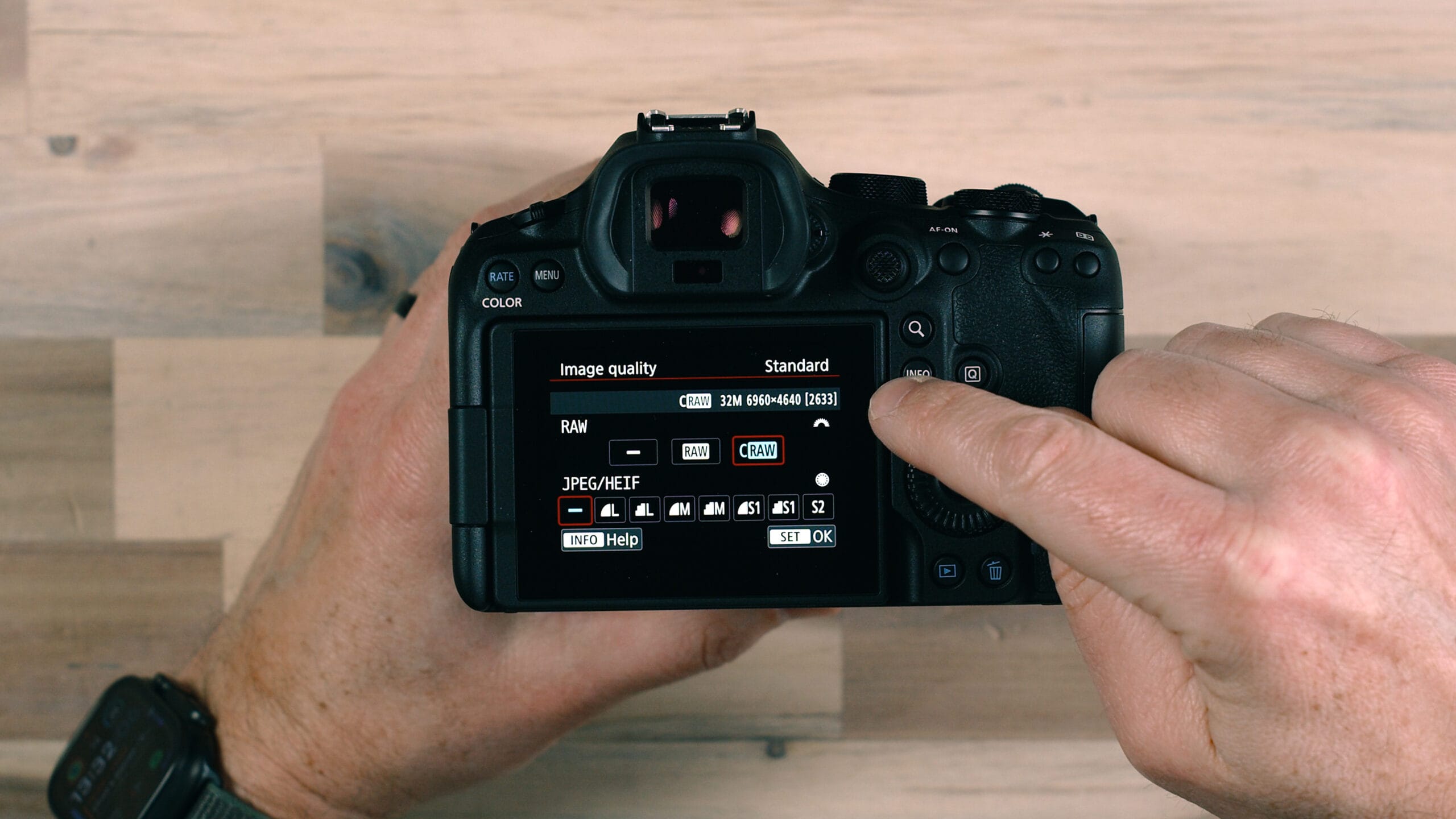
Using the rear dial, you can also select JPEG or HEIF output in addition to your RAW selection. This lets you shoot RAW + JPEG simultaneously — meaning each time you press the shutter, the camera saves both a RAW file and a JPEG of the same image.
Why shoot RAW? RAW files contain significantly more image data than JPEGs, which gives you much greater latitude when editing. You can recover blown highlights, pull up shadows, adjust white balance, and apply more aggressive noise reduction — all without degrading image quality. The tradeoff is that RAW files need to be processed in software like Adobe Lightroom or Canon’s Digital Photo Professional before they can be shared or printed.
Why shoot RAW + JPEG? If you’re using a single card slot (no CFexpress card, only an SD card), shooting RAW + JPEG provides a safety net. On rare occasions, a RAW file can become corrupted, and having the JPEG backup means you still have a usable image. The extra storage consumed by the JPEGs is minimal compared to the peace of mind. For example, switching from RAW-only to RAW + Large JPEG might take your capacity from roughly 2,500 images down to about 2,300 — a small price for redundancy.
The downside is that when you import into Lightroom, you’ll see both the RAW and JPEG versions of every image, so you’ll need to filter and select just the RAW files for import. It can be a minor annoyance, but it’s manageable.
If editing isn’t for you yet, just shoot in Large JPEG and you’ll get great results straight out of camera. You can always switch to RAW later as your workflow develops.
Dual Card Recording Options
If you have both a CFexpress Type B card and an SD card in your camera, you gain access to several recording options under the Wrench menu on the first page, under “Record function + card/folder select.” The available options include Auto Switch, where the camera fills one card and then automatically switches to the other when it’s full; Record Separately, where you can send RAW files to one card and JPEGs to the other; and Record to Multiple, where the camera writes the same data to both cards simultaneously for real-time backup.
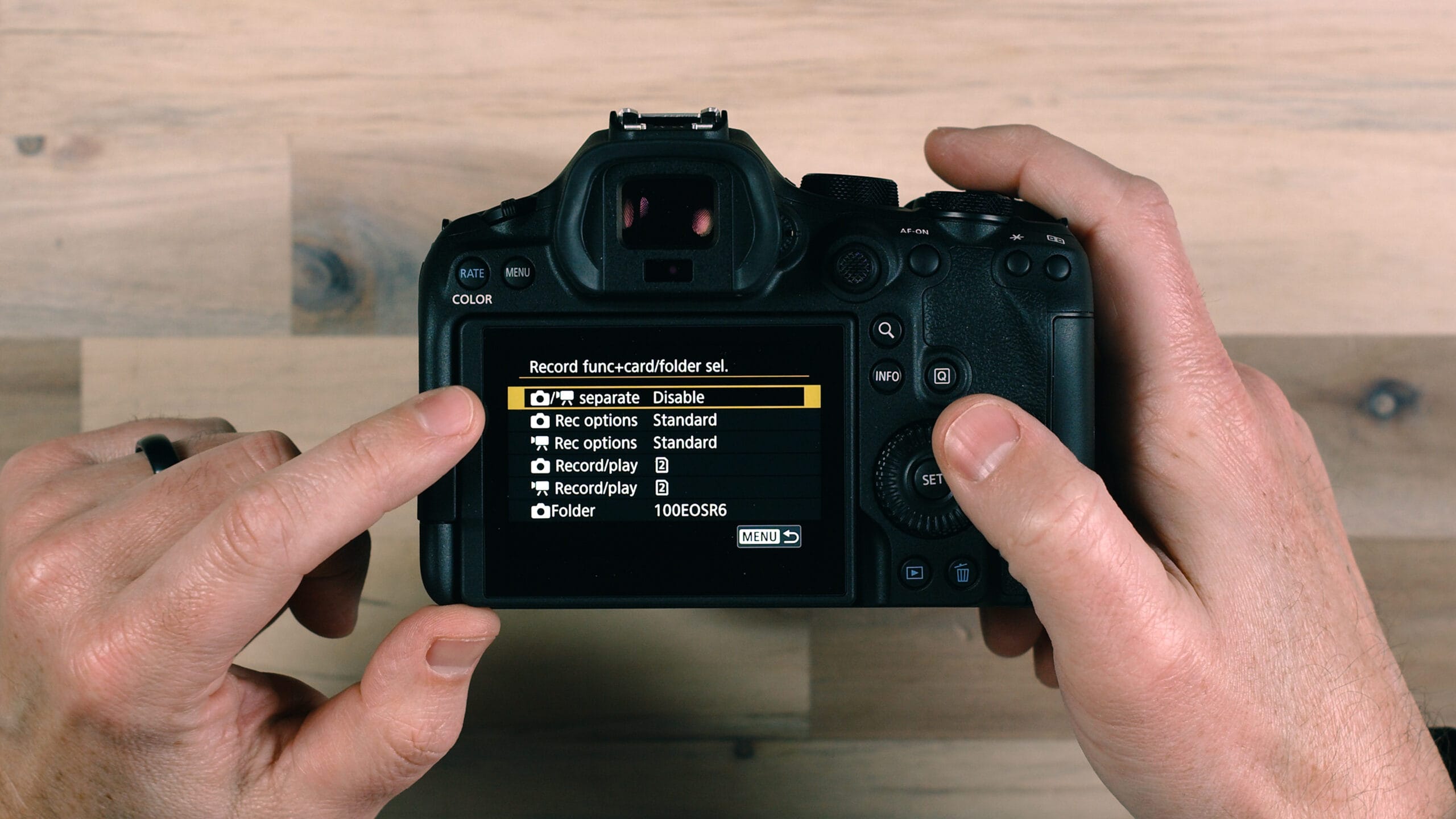
The redundancy option — recording to multiple cards — is one of the primary benefits of having dual card slots. If one card fails, the other has an identical copy of everything. This is the way I typically shoot: the CFexpress card serves as my primary because it’s the fastest card and handles the most demanding shooting modes, while the SD card lives in the camera as a backup, recording the same files.
You can configure these same options independently for video recording as well.
Video Settings
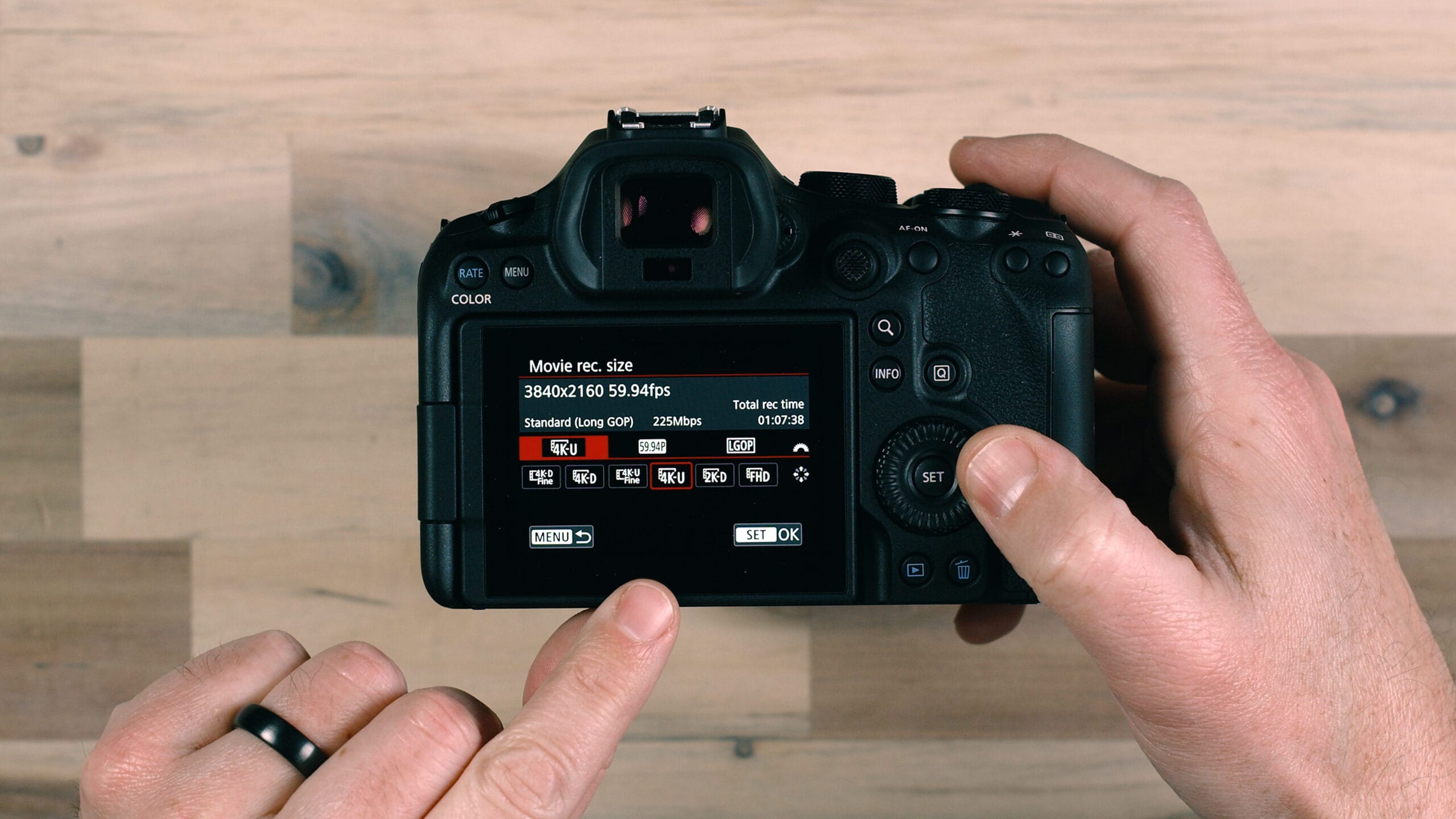
Switch the camera into video mode using the toggle on the side of the body, then press Menu to access video-specific settings. On the first page, you’ll find “Movie record size and format.”
The Canon EOS R6 III offers a wide range of video resolution and frame rate combinations. Available resolutions include 7K (using the full sensor), 4K DCI, 4K UHD, 2K, and Full HD. Using the top dial, you can rotate through frame rate options: 23.98fps, 24fps, 29.97fps (essentially 30fps), and 59.94fps (essentially 60fps). Higher frame rates like 120fps and 180fps are also available, but only when a CFexpress Type B card is installed — otherwise these options will be grayed out.
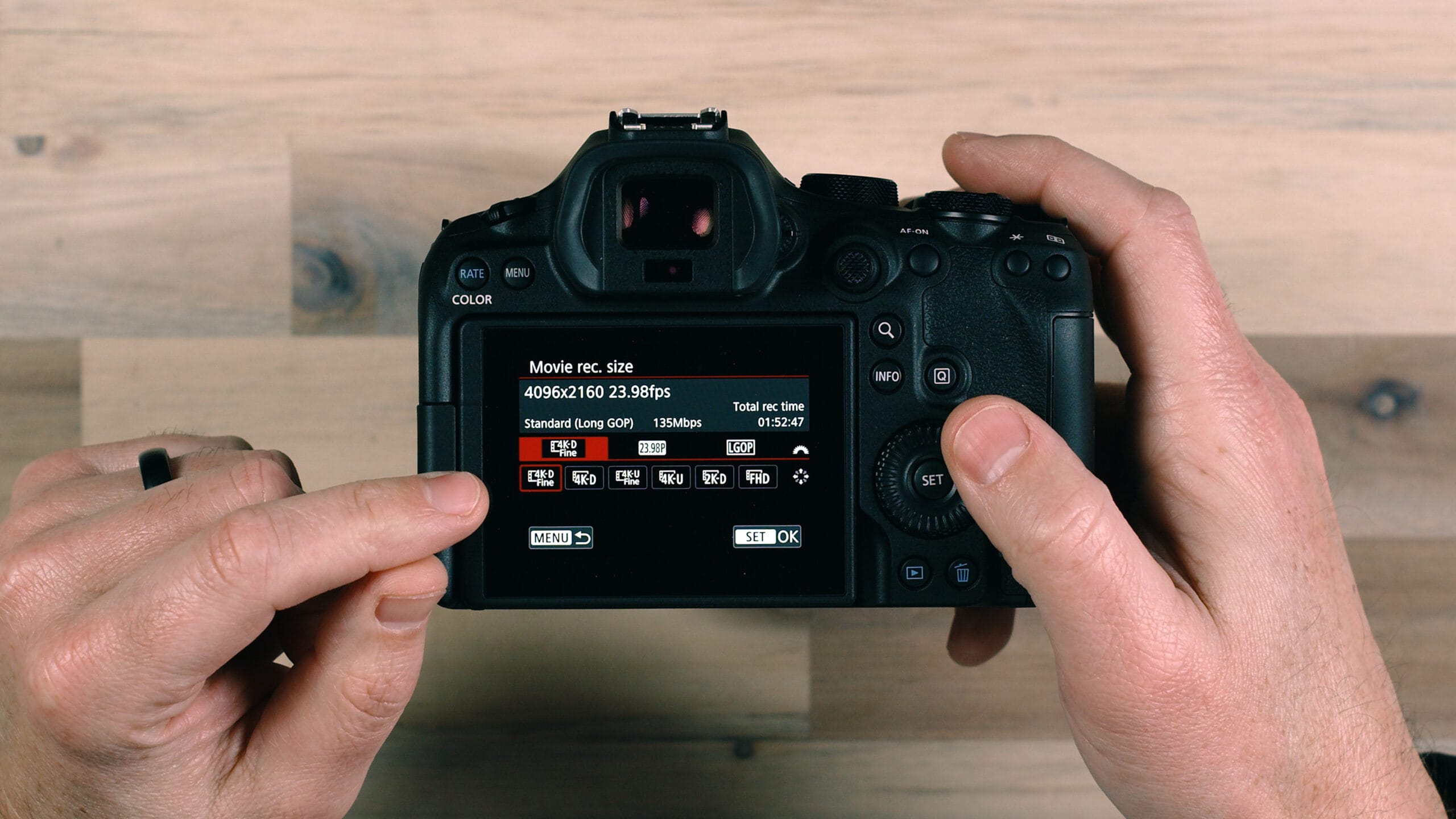
Pay attention to the bit rate displayed for each combination of resolution and frame rate. Higher bit rates mean better video quality but larger file sizes, which directly affects how much recording time you’ll have on your card. It’s worth experimenting with different combinations to find the balance that works for your needs and storage capacity.
Formatting Memory Cards
One of the most important habits to develop is formatting your memory cards in the camera — never on your computer. Navigate to the Format Card option in the menu, select which card you want to format (Card 1 is CFexpress, Card 2 is SD), and follow the on-screen instructions.
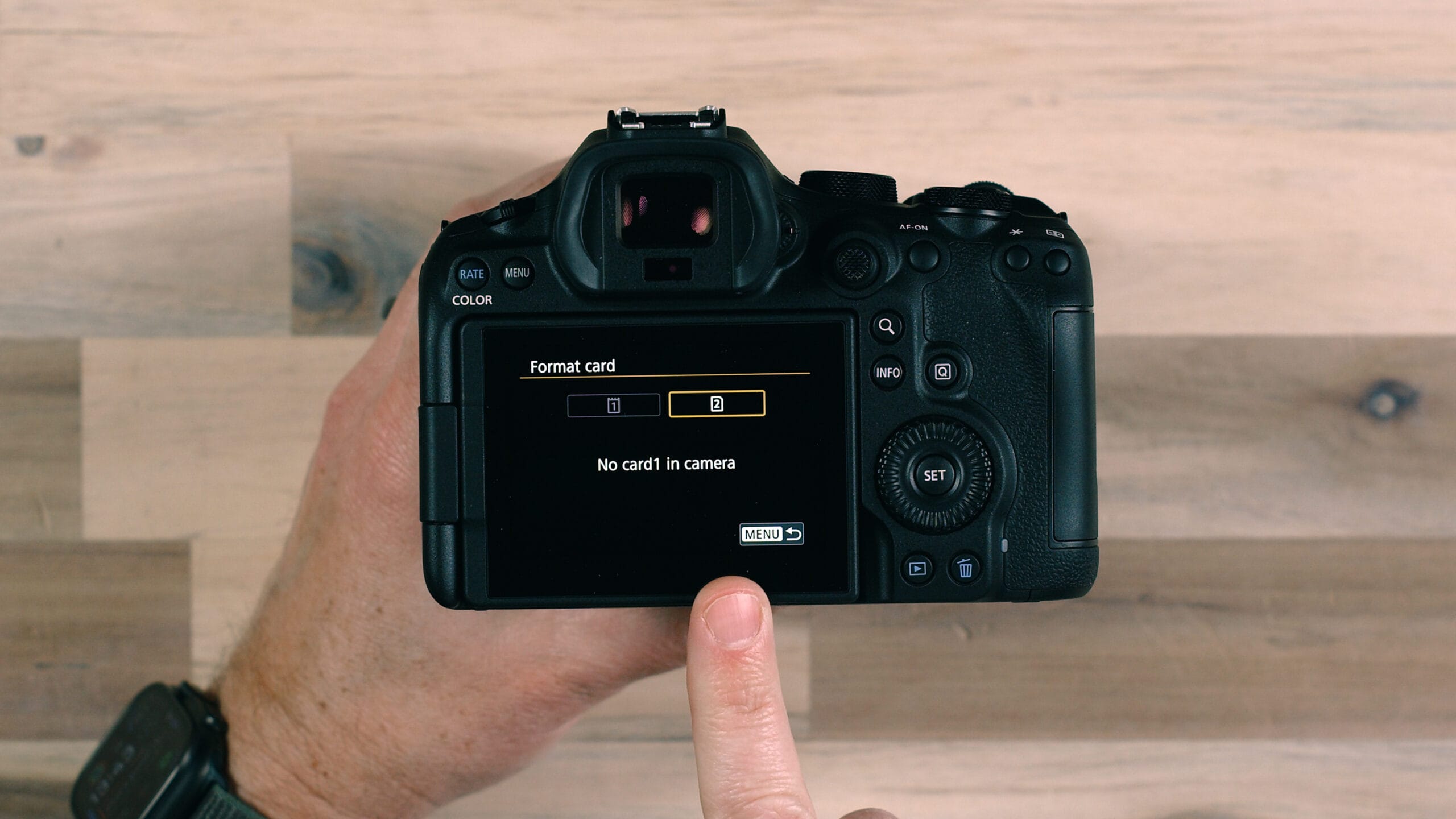
The camera formats the card with a specific file system structure optimized for the R6 III. Formatting on a computer may use different file system settings that technically work but can occasionally lead to corruption issues or unreliable performance. It’s a small thing, but formatting in-camera eliminates a potential problem entirely.
Critical rule: never format a card until you’ve verified that everything on it is backed up. Whether you’ve copied files to a folder on your computer or imported everything into Lightroom, confirm your backup is complete before formatting.
My card rotation system: After a shoot, I remove the card from the camera and it stays out until I’ve confirmed the backup. I put a different, freshly formatted card in the camera for the next shoot. This rotation means I never accidentally overwrite or format a card that still has undelivered images on it. With a few cards in rotation, this system becomes second nature and virtually eliminates the risk of data loss.
Recommended Shooting Mode Progression for Beginners
If you’re new to the Canon EOS R6 III — or to mirrorless cameras in general — here’s the progression I recommend for building your skills and confidence.
Step 1: Start in Auto Mode
There’s nothing wrong with starting here. Auto mode lets you focus on composition, timing, and simply getting comfortable with the camera in your hands. Point, tap the screen to tell the camera what to focus on, and press the shutter. The camera handles everything else. Use this time to get familiar with how the camera feels, where the buttons are, and how the touchscreen responds.
Step 2: Move to Aperture Priority (Av)
Once Auto mode starts feeling limiting — when you want control over how blurry the background is, or you want to make creative decisions about depth of field — switch to Aperture Priority. Set your aperture (f/2.8 for shallow depth of field, f/8 or higher for everything in focus), and the camera automatically selects the right shutter speed and ISO for proper exposure. This single change gives you significantly more creative control while the camera still does most of the exposure math.
Step 3: Learn Shutter Priority (Tv)
Next, try Shutter Priority mode. This gives you control over how motion is captured — freeze fast action with a high shutter speed like 1/1500, or create intentional motion blur with a slower speed. The camera handles aperture and ISO. This mode is especially useful for sports, wildlife, and any situation where subject movement is a factor.
Step 4: Go Full Manual (M)
Once you understand how aperture and shutter speed each affect your image independently, combining them in Manual mode becomes much less intimidating. On the R6 III, the front dial controls shutter speed, the rear dial controls aperture, and the dial by the power switch controls ISO. With all three under your control, you can precisely dial in the exact exposure and creative look you want.
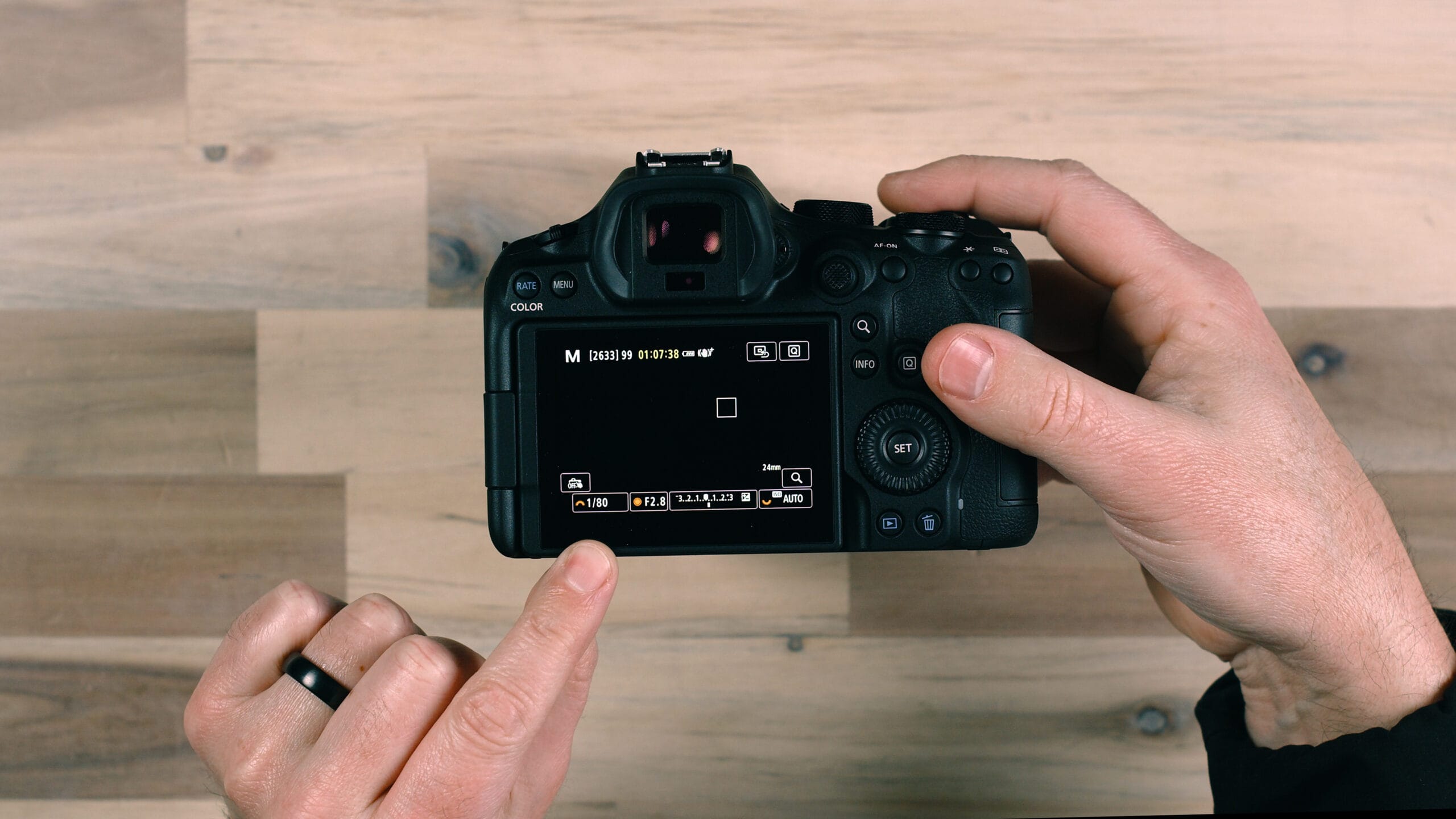
Manual mode also unlocks the full menu system and every customization option the camera offers. These cameras are designed for manual mode use — it’s where you get access to the complete feature set and where the R6 III truly shines.
If you want structured guidance through this progression, my free Ditch Auto: How to Shoot in Manual Mode course walks you through every step, including the photography fundamentals that make it all click.
Canon EOS R6 III Quick Reference
Here’s a quick reference for the physical controls covered in this guide:
Top of Camera: Mode dial (Auto, Av, Tv, M, Scene, Custom, Video, Bulb), Power switch with Lock position, Main dial (shutter speed in M mode), ISO dial (near power switch)
Left Side: Photo/Video mode toggle
Back of Camera: Menu button, D-pad (focus point / face selection), Zoom/Magnify button, Info button (display cycling), Q button (quick settings), Set button (subject tracking), Rear dial (aperture in M mode), Touchscreen (tap to focus, pinch to zoom)
Right Side: SD card slot, CFexpress Type B card slot
Left Side Ports: USB-C (file transfer + charging), Full-size HDMI, Microphone input, Headphone output, Wired remote trigger
Bottom: LP-E6P battery compartment, Battery grip mount
Front: Depth of field preview button
Lens (RF 24-70mm f/2.8L IS USM): AF/MF switch, Image Stabilization switch, Zoom lock, Customizable control ring
Frequently Asked Questions
What memory cards does the Canon EOS R6 III use?
The Canon EOS R6 III has two card slots: one CFexpress Type B slot and one SD card slot (UHS-II compatible). A CFexpress Type B card is required to access the camera’s fastest burst shooting modes, 7K video recording, and high frame rate options like 4K 120fps. An SD card alone will handle standard photo and 4K video shooting, but you’ll miss out on the R6 III’s most demanding features without a CFexpress card.
What battery does the Canon R6 III use?
The R6 III uses Canon’s LP-E6P battery. It is also backward compatible with older LP-E6N and LP-E6 batteries, though you may see reduced performance or limited access to certain features with the older versions. I recommend having at least two or three LP-E6P batteries if you’re shooting events or video.
Can I charge the Canon R6 III with USB-C?
Yes. The Canon EOS R6 III supports USB-C charging directly through the port on the side of the camera. You can charge it with any USB-C cable connected to an appropriate power adapter, the same way you’d charge a smartphone. The camera can also transfer files to a computer through the same USB-C port.
Do I need to be in video mode to record video on the R6 III?
No. You can press the dedicated record button at any time, even in photo mode, and the camera will start recording video. However, switching to video mode gives you access to video-specific settings and displays audio level meters on the back screen, which is important for monitoring sound. For planned video recording, always switch to video mode first.
What is the difference between RAW and JPEG on the Canon R6 III?
RAW files capture all of the image data from the sensor, giving you significantly more flexibility when editing in software like Adobe Lightroom. You can recover highlights, adjust white balance, and reduce noise without degrading image quality. JPEG files are processed and compressed in-camera, resulting in smaller files that are ready to share immediately but offer much less editing latitude. You can also shoot RAW + JPEG simultaneously so you have both versions of every image.
Should I format my memory card in the camera or on my computer?
Always format your memory cards in the camera. The Canon EOS R6 III formats cards with a specific file system structure optimized for the camera’s operation. Formatting on a computer may use different settings that can occasionally cause corruption or reliability issues. Navigate to the Format Card option in the menu, select your card, and follow the prompts. Always verify your photos are backed up before formatting.
What is Lock mode on the Canon R6 III?
Lock mode is a position on the power switch that disables certain buttons and dials on the camera to prevent accidental setting changes. This is useful when the camera is hanging from a strap or you’re moving between shots quickly. Which controls get locked is customizable in the camera’s menu system. Slide the power switch to the Lock position to activate it, and back to On to unlock.
Can I use the Canon R6 III with older Canon EF lenses?
Yes, with an adapter. The R6 III uses Canon’s RF lens mount, but Canon’s EF-EOS R mount adapter allows you to use EF and EF-S lenses with full autofocus and image stabilization support. Native RF lenses will give you the best performance, including access to features like the customizable control ring, but your existing EF glass will work well with the adapter.
What shooting mode should a beginner use on the Canon R6 III?
Start in Auto mode to get comfortable with the camera, then progress to Aperture Priority (Av) mode when you want control over background blur and depth of field. From there, learn Shutter Priority (Tv) for action photography, and eventually move to full Manual (M) mode for complete creative control. This step-by-step progression builds your understanding of each setting without overwhelming you.
Keep Learning
This guide covers the essentials to get you up and shooting with your Canon EOS R6 Mark III, but there’s a lot more to explore. Here are some resources to continue your learning:
- Canon R6 III Full Course — My comprehensive course covering every control, menu item, and function on the R6 III in detail.
- Ditch Auto: Shoot in Manual Mode — Free course on photography fundamentals and manual mode mastery.
- Canon R6 III Sample Image Gallery — Real-world sample images shot with the R6 III and the RF 24-70mm f/2.8, with full EXIF data.
- Free Photography Newsletter — Tips, gear recommendations, and photography insights delivered to your inbox.
If you have any questions about the Canon EOS R6 III, drop a comment below or reach out — I’m happy to help.
Canon EOS R6 III Body: https://jerad.link/canonr6iii | Canon RF 24-70mm f/2.8 Lens: https://jerad.link/canonrf2470lis | Prograde CFexpress Type B: https://jerad.link/pgd512cfxb | Prograde SD Card: https://jerad.link/progradev90sd128gb