By Jerad Hill | Jerad Hill Photo
If you just picked up the Sony a7 V, congratulations — you’re holding one of the most capable full-frame mirrorless cameras available today. But powerful cameras come with a lot of buttons, menus, and decisions to make, especially if you’re new to Sony or stepping up from a simpler system. This guide is designed to walk you through everything you need to know to get up and shooting with confidence, right from the start.
I’ve been shooting Sony for over a decade and have produced quick start guides for every generation of this camera line. Whether you’re brand new to photography or just new to this specific body, this guide will help you understand the key controls, settings, and workflows that matter most — without overwhelming you with unnecessary technical detail.
Want to go deeper? For a complete walkthrough of every menu setting and advanced feature, check out my in-depth Sony a7 V course. And if you’re new to manual mode entirely, my free Ditch Auto course will get you there fast.
Powering On and the Mode Dial
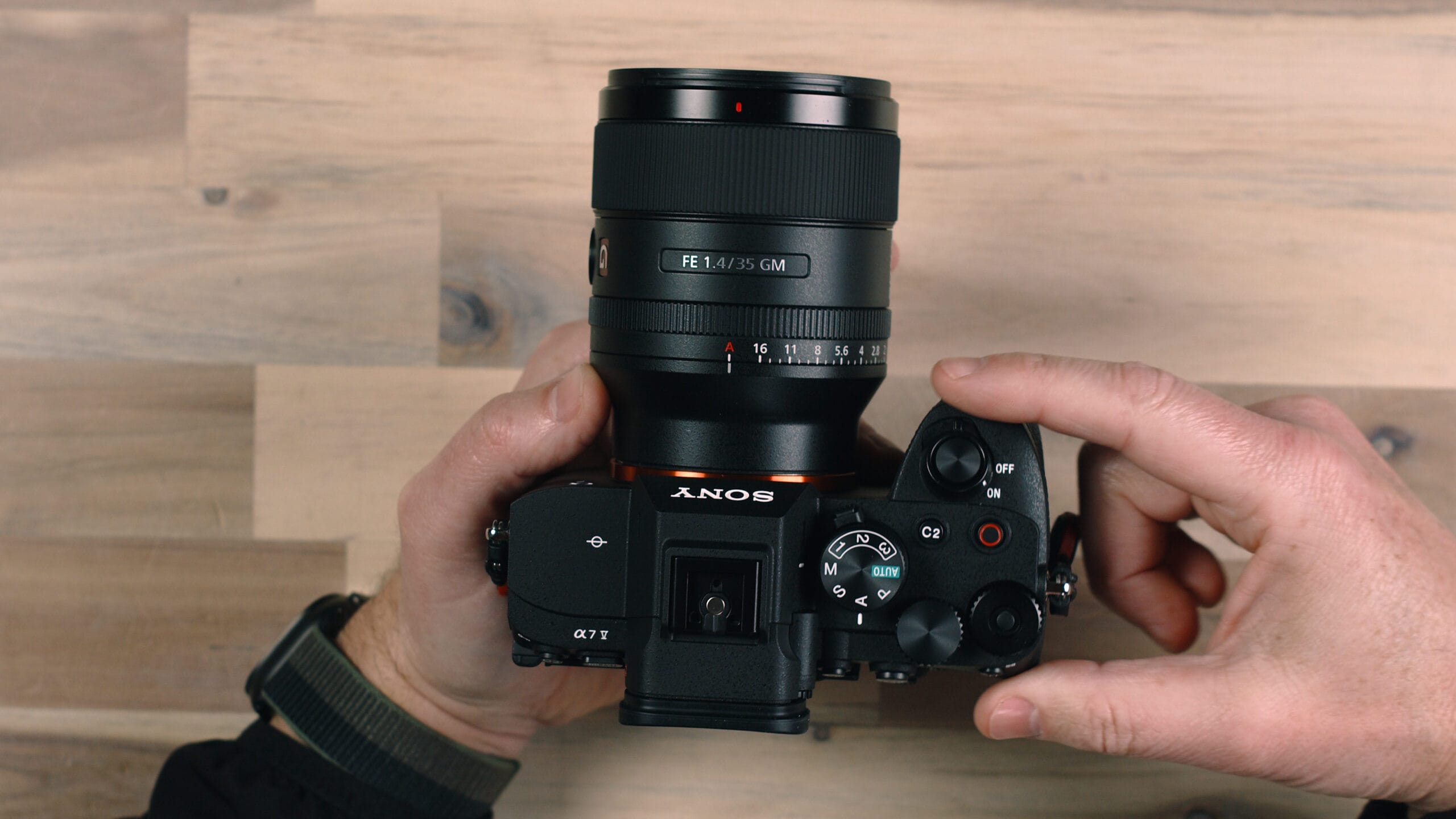
Getting started with the Sony a7 V is straightforward. The power switch is located directly around the shutter button on the top of the camera — a logical placement that makes it easy to power on and shoot in one smooth motion.
The Mode Dial
Next to the shutter button is the mode dial, which controls how the camera manages exposure. Here’s a breakdown of your options:
- Auto Mode — The camera handles everything: shutter speed, aperture, ISO, and white balance. This is the best starting point if you’re new to photography.
- Aperture Priority (A) — You control the aperture; the camera sets the rest. Great for portraits and depth of field control.
- Shutter Priority (S) — You set the shutter speed; the camera handles aperture and ISO. Ideal for sports and fast-moving subjects.
- Program Mode (P) — The camera selects both aperture and shutter speed, but you can shift the combination. A middle ground between auto and manual.
- Manual Mode (M) — Full control over shutter speed, aperture, and ISO. The mode used by most professionals.
- Custom Modes (C1, C2, C3) — Save your favorite settings profiles for quick access. For example, C1 for portraits, C2 for long exposure, C3 for video-specific settings.
It’s worth noting that when you’re in Auto mode, many of the physical controls on the camera — like the front dial for aperture or the rear dial for shutter speed — won’t function. The camera is doing all the work. To unlock the full potential of the camera’s controls, you’ll need to move into one of the manual-assist modes or full Manual.
Other Top-of-Camera Controls
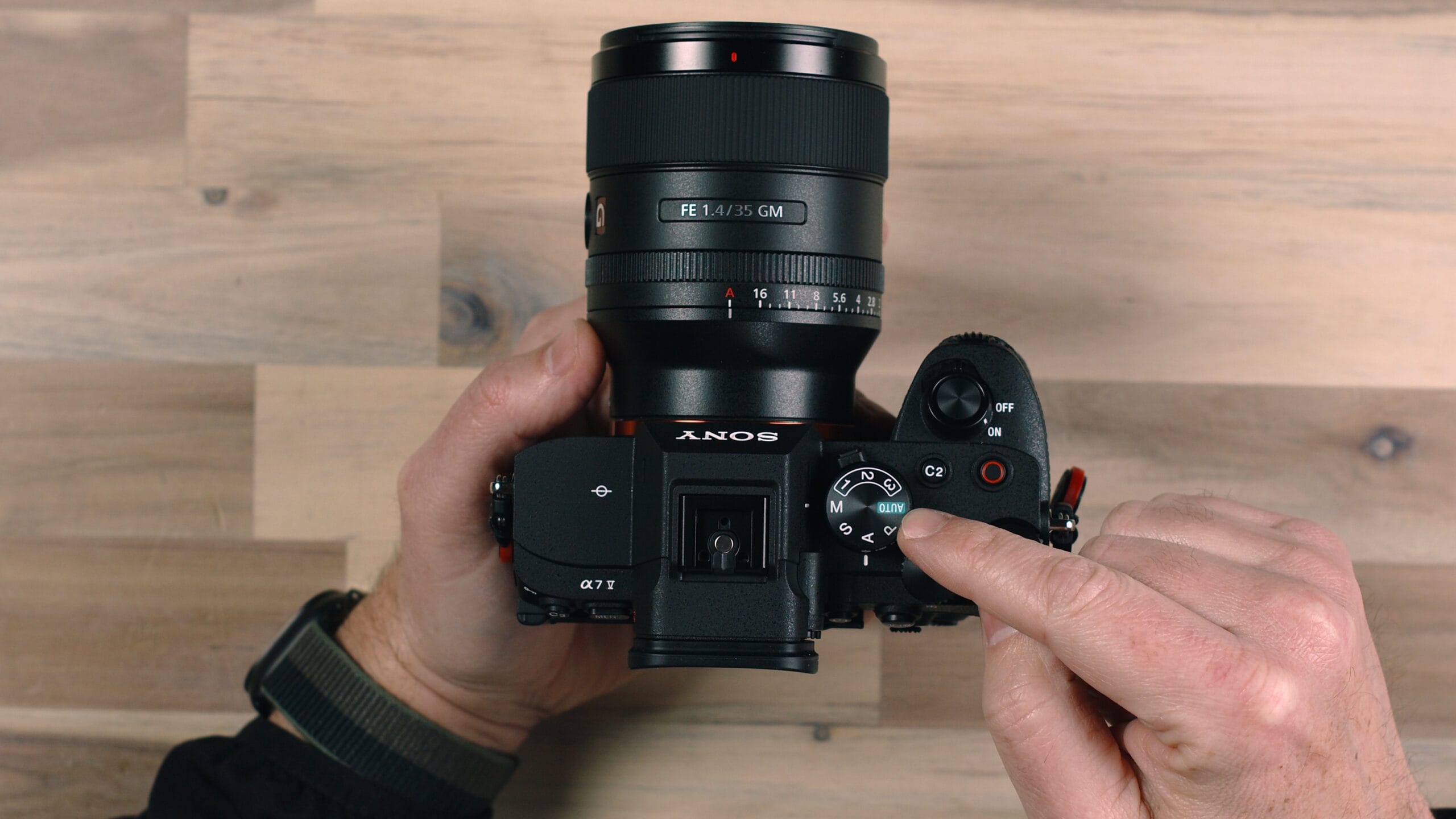
Beyond the mode dial, the top of the camera includes several additional controls worth knowing:
- Record Button — Starts and stops video recording from any shooting mode.
- Shutter Speed Toggle — Adjusts shutter speed when in manual modes.
- Exposure Compensation Toggle — A lockable dial that defaults to exposure compensation, useful for quickly brightening or darkening your exposure in semi-automatic modes.
- Custom Button 2 (C2) — Defaults to focus area selection.
Photo Mode vs. Video Mode
The a7 V has a dedicated selector below the mode dial that switches between Photo, Video, and S&Q (Slow & Quick) mode.
- Photo Mode — Displays photo-centric information on the screen. You can still record video from this mode, but you won’t see audio meters or video-specific readouts.
- Video Mode — Switches the display to show video-relevant information including audio level meters, remaining record time, and resolution settings.
- S&Q Mode — For shooting slow motion or time-lapse style footage at variable frame rates.
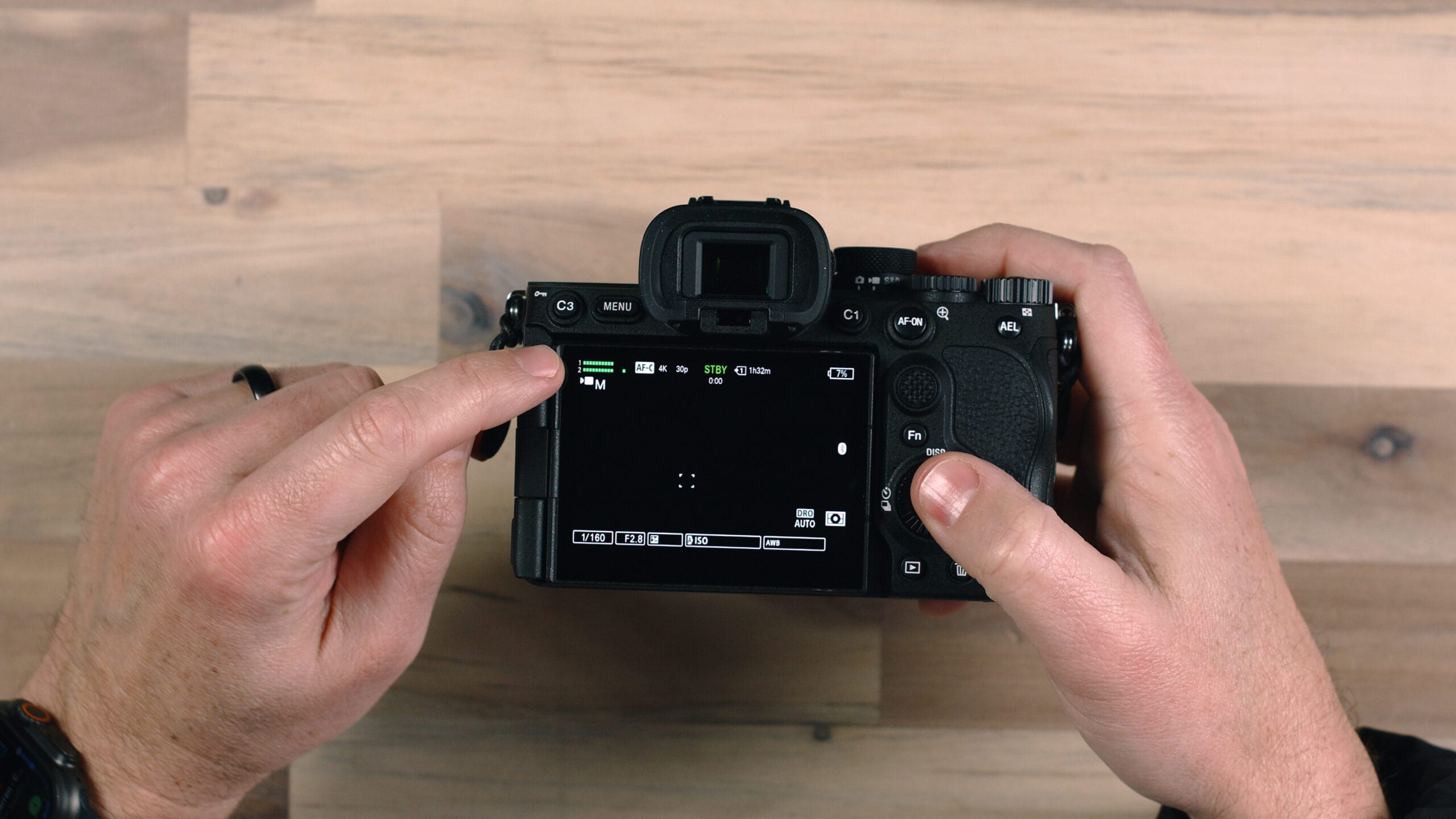
Pro Tip: You can hit the record button to capture video even while in Photo mode — handy when an unexpected moment unfolds and you want to capture it quickly. But if you’re intentionally shooting video, switch to Video mode so you can monitor your audio levels and ensure your settings are dialed in.
Back of Camera: Controls and Navigation
Menu Button
The Menu button on the left side of the back panel opens the camera’s full settings menu. One important thing to know: in Auto mode, many menu options will be grayed out or unavailable. To access the full range of settings, you’ll need to be in Manual mode or one of the semi-automatic modes.
Custom Buttons
The a7 V has several programmable custom buttons that you can assign to frequently used features. The defaults are well-chosen and practical:
- C1 (back of camera) — White balance
- C2 (top of camera) — Focus area selection
- C3 (back of camera) — Focus modes
- C4 (trash can position) — Touch operation on/off, useful if you accidentally change settings by touching the screen
All of these can be reprogrammed through the menu to suit your personal shooting style.
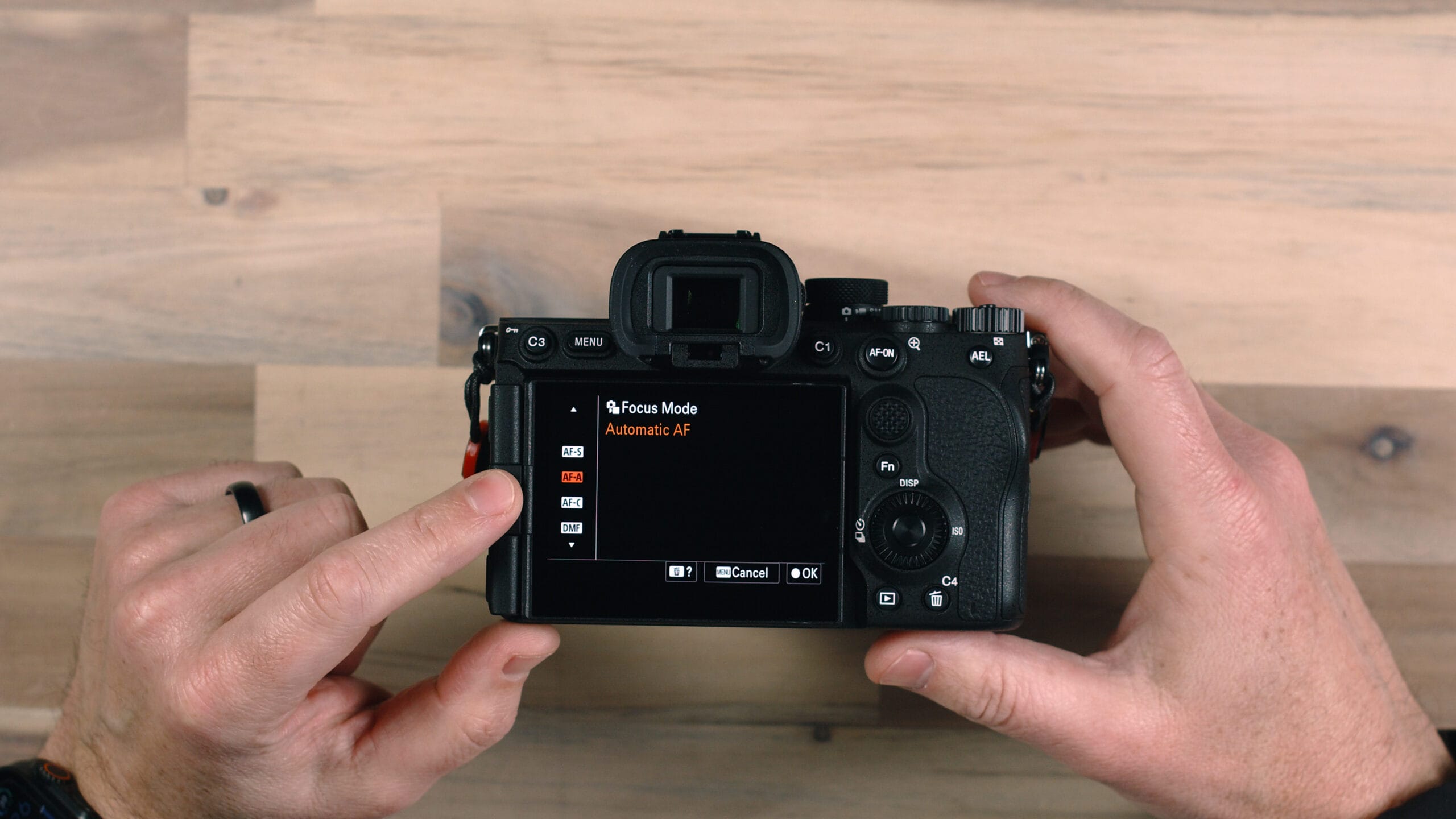
AF-ON Button
The AF-ON button on the back activates autofocus when pressed, separate from the shutter button. This enables a technique called back-button autofocus, which many professional photographers prefer. In Single Shot mode, autofocus only activates when you half-press the shutter or press AF-ON. The AF-ON button also doubles as a zoom-in button when reviewing images in playback — press it and rotate the rear dial to zoom in and out.
The D-Pad and Rear Dial
The directional pad (D-pad) and rear dial serve multiple purposes depending on whether you’re shooting or reviewing images:
- D-Pad Up — Change display mode
- D-Pad Left — Drive mode (single, continuous, timer, bracket)
- D-Pad Right — ISO adjustment (manual modes only)
- Rear Dial — Navigate menus and adjust settings; also used to zoom in/out during image playback
The Function (Fn) Button
Pressing the Fn button opens a quick-access menu overlay on your screen with commonly used settings. You can navigate it using the D-pad or rear dial. This is one of the fastest ways to adjust things like creative looks, metering mode, SteadyShot, and subject recognition mode (person, animal, bird, and more) without digging into the main menu.
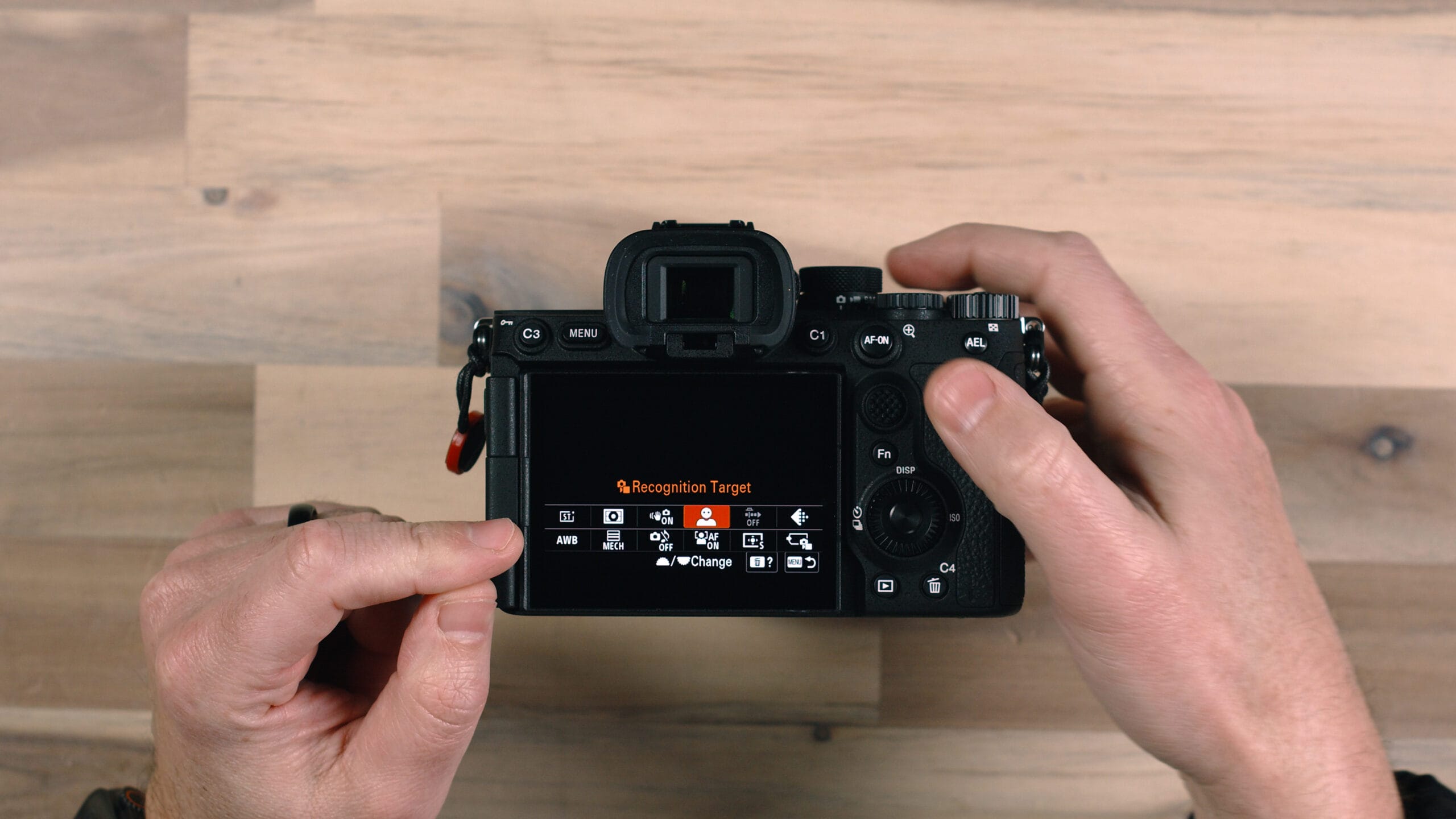
Touchscreen Navigation
The back of the a7 V is fully touch-responsive, similar to a modern smartphone. You can pinch to zoom during playback, tap to set a focus point, and swipe through images. If you find yourself accidentally changing settings by brushing the screen, simply press C4 to temporarily disable touch operation.
Memory Card Slots: SD vs. CF Express Type A
Open the door on the right side of the camera and you’ll find two card slots. Both accept standard SD cards, but Slot 1 also supports CF Express Type A cards.
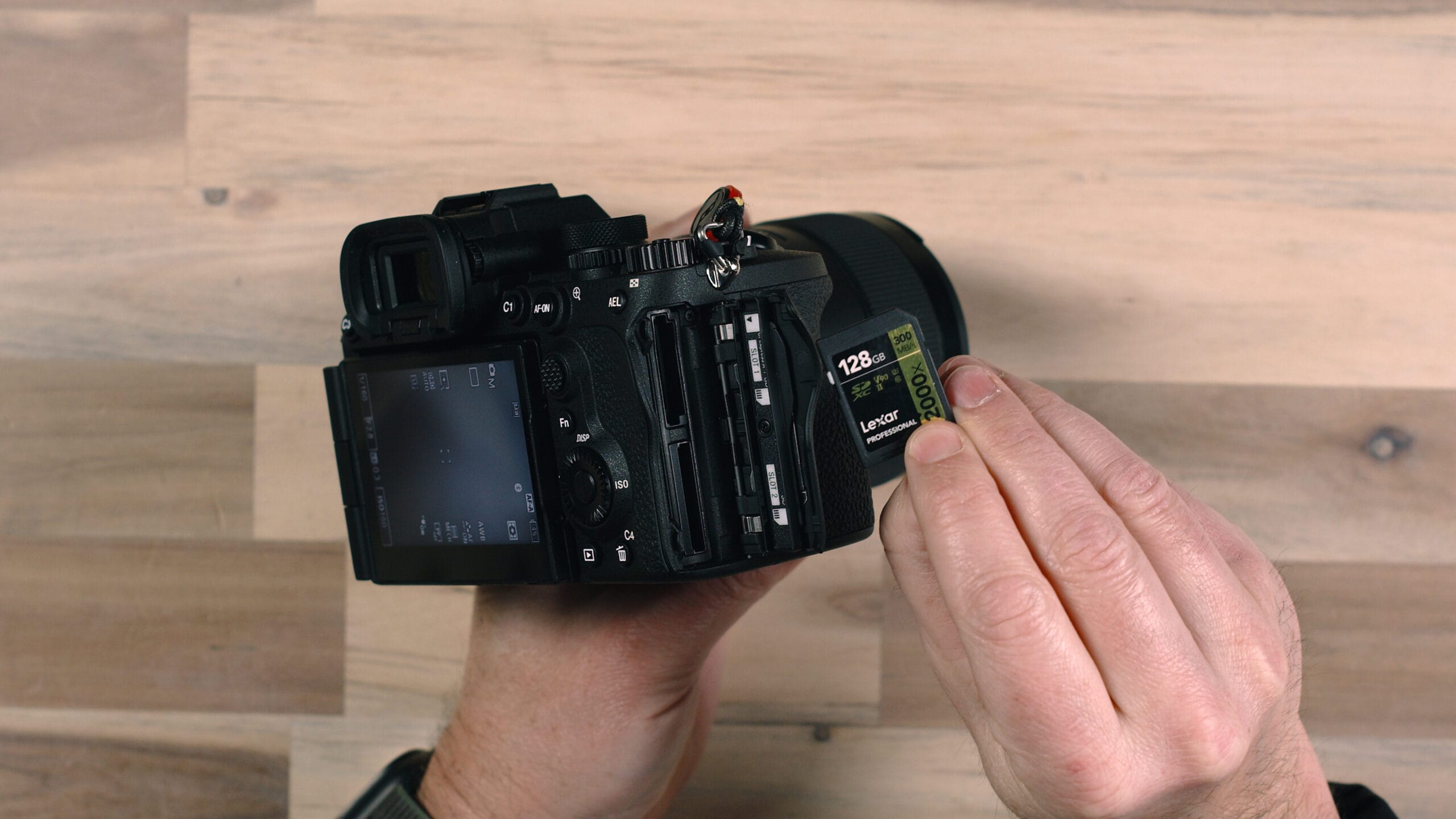
SD Cards
For most shooters, a V90-rated SD card is the best choice. V90 indicates a minimum sustained write speed of 90 MB/s — fast enough for everything the a7 V offers, including continuous high-speed shooting, 4K video, and high bitrate recording. A 128GB V90 card is a solid starting point with plenty of capacity for a full day of shooting.
CF Express Type A
CF Express Type A cards offer faster read and write speeds than even the best SD cards. This translates to two practical benefits: the camera can write data to the card more quickly during fast continuous shooting, and offloading files to your computer is significantly faster. If your budget allows, a CF Express Type A card in Slot 1 is a worthwhile upgrade — especially for high-volume professional work.
Dual Card Slot Workflows
Having two card slots opens up several useful options:
- Backup/Redundancy — Write to both cards simultaneously. If one card fails, your images are safe on the other.
- RAW + JPEG Split — Send RAW files to one card and JPEGs to the other.
- Photo/Video Split — Route photo files to Slot 1 and video files to Slot 2.
- Overflow — Continue recording to the second card automatically when the first fills up.
Ports and Connectivity
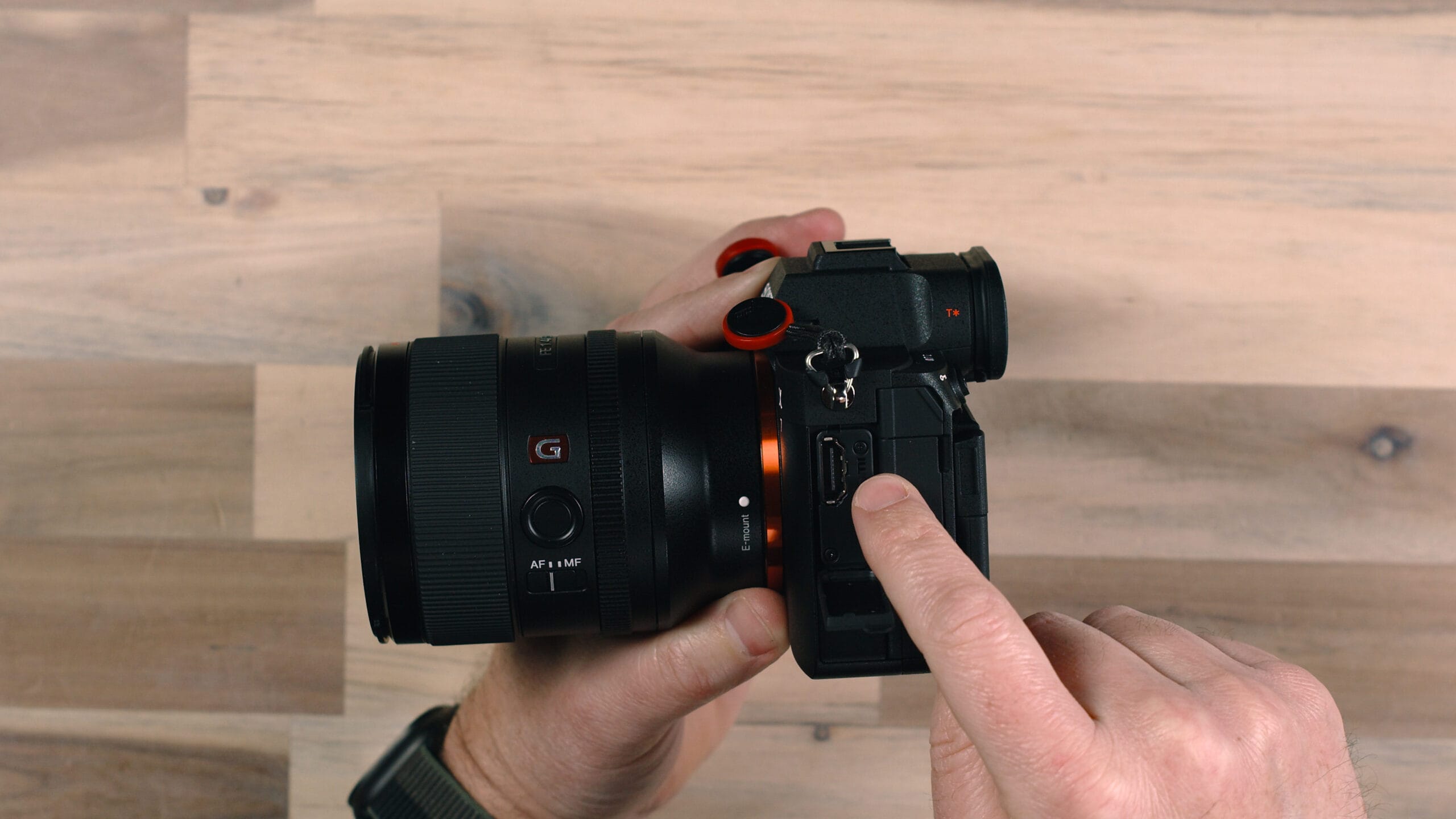
The left side of the a7 V houses several important connection points behind protective doors.
HDMI Port
The a7 V features a full-size HDMI port, which lets you connect to an external monitor or television. This is useful for reviewing shots on a larger screen, monitoring live video on set, or feeding a clean HDMI signal to a capture device for streaming or external recording.
Microphone Input
The 3.5mm microphone jack allows you to connect external microphones directly to the camera. You can use a wired microphone mounted to the hot shoe, or connect a wireless system (such as a Rode Wireless GO) using a short cable from the receiver into the mic port. External audio input is essential for professional-quality video work.
Headphone Output
The 3.5mm headphone jack lets you monitor audio in real time while recording. Plugging in headphones while shooting video is one of the best habits you can develop — it lets you catch audio problems like wind noise, cable rattle, or low levels before they ruin your footage.
Dual USB-C Ports
This is one of the a7 V’s most underrated features: two USB-C ports. You can simultaneously connect the camera to a computer for live streaming or file transfer on one port, while charging the camera on the other. For photographers and videographers who work long sessions, this eliminates the frustration of having to choose between staying powered and staying connected.
The Display: Tilt, Flip, and Protection
The rear display on the a7 V is both tilt-capable and fully articulating — it tilts out vertically and rotates to face virtually any angle. This is extremely useful for shooting from low angles, overhead, or self-recording in front of the camera.
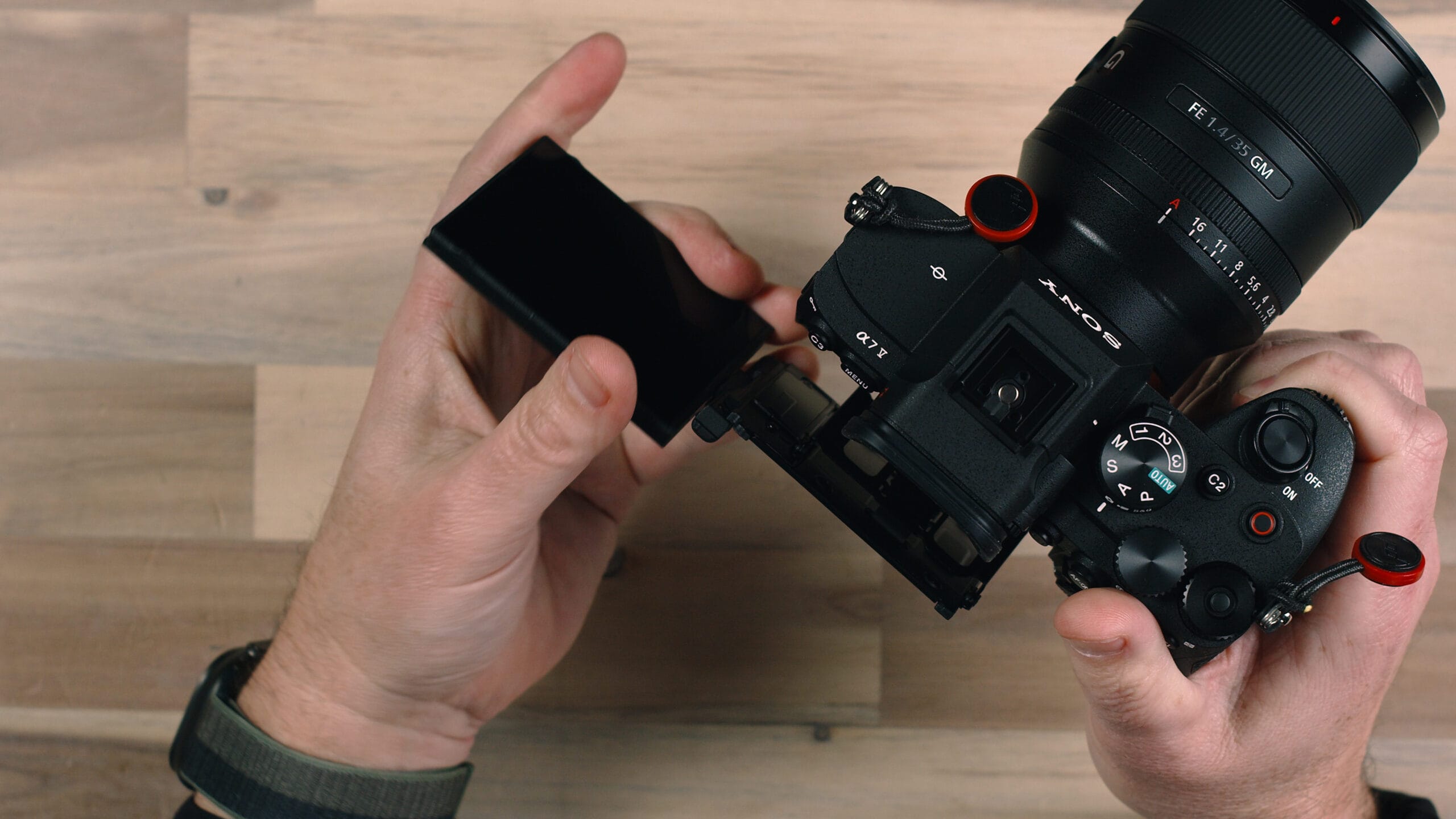
Important habit: When storing the camera in a bag, close the display with the screen facing inward toward the camera body. This protects the display from scratches and impact during transport.
The battery door on the bottom of the camera can also be removed by sliding a small retaining tab — this allows you to attach an optional extended grip that adds portrait-orientation shooting controls and can accommodate a second battery for extended runtime on long shooting days.
Understanding Your Lens Controls
Different lenses offer different controls, and what’s available to you depends on the specific lens you’re using.
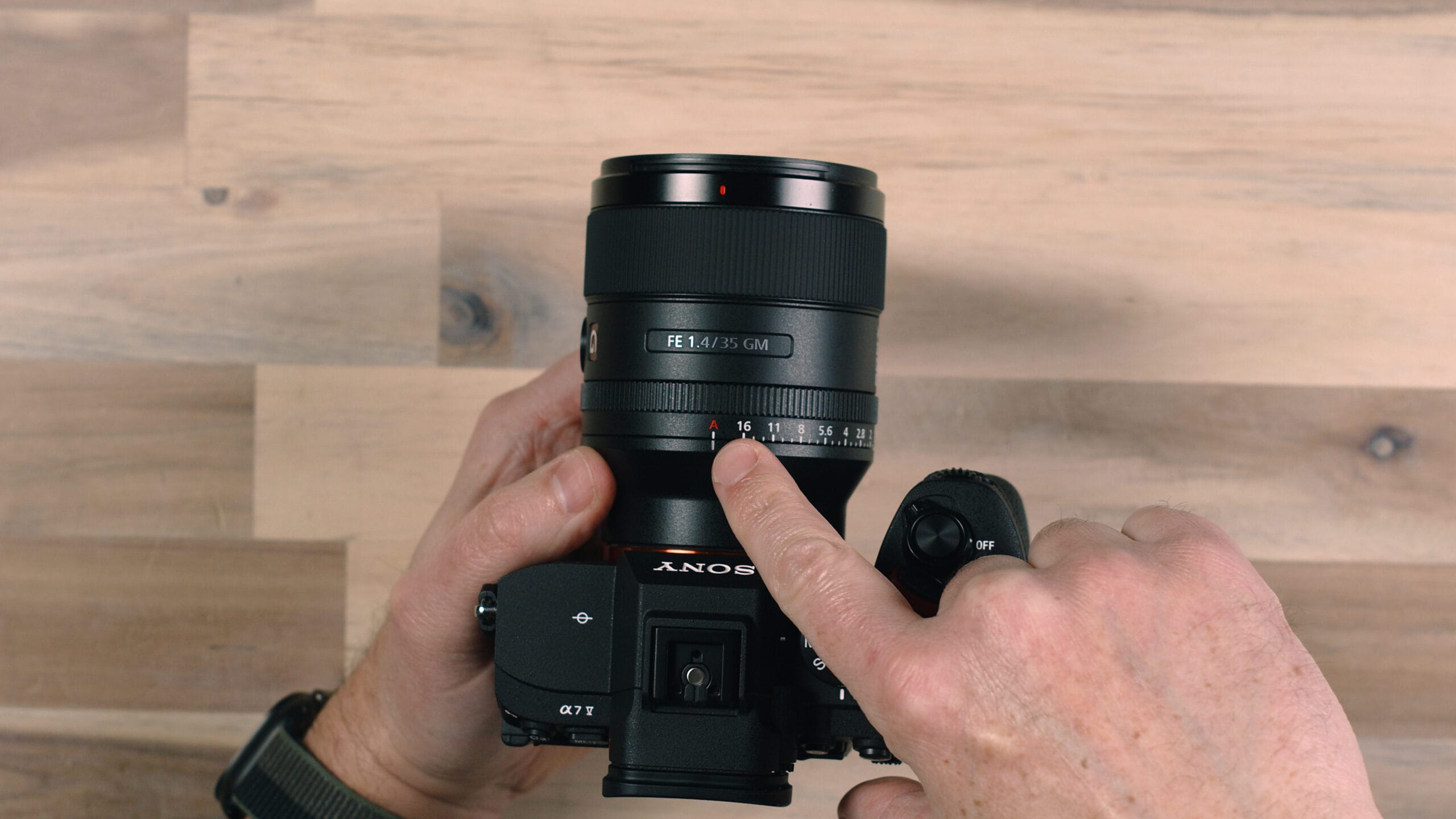
Aperture Ring
Many Sony lenses include a dedicated aperture ring on the barrel. This ring often has a click/de-click switch:
- Clicked mode — The ring steps through each aperture stop with a satisfying click. Good for precise, intentional adjustments in photo work.
- De-clicked mode — Smooth, continuous aperture adjustment with no stops. Ideal for video, where abrupt exposure changes would be visible and distracting.
Focus Ring
The focus ring controls manual focus. When the camera is set to autofocus, the ring does nothing — the camera is focusing for you. Switch to manual focus mode and the ring becomes your primary focus control, giving you precise, hands-on adjustment over what’s sharp in the frame.
Focus Hold Button
Some lenses include a focus hold button on the side of the barrel. By default, pressing this button locks the current autofocus position so the camera doesn’t hunt for a new subject. This is extremely useful when you’ve locked focus on a specific point and want to hold it while waiting for the right moment. Like the custom buttons on the body, this button can also be reprogrammed through the menu.
Key Menu Settings: Image Quality and File Format
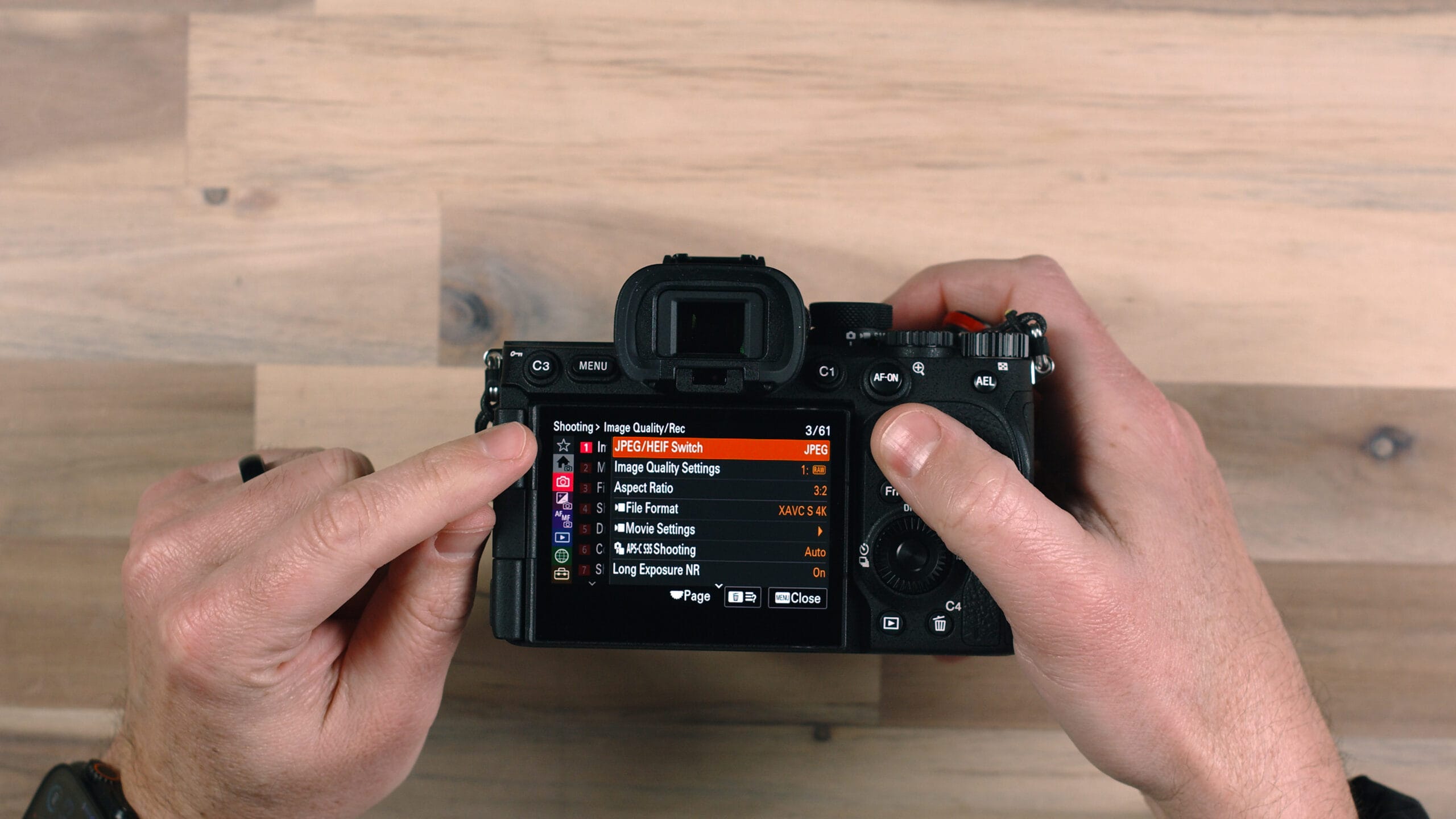
The Sony a7 V menu is comprehensive. Here are the most important settings to understand from the start.
JPEG vs. HEIF vs. RAW
The camera offers three main file formats for still images:
- JPEG — A compressed, universally compatible image file. Ready to share immediately — via social media, email, or directly from your phone. Smaller file sizes, but limited editing flexibility after the fact.
- HEIF (High Efficiency Image File) — A more modern, efficient format that delivers equal or better quality than JPEG at smaller file sizes. Available in 4:2:0 and 4:2:2 versions — 4:2:2 offers higher color accuracy. Requires compatible devices to view.
- RAW — Captures the full, unprocessed sensor data. Larger files, but maximum editing flexibility in Lightroom or any RAW processor. Adjustments to exposure, white balance, color grading, and noise reduction are far more powerful with RAW files.
Recommendation: If you plan to edit your images, shoot RAW. If you’re just getting started or want files that are immediately shareable, JPEG works fine. You can also shoot RAW + JPEG simultaneously — useful if you want to hand off quick JPEGs to clients while preserving RAW files for your own editing workflow.
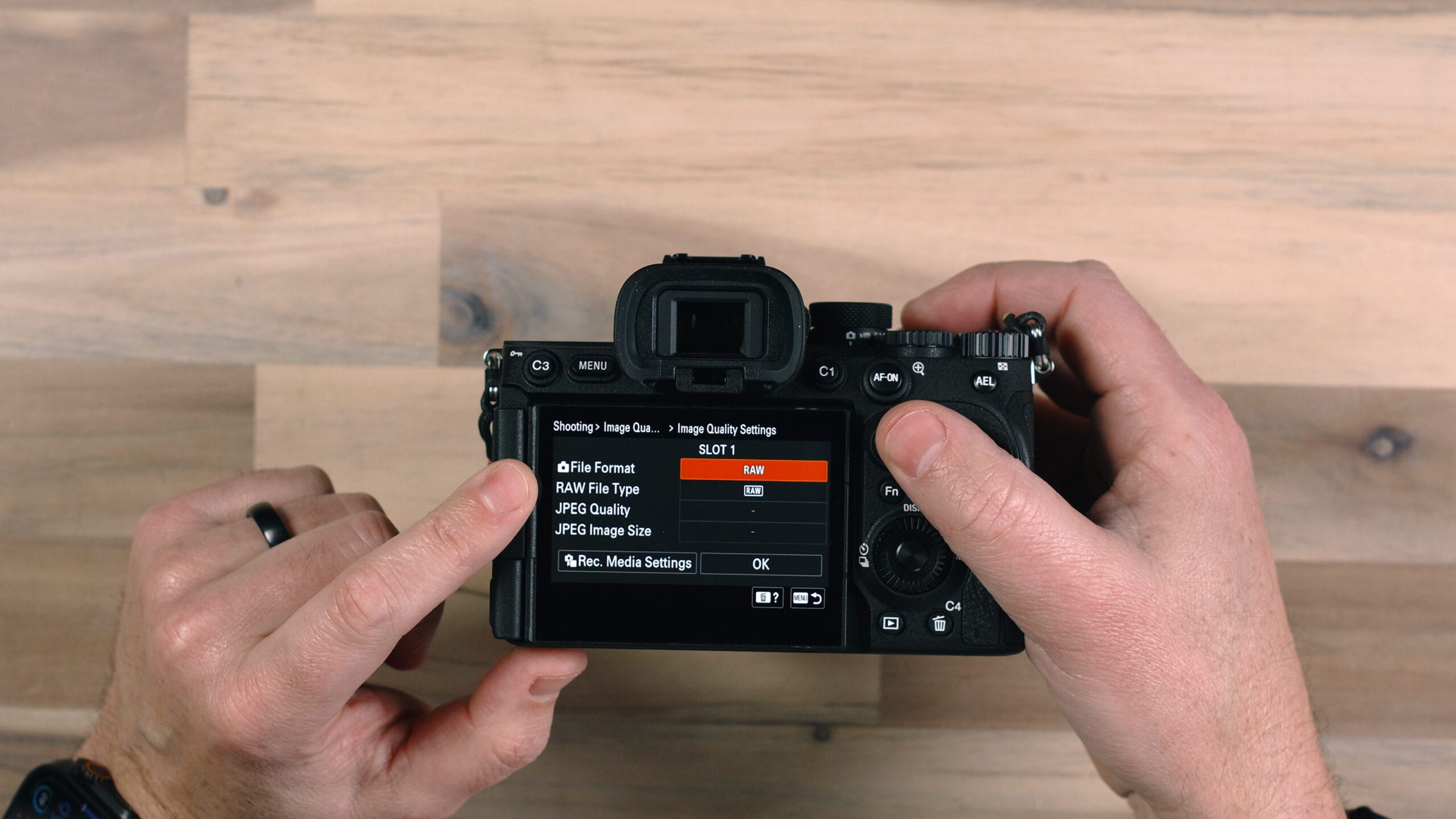
RAW Compression Options
When shooting RAW, the camera offers several compression levels:
- Lossless Compressed — No image data is sacrificed. Larger files but fully intact information.
- Compressed HQ — High-quality compression with minimal quality impact and smaller file sizes.
- Compressed — Smallest RAW files with some quality trade-off. Best for high-volume shooting where storage or card speed is a concern.
Record Media Settings
The Record Media Settings let you specify exactly where each type of file goes across your two card slots. You can send photos to Slot 1 and video to Slot 2, RAW files to one card and JPEGs to the other, or configure overflow recording so shooting continues seamlessly when one card fills up.
Video Settings: Resolution, Frame Rate, and Bitrate
If you plan to shoot video with the a7 V, these are the settings you’ll need to know.
File Format / Resolution
Navigate to the File Format menu under your shooting settings. Your main options are:
- XAVC HS 4K — High-efficiency 4K recording using H.265 compression. Better quality at smaller file sizes, but requires a compatible computer and software for editing.
- XAVC S 4K — The most widely compatible 4K format, using H.264. Slightly larger files than HS, but works with more editing systems out of the box.
- XAVC S HD — 1080p recording. Smaller files, and more than sufficient for most web and social media delivery.
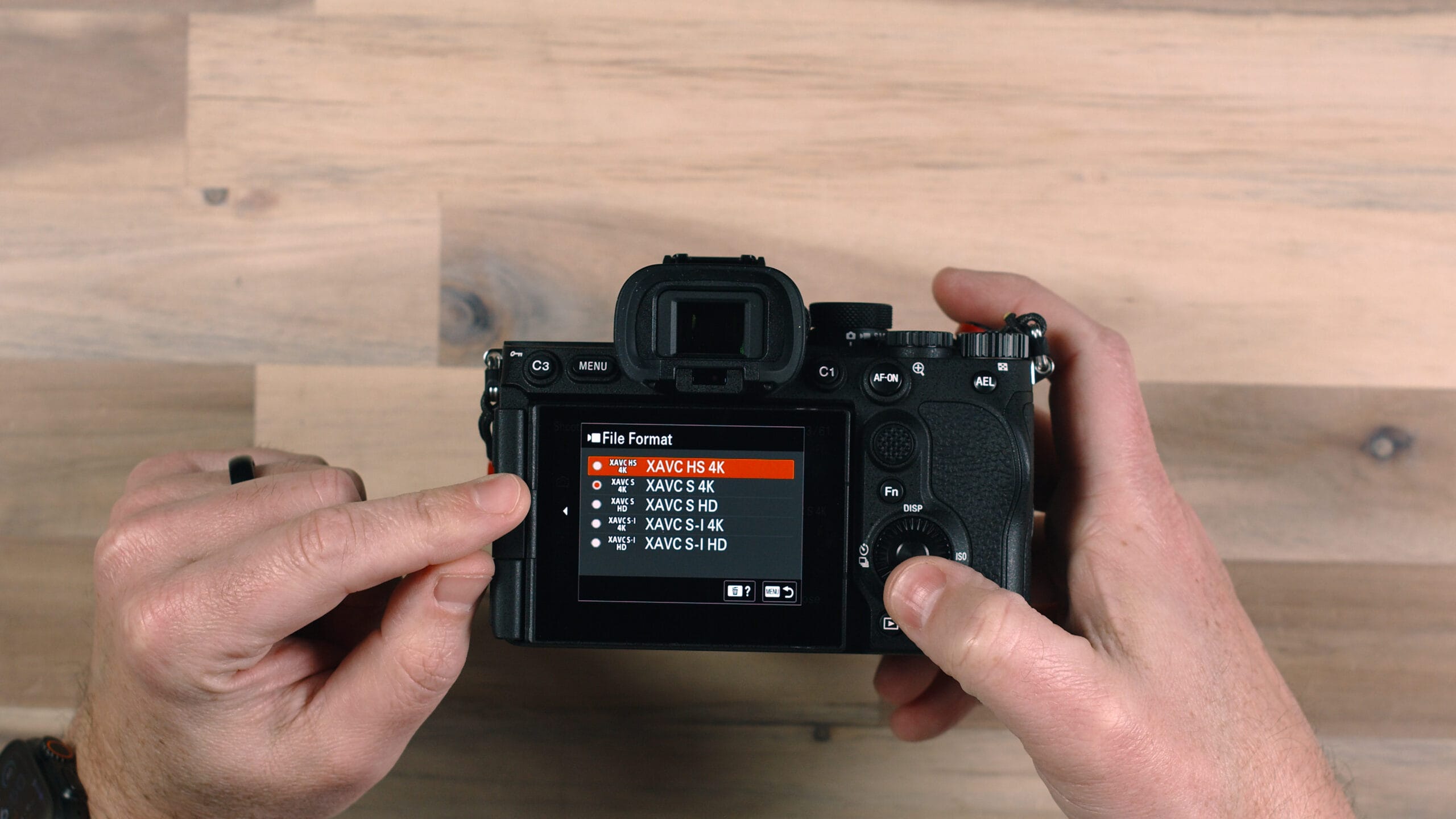
Frame Rate
After selecting your resolution, navigate to Movie Settings to choose your frame rate. The a7 V supports 24, 30, 60, and 120 frames per second at various resolutions. For cinematic footage, 24fps is the standard. For smooth motion or footage you want to slow down in post, 60fps or 120fps gives you the extra frames needed.
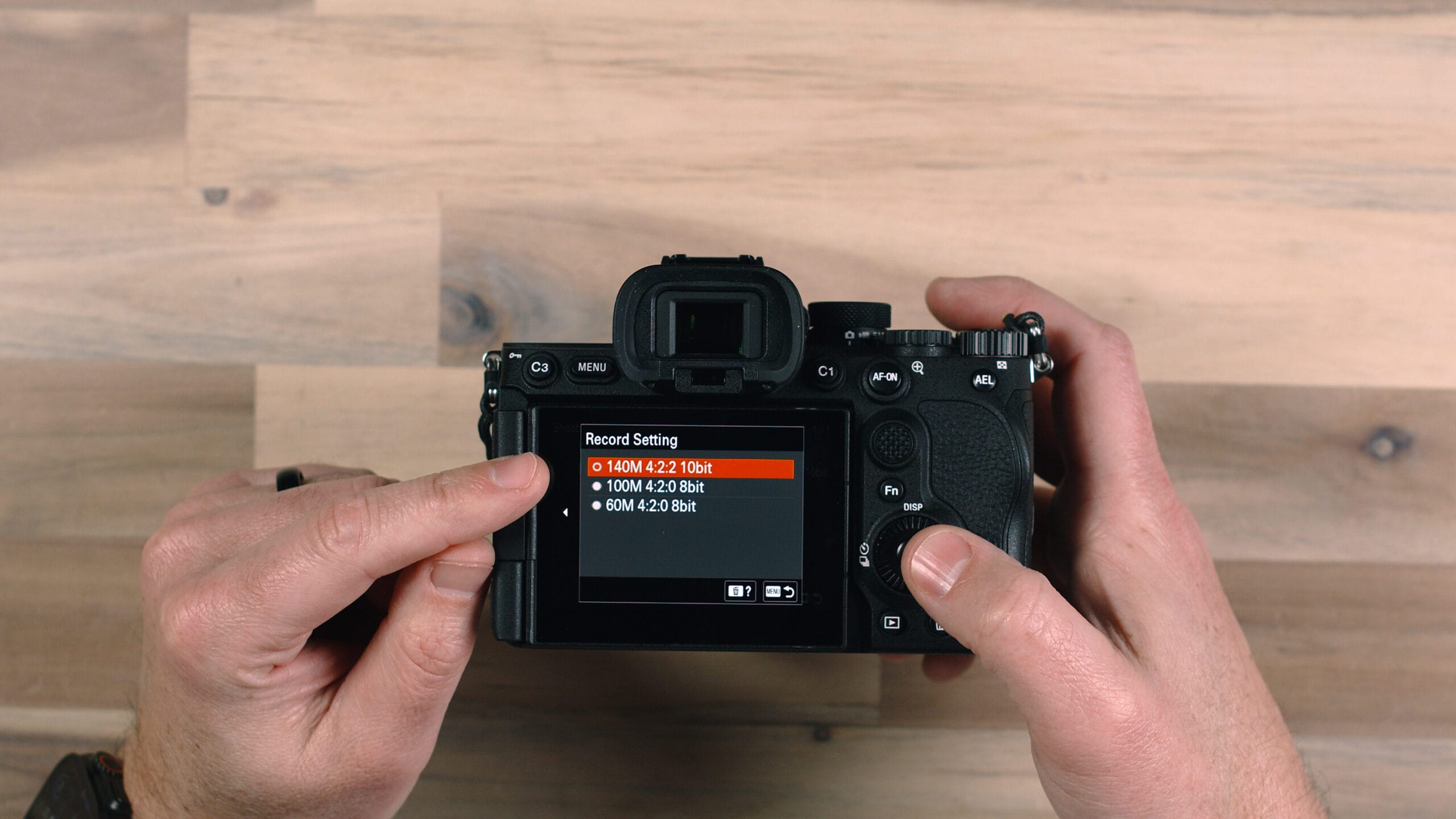
Record Settings / Bitrate
Recommended setting: For the highest quality and most editing flexibility, select 148 Mbps at 4:2:2 10-bit in the Record Settings menu. This gives you the best color information and dynamic range for post-processing. Keep in mind this produces large files and requires a fast memory card — V90 SD or CF Express Type A.
Formatting Your Memory Cards the Right Way
Always format your memory cards in the camera — not on your computer. The Sony a7 V formats cards with a specific folder structure and file system optimized for the camera’s use. Formatting on your computer may use different settings that can lead to file corruption or card access errors later.
To format a card: Menu > Media > Format, then choose Slot 1 or Slot 2.
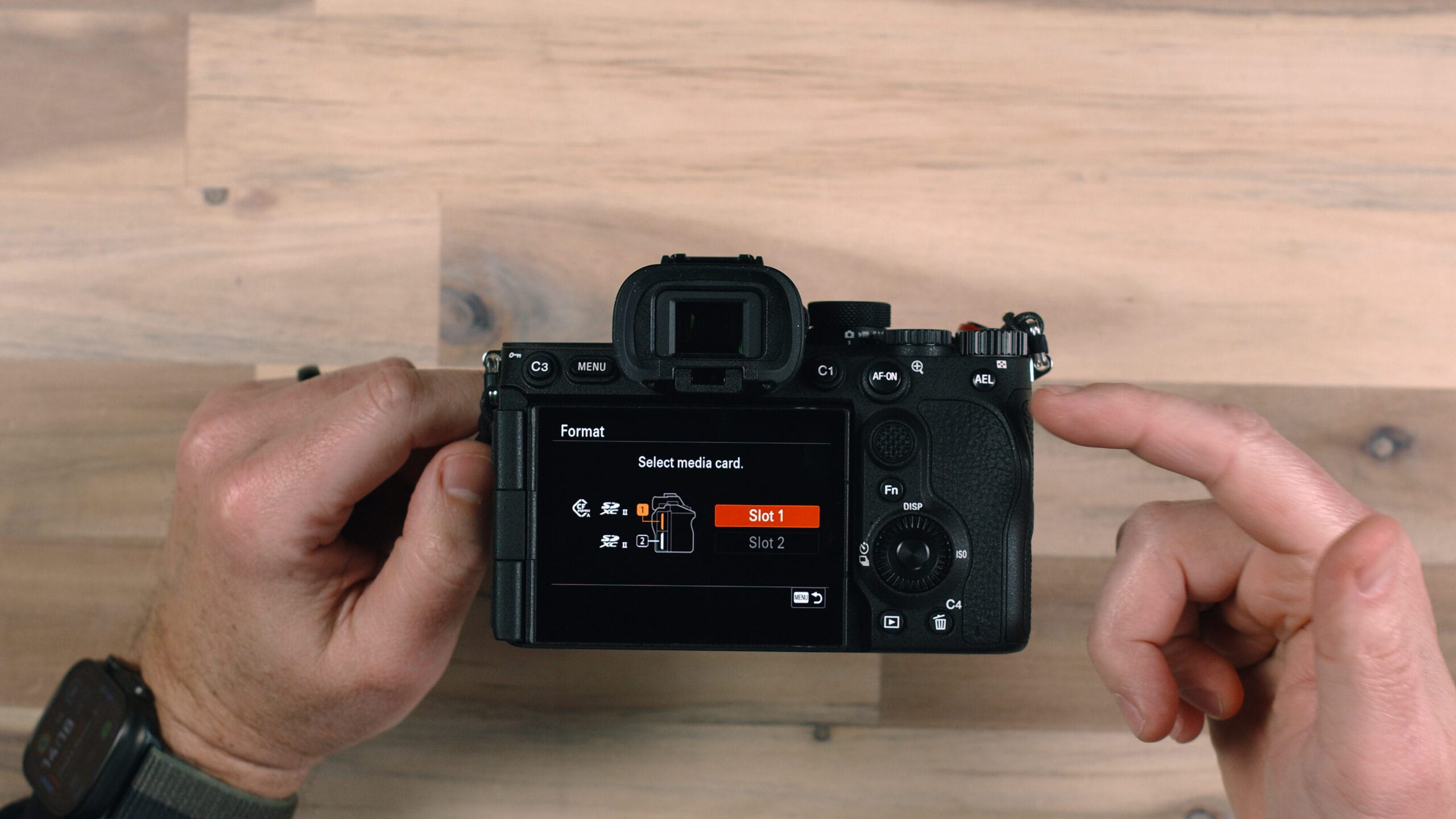
⚠️ Critical warning: Formatting permanently erases everything on the card. Always import and back up your images to your computer before formatting. Keep a couple of extra cards on hand so you’re never forced to format a card that hasn’t been backed up yet.
Recommended Learning Path: From Auto to Manual Mode
If you’re newer to photography, don’t feel pressured to dive straight into Manual mode. Here’s a structured progression that will build your skills naturally:
Step 1: Start in Auto Mode
Use Auto mode to focus entirely on the non-technical fundamentals — composition, framing, timing, and light. You’ll develop an eye for good photographs without being distracted by camera settings. Let the camera handle exposure while you concentrate on what’s inside the frame.
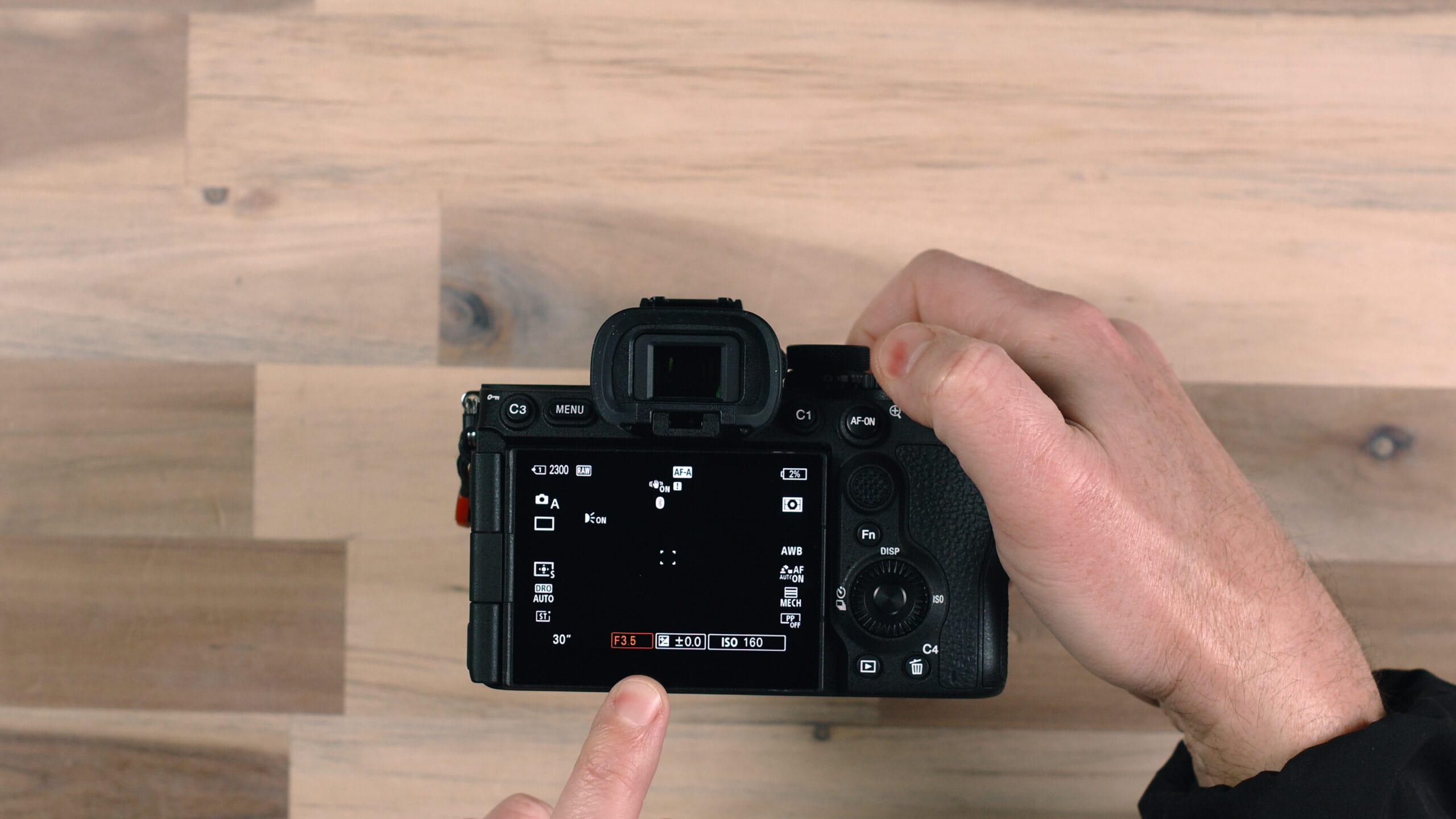
Step 2: Move to Aperture Priority
Once you want to start controlling background blur (depth of field), switch to Aperture Priority. Use the front dial to adjust the aperture — a wide aperture like f/1.4 creates a beautifully blurry background, while a narrow aperture like f/8 or f/11 keeps everything sharp. The camera still handles shutter speed and ISO.
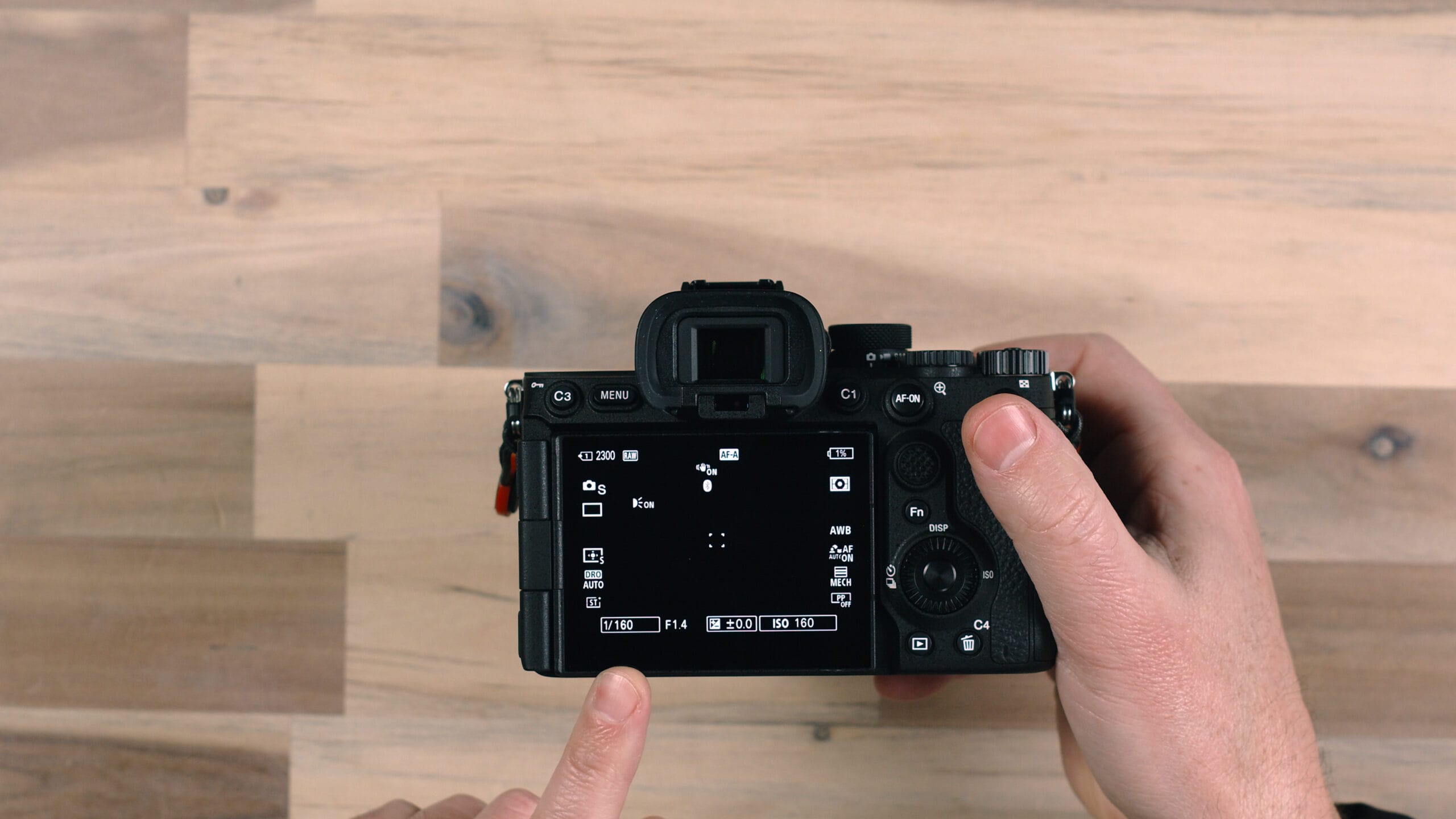
Step 3: Experiment with Shutter Priority
When you’re shooting fast-moving subjects — sports, kids, wildlife — switch to Shutter Priority. Set a high shutter speed (1/500s or faster) to freeze motion, or a slower speed to create intentional blur in creative shots like waterfalls or light trails. The camera handles the rest of the exposure.
Step 4: Graduate to Manual Mode
Once you’re comfortable with aperture and shutter speed individually, bring them together in Manual mode. You’ll have complete control over all three exposure variables simultaneously — giving you the ability to achieve any creative vision regardless of the lighting conditions you’re working in.
Want to fast-track this process? My free Ditch Auto course teaches you everything you need to know to confidently shoot in Manual mode — from understanding the exposure triangle to applying it in real client scenarios. It’s free and has helped over 450,000 photographers make the leap.
Final Thoughts
The Sony a7 V is an incredible camera that rewards those who take the time to learn it. Getting familiar with the physical controls first — the mode dial, custom buttons, card slots, and ports — will give you the confidence to operate it quickly in any situation. From there, understanding your key menu settings for image quality and video ensures you’re always capturing the best possible files.
Don’t try to learn everything at once. Start where you’re comfortable, push into new territory gradually, and trust the process.
For a complete deep-dive into every setting and menu option on the Sony a7 V, check out my full in-depth Sony a7 V course.
Jerad Hill is a professional photographer with 26+ years of experience specializing in weddings, sports, and commercial work. He tests all gear during real client shoots before recommending it.